Use the Assignments tool to manage and assign assignments, also known as Assignment Templates, for your classes.
To learn how to create a custom assignment in Resource Manager, click here.
Accessibility in Assignments #
To assign an accessible lesson to a student, search the ALT (alternate) version of the screen in the Resource Manager and assign. If the accessible version of the lesson is not specifically assigned, the student will not be able to toggle it once opened from Assignments. We are currently working on repairing this bug, and appreciate your patience in the meantime!
Assignment Templates #
The left side of the screen contains Assignment Templates. There are three types of Assignment Templates:
- Quaver: These are pre-made assignments that include assessments, at-home quizzes, and more.
- Custom: These are assignments you have created in Resource Manager.
- District: These are district chosen assignments, if applicable.
Use filters to search for a specific Assignment template by grade or name.

Give Assignment #
To distribute an assignment, select an assignment and click Give Assignment.

Assignment Details #
An Assignment Details screen will appear. Here, you can:
- Assign to one or more classes
- Edit Assignment Name
- Edit Assign Date and Due Date
- Assign to one or more students
- Edit Assignment Description
- Hide Assignments from Students
- Reveal Graded Answers to Students
- View Assignment Contents
- Select Rubric and Grading Scale
If the Assignment Template contains gradable screens, a bubble will be displayed next to the screen title. Select the bubble to make the screen graded.
Click Save to assign to your class. Your assignment will now appear on the right side of your screen.

Class Assignments Given #
On the right side of the Assignments Screen, you will find Class Assignments Given.
After selecting Give Assignment, the assignment will appear here.
Assignments can be organized by Assignment Name or Due Date.
Select an assignment and click Edit Assignment to edit the Assignment Details.
Select the Menu button to launch, reassign, or delete an assignment.
Click Save to assign to a class.
Once an assignment has moved into this column, the assignment content cannot be edited. To learn how to customize lessons and assignments in Resource Manager, click here.

Setting a Grade Scale #
Quaver teachers can adjust the grading scale for each assignment in the Assignment Details window.
To adjust the grading scale:
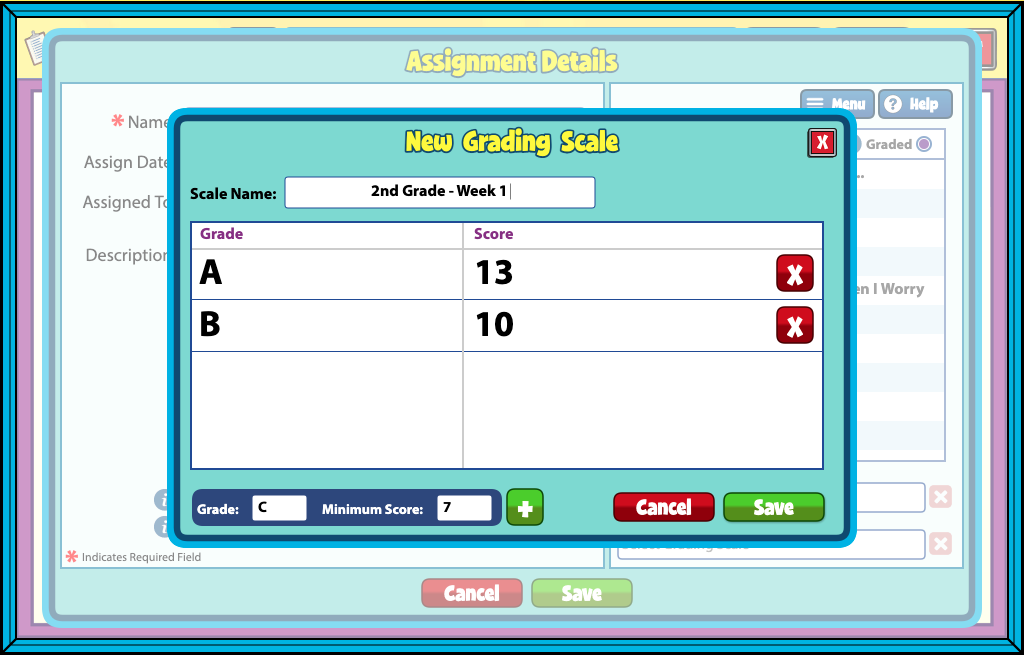
- Click GIVE ASSIGNMENT to open the Assignment Details window.
- In the bottom right corner, click ADJUSTED GRADING SCALE.
- Here, you can choose a previously created grading scale template or click +ADD NEW to create a new one.
- Adjust the grading scale for this assignment by entering each grade letter and the minimum score that should earn that grade. For example, an activity with a possible 16 points might have a minimum score of 13 earn an A, 10 earn a B, 7 earn a C, and so on.
- Enter each rule one by one and click SAVE.
- Back on the menu, select the grading scale you wish to use and click SAVE.

I know I have posted a quiz for my classes before, but now I cannot seem to remember how to do it! I watched the help videos but it seems to only be for ” assignments” Do I make it an assignment?
Hi Peggy,
Yes, custom quizzes will be included within assignments or lessons, but after building can be found in your Resource Manager. Here is the help page on building quizzes, and the help page on navigating Resource Manager. I hope this helps! You can also reach out to our customer support team for direct assistance!