Welcome to QuaverReady! This page will guide you through the essentials to get you up and running quickly, from navigating your dashboard to finding your first resources.
If you’d like a downloadable version of getting started with QuaverReady, select the Quick Start Guide below.
Getting Started Video #
Watch this short Getting Started video to explore the basics of QuaverReady and see how to make the most of your dashboard and resources from day one.
Your Dashboard #
The QuaverReady Dashboard is your home for all resources. Every time you log in, you’ll arrive at your dashboard.
The dashboard is organized into three distinct sections. At the top, you’ll find the curriculum logo, a Switch Curricula button (if you have multiple QuaverEd products), your Inbox, and the Menu. The Menu includes your Account Info and the option to log out, while the Inbox highlights new or updated features.

The top section contains essential support features in a fixed arrangement. The Resource Manager is a powerful tool where you can search for, create, and organize screens, lessons, and assignments. If interested, Admin Tools serves as your one-stop shop for administrative tools, allowing you to create classes, set up student accounts, take attendance, and more!
The lower section displays all of QuaverReady’s content, organized by resource type. This section is customizable to meet your specific needs. Lessons is where the standards-aligned primary curriculum resides, while other icons offer a wide array of interactive resources. We encourage you to take the time to explore them and make the dashboard your own.
You can customize your Dashboard to display only the apps you wish to use, adjust the overall look and feel, and make it your own!

Lessons #
The Lessons icon on your dashboard houses the primary curriculum, offering a full year of lesson plans from Pre-K through 8th grade. Depending on your school’s purchase, you’ll find 36 lessons per grade, organized by unit or lesson.
After selecting the Lessons icon from your Dashboard, you’ll open the Lesson Selection Menu. Choose a grade, organize lessons by suggested order or competency, and select a lesson title to launch.
You can rearrange, add, or remove lessons or entire units. For detailed instructions, see here.
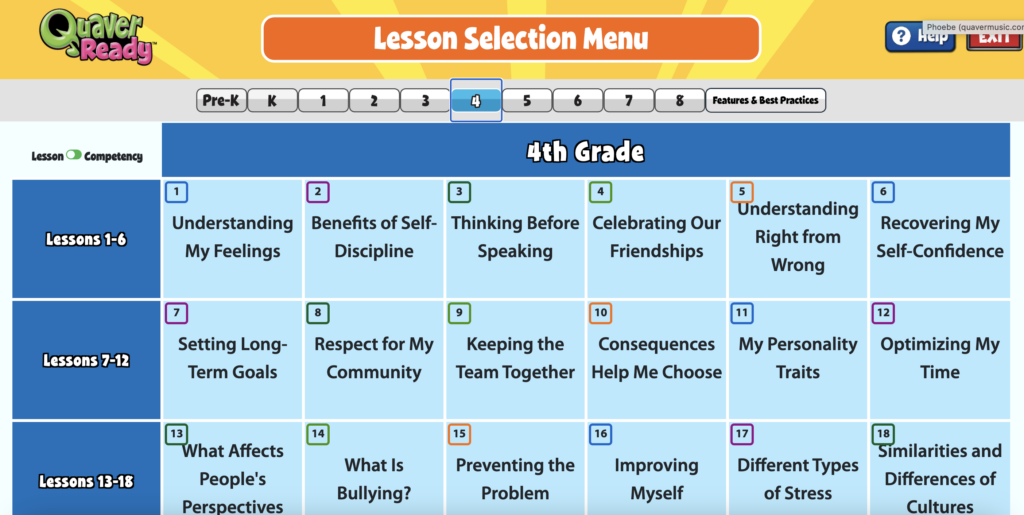
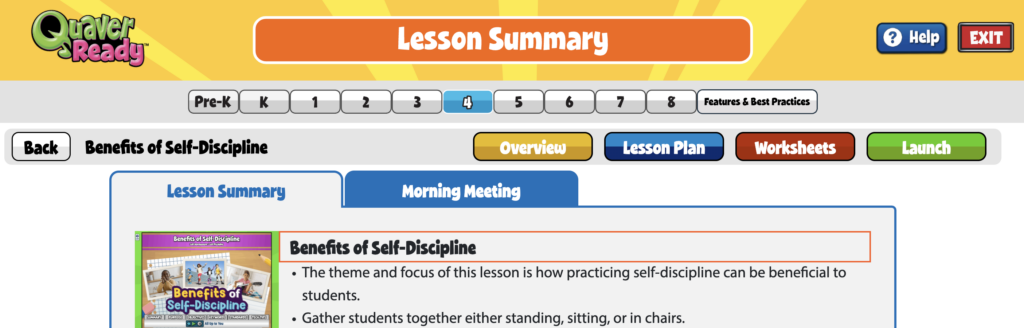
At the top of each lesson, multiple options are available:
- Overview – The purpose of the lesson
- Lesson Plan – A PDF version of the full lesson to save or print
- Worksheets – Printables related to the lesson
- Launch – Launch the lesson in the Lesson Plan Presenter window.
What’s in a Lesson? #
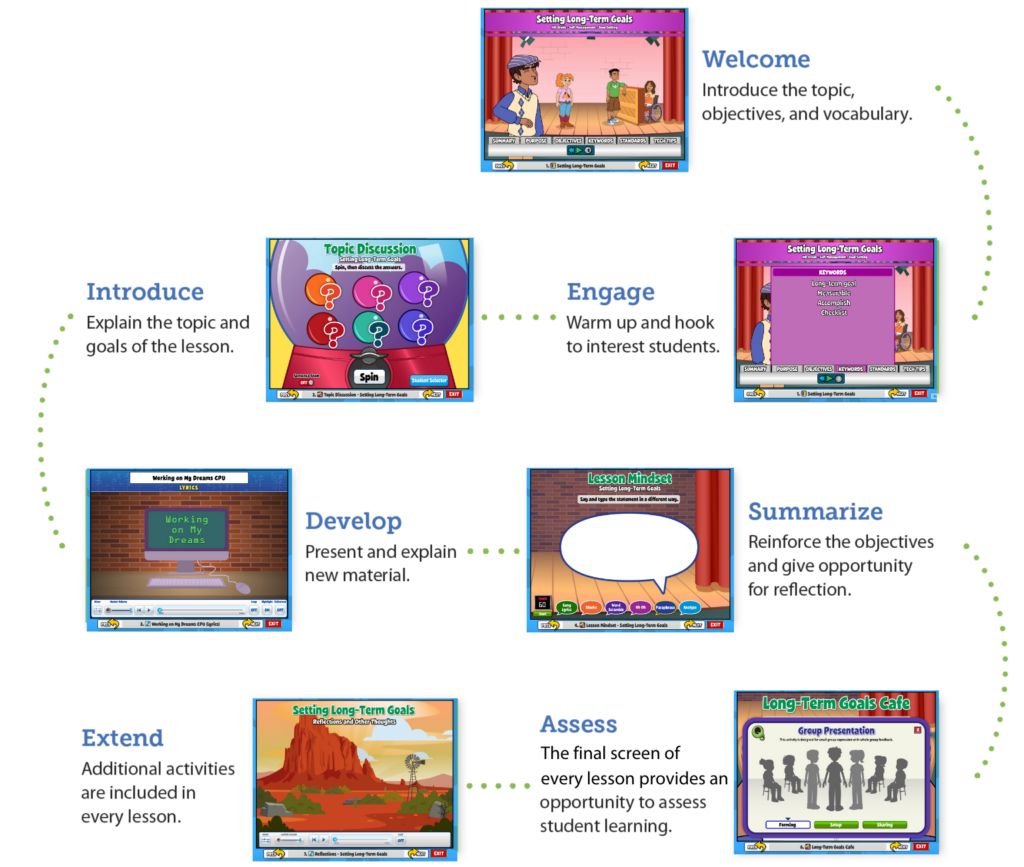
- Welcome: Introduce the topic, objective, and vocabulary.
- Engage: Warm up and hook to interest students.
- Introduce: Explain the topic and goals of the lesson.
- Develop: Present and explain new material.
- Summarize: Reinforce the objectives and give opportunity for reflection.
- Assess: The final screen of every lesson provides an opportunity to assess student learning.
- Extend: Additional activities are included in every lesson.
Helping students succeed is a journey—take time to explore it and make it your own. With over 7,500 resources organized just for you, there’s plenty to discover! You may not grasp everything at once, and we’re here to help. The Help Center is a great place to start with any questions, or you can reach our customer service team at 866-917-3633 or info@quavered.com.
At QuaverEd, we’re passionate about the positive impact learning has on children’s lives. We’re excited to have you here at QuaverEd!

Looking for the place where I can track the lessons I’ve Taught.
Hi Taml, thanks for reaching out! While there is not a “recently taught” function, you can use Resource Manager to find lessons and organize lessons into folders. Here’s our page on Resource Manager’s full functionality.
How do you get the 6-digit teacher access code?
Hi Sarah,
This really depends from district to district. Some schools do not use these codes, while others do. If you haven’t already, reach out to our customer service team in whichever way you prefer. They can take a look at your account and give you the info you need directly! Thanks so much!