Skip to content
Help Center
  • QuaverEd.com
  • FAQs
  • Site Status
  • Contact Us
Help Center
  • QuaverEd.com
  • FAQs
  • Site Status
  • Contact Us

Help Center

Getting Started

  • Getting Started With QuaverReady
  • Quaver Dashboard
  • Substitute Teacher Access
  • QuaverPLC
  • Lessons
  • Resource Manager
  • Creating and Customizing Lessons

Ready Admin Tools

  • Admin Tools Overview
  • Students and Classes
  • Creating & Distributing Assignments
  • Assessment
  • Attendance
  • GradeBook
  • Student Rewards

Insight Assessment

  • Insight Assessment Overview
  • Assessment Layouts and Actions
  • Reports
  • Lesson and Intervention Recommendations
  • Insight Assessment Data Download

Other Content Resources

  • Character Brain Breaks
  • Interventions
  • Brain Breaks
  • Songs
  • QuaverReady Toolboxes
  • Community Resources
  • Parent Resources
  • The QuaverRoom

Creating & Assigning Resources

  • Resource Creation Overview
  • Assignments Overview
  • Screen Studio
  • Audio Upload
  • Teacher Recording
  • Student Recording
  • Rubric Builder
  • Quiz Builder
  • Quiz Challenge
  • Checklist Builder
  • Melody Composer
  • Multimedia
  • File Upload

Curriculum Features & Best Practices

  • Scope and Sequence
  • Standards Alignment
  • Best Practices

Single Sign-on

  • ClassLink and QuaverEd
  • Clever and QuaverEd
  • Google and QuaverEd
  • Schoology and QuaverEd
  • Canvas and QuaverEd
  • Single Sign-On Other

Accessibility

  • Accessibility
  • Features and Enhancements
  • Accessibility FAQ
  • Home
  • Home
  • QuaverReady
  • Other Content Resources
  • QuaverReady Toolboxes

QuaverReady Toolboxes

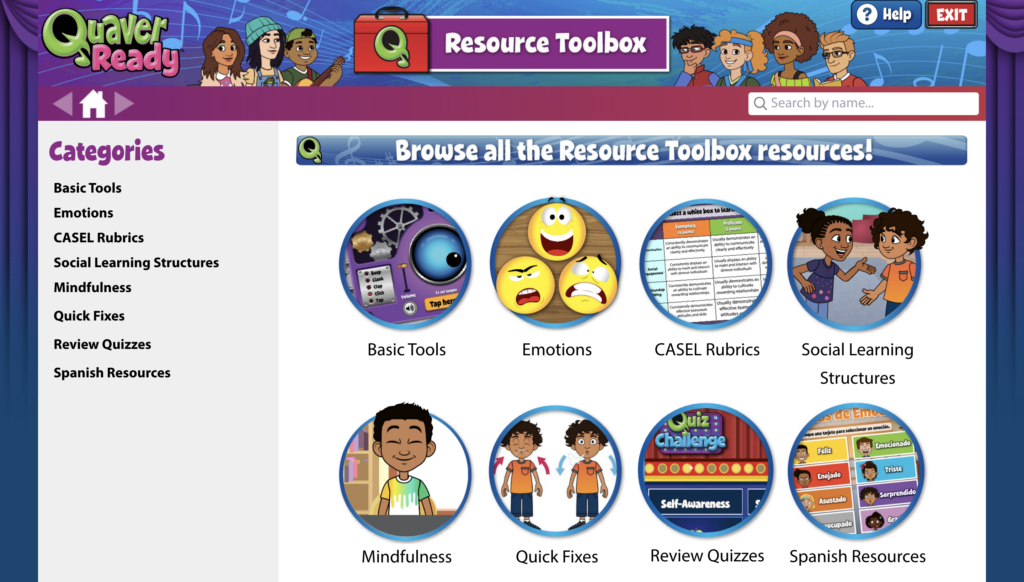
Many of the apps available in QuaverReady are toolboxes. Toolboxes offer interactive resources outside of the curriculum. These toolboxes cover various topics, from CASEL Rubrics methods to Social Learning Structures and Peace Corner Scripts. The following is a complete list:

List of Toolboxes in QuaverReady #
  • Resource Toolbox
  • New Content
  • Meaningful Magic


Accessing a Toolbox #

The toolboxes consist of icons conveniently located in the bottom section of your Dashboard. If you don’t see one of the resources mentioned above, use the dashboard customization tool to add the toolbox/app to your dashboard.

Navigating a Toolbox #

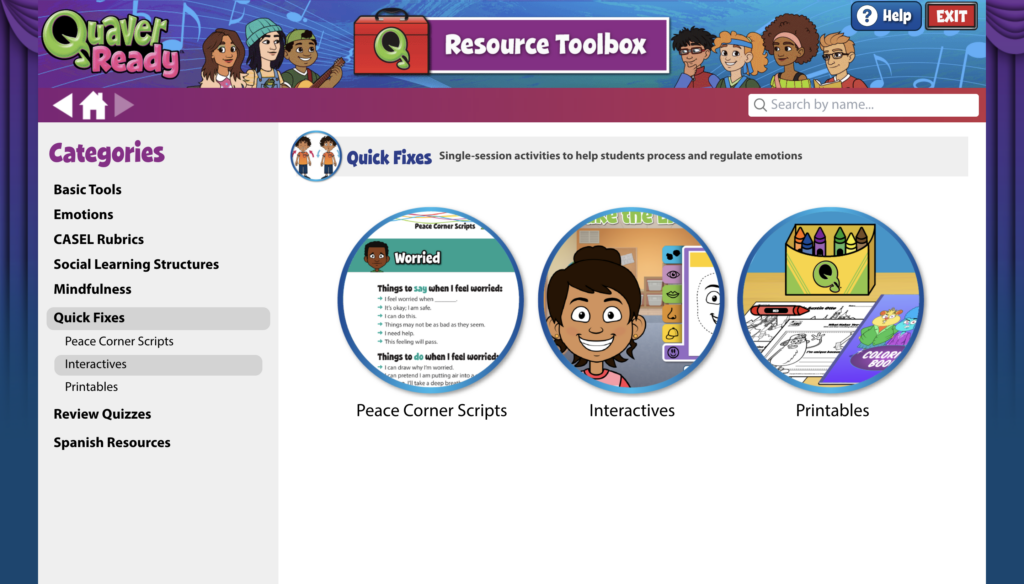
Each toolbox’s home page displays categories in both image and text forms on the left-hand menu. Selecting a category from the menu or image allows you to scroll through individual resource screens on both sides. Each category contains relevant and diverse resources.

You can use the back and forward arrows to navigate your previously visited pages. Additionally, you may use the home button to return to the toolbox home at any time.


Searching for Specific Resources #

If you have a specific resource in mind and want to find it directly, just use the search bar at the top right corner of the toolbox. Type in keywords related to the resource you’re looking for, and you’ll see relevant results.

Did you find this article helpful?
Need more information? Reach out to us.

How can we help?

Leave a Reply Cancel reply

Your email address will not be published. Required fields are marked *

Table of Contents
  • List of Toolboxes in QuaverReady
  • Accessing a Toolbox
  • Navigating a Toolbox
  • Searching for Specific Resources
  • QuaverEd.com
  • FAQs
  • Site Status
  • Contact Us
×

We're Here to Help!

We apologize if this page didn't meet your needs. Please provide more details:

Still need help? Contact Us

Copyright © 2026 QuaverEd, Inc.