
Create and manage students and classes using the Students and Classes tool inside Admin Tools. For more information on Admin Tools, please refer to our Admin Tools Overview page.

Create a Class #
Follow the instructions below to set up a new class:
Step 1: Click +Add New Class at the bottom of the Classes window.
Step 2: Add your Class Details. Only the class name, grade, start date, and end date are required.
Step 3: Click Save. Once saved, the class will appear in Classes. Repeat the process for other classes.


Once you have created a class, you can add student accounts. This help article outlines the methods for adding students to your classes.
Class Codes #
Class Codes are what connect students to your specific classes in Admin Tools and allow them to use a QuaverEd student account.
Class Codes are automatically generated when you create a class. If you already have a class created, the code will appear at the top of the Admin Tools dashboard when the class is selected.
Students will use a Class Code to join your class if they sign up using the Self Enroll with Class Code method. If a student already has an account but is not enrolled in any class, they can always join your class through the Enter a Code field on their Student Dashboard.
Each Class Code is only needed once, but students can be enrolled in multiple classes.

Editing a Class #
The Class Details can be edited anytime by toggling Enable Grid Editing in the bottom right corner of Classes. This capability is particularly useful if you want to quickly update Class Names, Start and End dates, etc.
Additionally, Class Details can be edited by selecting a class and using the Edit Class button.

Archive a Class #
Teachers can archive a class they no longer wish to use. Follow these steps:
- Select the Class you would like to archive and click Edit Class.
- Inside the Class Details window, select the Archived box.
- Click Save.

The class is now archived and will no longer appear in Classes. Archiving a class will not permanently delete the class. To view and reactive an Archived class:
- Click Menu and Show Archived Classes
- The class will now appear in the Classes list.
- Edit the class to uncheck the Archived box.

Adding Student Accounts #
When adding students to a class, you may have students that already have a QuaverEd student account.
- Select your class at the top of Admin Tools>Student Accounts.
- Click Add Student Accounts.
- Click Add Existing Student Account.
A window will appear where you can enter student information. The student’s username is all that is required. However, you can add information such as their Student ID, First Name, Last Name, and Display Name.
Since classes typically consist of a large number of students, it can be useful to create individual student accounts in bulk.
- Select your class at the top of Admin Tools> Student Accounts.
- Click Add Student Accounts > Auto-Generate Student Accounts button.
- Enter the desired number of student accounts.
This will auto-generate accounts and usernames and set the class code as the password for all new accounts.
Students will log in at QuaverEd.com/login and use the autogenerated username and class code as the password to log in. Students will be prompted to create a permanent password on their first log-in.
The Student Importer allows a teacher to upload a spreadsheet with all students and class information to the Quaver system to generate student accounts.
- Select your class at the top of Admin Tools>Student Accounts.
- Click on Add Student Accounts > Student Importer.
- Download the New Student Import Template and fill it out with your students information. The expected file type is csv, xls, or xlsx. The maximum file size is 3.0MB.
- When you’re ready, upload your Student Import file! We’ll validate the file and let you know if we see any issues. Once your file looks good to go, you can proceed to Import!
The only required student information is the class code, email address, and password.
- Take a class code that you generated when creating a class.
- Next, have the students visit QuaverEd.com/log-in and click the Sign Up! button.
- Then students will click Student button.
- Students enter the Class Code given to them by the teacher then click Continue.
This will prompt the students to create their own usernames and passwords. The username must be 6 characters, and the password must be 8 characters. Confirm the password and click the SUBMIT button to finish.
Students can then log in from QuaverEd.com/login from here on out!
QuaverEd’s Integration team can work with your district to create student accounts. This method, called rostering, can be a tremendous timesaver for you. You will not have to create classes manually; students will not have to create account credentials.
If you choose to roster through your district, students must access their accounts through platforms, like, Classlink, Clever, Canvas, Schoology, and Google. This access method is referred to as Single Sign-On, or SSO.
If you would like to set up student accounts through your district, have your district administrator contact our team at integrations@QuaverEd.com.
Editing Student Accounts #
The second way to edit student information is to select the student in the roster, then click the Edit Student button at the bottom of the screen. Here you can modify student information, reset student’s passwords, and archive students.
The “Archived” option allows you to hide a student from your class list but still access their info, should you need it.

Enable grid editing: #
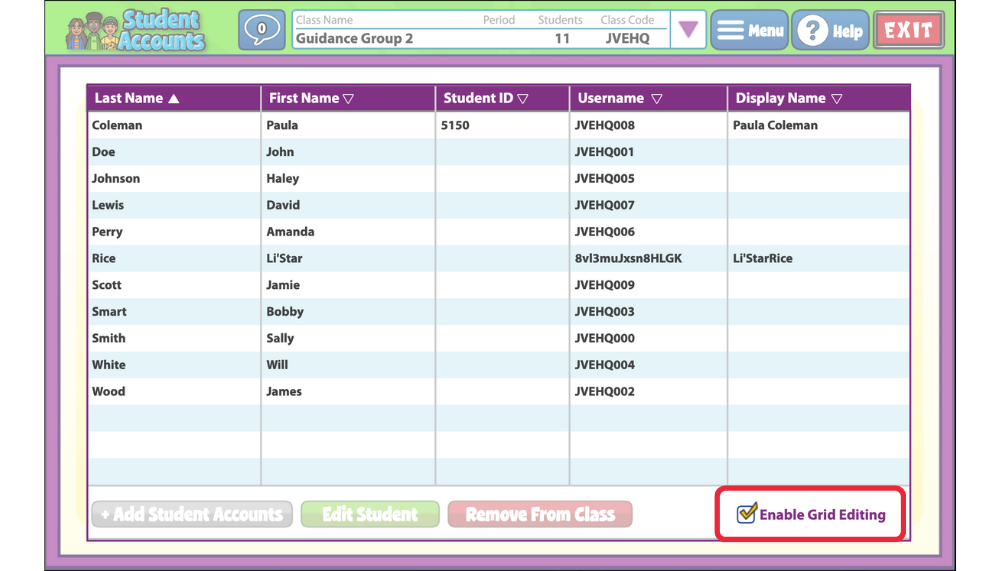
The Enable Grid Editing checkbox lets you quickly edit the text in any of the cells within the student accounts window. Press Enter to confirm the changes.
To turn off this feature anytime, deselect the checkbox.
Removing Student Accounts #
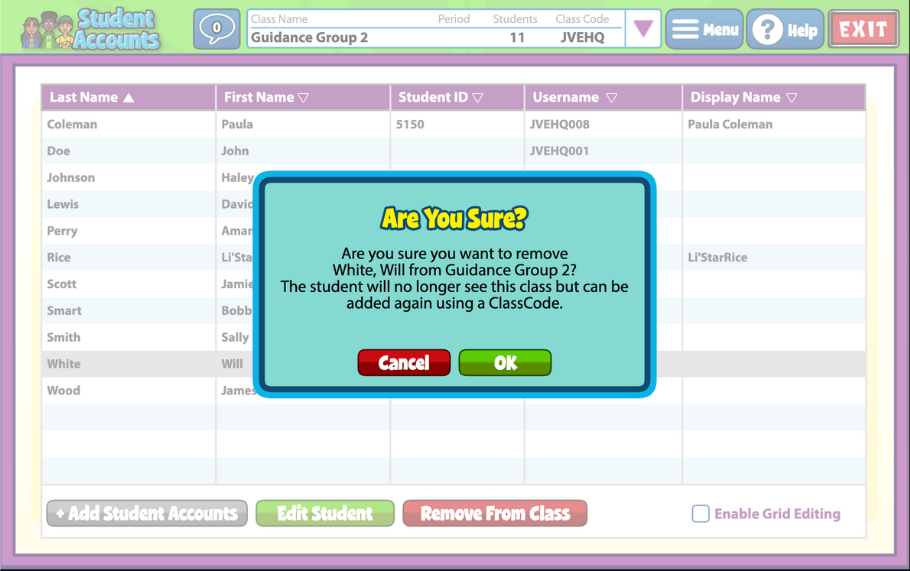
You can also remove a student entirely from a class. To do this, select the student then click the Remove From Class button.
Note this will not delete the student account entirely, it will simply remove them from your class. If you would like to re-add them to a class at any time, use the Add Existing Student Account option. You will need their username if you wish to do this, so it may be prudent to keep a list of usernames on hand.

Is there a way to print a master list of class codes
Hello Harmony!
Unfortunately, there is no direct option to print a master list of class codes. However, there are a couple of workarounds available:
1. Capture a screenshot of the Student Admin Classes page and print the screenshot.
2. Alternatively, within Student Admin Classes, you can right-click on each class code, copy it, and transfer it to a document.
3. Feel free to email me at vanororke@quavered.com, and I will happily email you your list of class codes.
We hope these suggestions are helpful to you. Feel free to reach out if you have any further questions or concerns.
I like to put all students on a grade level in the same class but would like to be able to sort the students by section. Could you add field for section so that I can sort each roster that way? This would be especially helpful when using quaver notes for a classroom reward system.
Hi Beth!
Sorry for the delayed response. You could do this now. When creating a class, or editing the classes you currently have, set the ‘Class Name’ as the students’ sections. Then, when in the ‘Class Details’ window, use the ‘Additional Class Information’ dropdown to add the grade level to each class. Then, when viewing your class list, you can sort classes by ‘Grade.’
Hi, I don’t think this is an option yet, but it would be great if we could add more than one teacher to a class. Some schools have multiple music teachers and it would simplify things a lot!
Hi Kyle!
Thank you so much for taking the time to share your thoughts and ideas, it is teachers like yourself, who are out in the trenches teaching is what fuels QuaverEd! I’ve passed your request directly to our Content & Development team.
Thank you, and have a wonderful day!
Hi, is it possible to have 2 teachers for the same class? I work at a school with two music teachers and we both see all the kids. I’d like to be able to have us both access the student lists while each of us having separate teacher log-ins
Hi Stephen!
Thank you for reaching out! This is not currently a feature we offer, but we are aware of the need for co-teaching capabilities. I’ll make sure our Content/Development teams are informed of your request. Have a great day!
How can I delete a class and how can I remove some students from a class?
Hi Sierra!
To archive a class, head to Admin Tools > Classes, click Edit Class, and then select Archive.
To remove students from a class, go to Admin Tools > Student Accounts, select the student, and click Remove From Class.
I hope this helps!
Can we manually add a student to a class that is rostered through the district? I have special ed inclusion students who attend music classes but are not on my rosters.
Hi Alison!
Thank you for reaching out! To manually add a student to your class, head to: Admin Tools > Student Accounts > Add Student Account. From there, you can enter the student’s info and assign them to your class.
If you run into any trouble, feel free to contact District IT Support at TechSupport@QuaverEd.com, or call us at (866) 917-3633!
This is something I would also be very interested in seeing added to the program!
Is there a way to DELETE classes, not just archive them?
Hi Bethany,
Thanks for reaching out! Unfortunately, there is not an option to completely delete classes, only archiving them. You can read more about classes, and archiving them, here. Hope this helps!
Is there a way to manually move classes in a particular order? I can only edit the name and have a bunch of sections for 1 or 2 students (ACCESS students). When I try to change the name by grade-level first, it doesn’t go in order.
Thank you!
How can I find my classes/students from previous years? I only see the new classes (with no students names yet) created through my district using Clever. I would like to find a student that we just lost over the summer, but I can’t find ANY of my archived classes from last year.
Thank you,
Hi Erika,
I’m sorry you’re having issues finding your archived classes. This is something that I believe we may need to get you direct assistance on. If you have not already, please reach out to our customer service team through this page, so that they can take a look at your account and see what’s happening. Thank you so much!
Why would some students rostered in our classes not have a username? Is that something Quaver assigns or our district who rostered our students into Quaver through ClassLink? The usernames given to some are a combination of numbers and letters (not student choice).
Hi Sheri,
I’m sorry you’re having issues with your student rosters. Unfortunately, I’m not able to see what exactly is happening with your account from here, but if you haven’t already, please reach out to our customer service team in whatever way you prefer, that way they can get into your account and see precisely what the problem is. Thank you so much!
How do you delete a class entirely instead of just archiving them?
Hi Cassie,
I’m sorry, but there is not a delete function for a class, only archive. If you have more questions, feel free to reach out to our customer service team. They’re always happy to assist and accept feedback!
For some reason, Quaver was making my students create new accounts and now they have 2 separate accounts for all my classes. Is there a way to merge those accounts into one? How can I tell which account I need to delete?
Hi Julia,
Please reach out to our customer service team so that they may look into your account and see exactly what’s happening. This seems like a bug, but it’s hard to know without seeing your account. Thank you so much!