
The Student Recording Screen allows students to submit a video back to you, their teacher, for grading or storage in a portfolio project.
Customization functionality does not grant permission to upload copyrighted audio, video, graphics, or other protected content.

Student Recording Features #
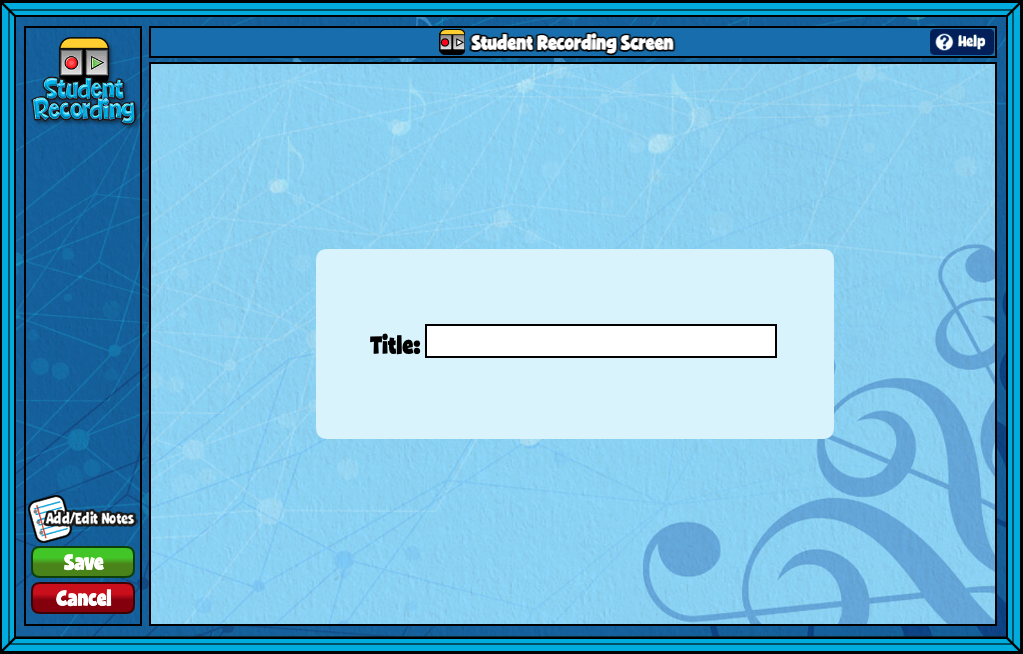
- Give your screen a title by clicking the box labeled “Type Your Screen Title Here.” Click Enter to save.
- Make sure you select Save once you are ready to add the Student Recording screen to an assignment.
- Add/Edit Notes: Using the add/edit notes icon, you can add custom notes to any student recording screen.
Note that once a recording is completed, it cannot be deleted. To redo the recording, the teacher will need to reassign the assignment through Gradebook.
How will it look for students once assigned? #
Students have different options based on the device they’re using.
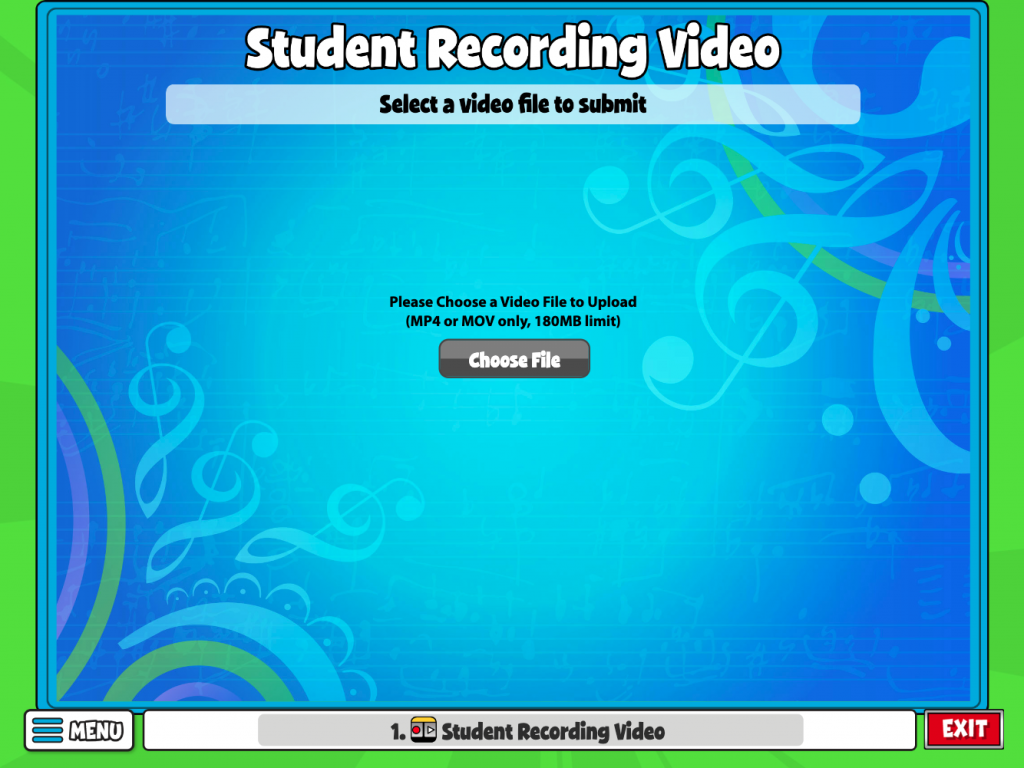
If a student doesn’t have access to a camera:
These students will need to select Choose File to upload a recording. Video requirements are MP4 or MOV only, 180MB limit.
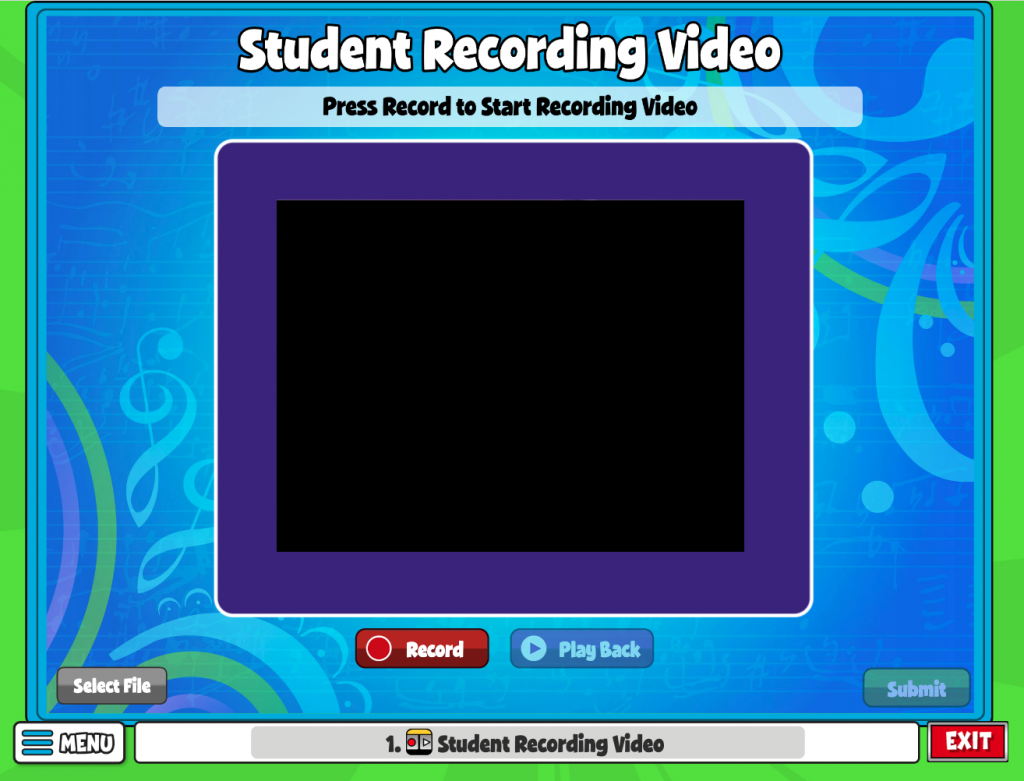
If a student does have access to a camera on their device:
These students can record directly into their device. The browser will ask to allow permission to use the camera and microphone.

if a student records for an assignment but then wants to record it again, is there a way to delete it?
Hi Angel,
There is not a way to delete the recording, but the teacher can reassign the assignment through Gradebook (here’s the help link for that app). By selecting the orange checkmark next to that student’s submission, you can choose “Reassign Assignment for Student”. The student would essentially start over with a fresh version of the same assignment. Hope this helps! You can also always reach out to our customer service team if you need direct assistance!
Is there a way to add more time for students to record? The students said they only had 3 minutes to record a video. I need them to have 10 minutes.
Hi Miranda,
Student recording seems to be limited by 3 minutes, but you may be able to work around this by having the student pre-record the video. It would still need to be under 180MB, but it may be able to be longer that way. You can also always reach out to our customer service team here!
Is there a way to add a graphic to this screen? So that students can read music while recording themselves performing it as an assignment?