Skip to content
Help Center
  • QuaverEd.com
  • FAQs
  • Site Status
  • Contact Us
Help Center
  • QuaverEd.com
  • FAQs
  • Site Status
  • Contact Us

Help Center

Getting Started

  • Getting Started With QuaverReady
  • Quaver Dashboard
  • Substitute Teacher Access
  • QuaverPLC
  • Lessons
  • Resource Manager
  • Creating and Customizing Lessons

Ready Admin Tools

  • Admin Tools Overview
  • Classes
  • Student Accounts
  • Creating & Distributing Assignments
  • Assessment
  • Attendance
  • GradeBook
  • QRewards and QuaverNotes
  • Chat

Skills Survey

  • Skills Survey Overview
  • Survey Layouts and Actions
  • Reports
  • District & School Reports
  • Lesson and Intervention Recommendations
  • Skills Survey Data Download

Other Content Resources

  • Character Brain Breaks
  • Interventions
  • Brain Breaks
  • Songs
  • QuaverReady Toolboxes
  • Community Resources
  • Parent Resources
  • The QuaverRoom

Creating & Assigning Resources

  • Video Link
  • Web Link
  • File Upload
  • Audio Upload
  • Teacher Recording
  • Student Recording
  • Rubric Builder
  • Quiz Builder
  • Quiz Challenge
  • Checklist Builder
  • Melody Composer
  • Multimedia
  • Resource Creation Overview
  • Assignments Overview

Curriculum Features & Best Practices

  • Scope and Sequence
  • Standards Alignment
  • Best Practices

Single Sign-on

  • ClassLink and QuaverEd
  • Clever and QuaverEd
  • Google and QuaverEd
  • Schoology and QuaverEd
  • Canvas and QuaverEd
  • Single Sign-On Other

Accessibility

  • Accessibility
  • Features and Enhancements
  • Accessibility FAQ
  • Home
  • Home
  • QuaverReady
  • Custom Curriculum

Custom Curriculum

Custom Curriculum Overview #

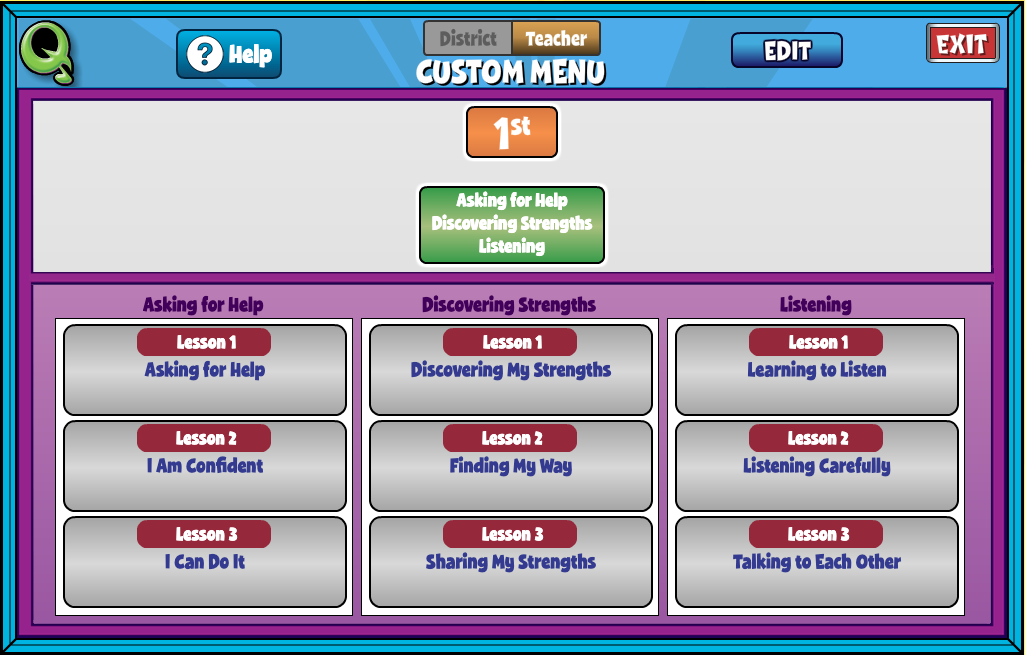
Use the Custom Curriculum Builder to customize units and lesson scope and sequence to fit your specific needs using both Custom and Quaver lessons. The Custom Menu is organized with grade levels across the top and three columns of lesson modules. Each module is listed on a button in the center of the screen for navigation to additional modules.

This help article covers:

  • Custom Menu
  • Custom Menu Editor


Custom Menu #

At the top of the Custom Menu, toggle between district and teacher views. The green, highlighted button is the selected choice.

  • District: In this view, you are editing a shared menu for all users connected to the same district. This view can only be administered by an appointed supervisor account in the district. Please contact your district administrator or the Quaver team to arrange this.
  • Teacher: In this view, you are viewing a custom menu for your individual teacher account.

Custom Menu Editor #

To Edit the Custom Menu click the Edit button at the top of your screen. This will bring you to the Custom Menu Editor. Here you can arrange grades, modules, and lesson sequences.

Add Grades and Modules #

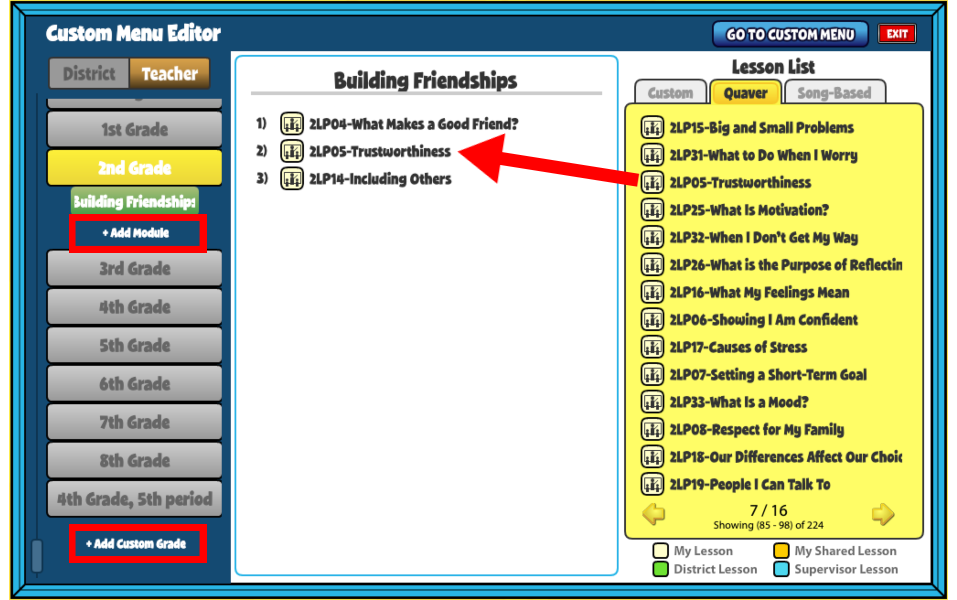
First, add at least one Custom Grade by selecting + Add Custom Grade and entering text or numbers. Then click enter.

Next, add at least one Module by selecting +Add Module and entering text or numbers. Then click enter.

With a Grade and Module open, you’ll next drag lessons from your Lesson List into your desired order.


Select Lessons from Lesson List #

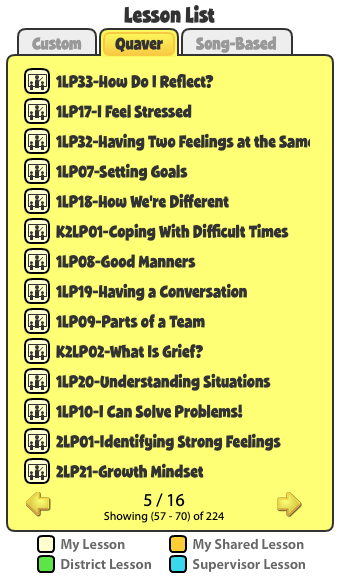
On the right-hand side you will find the Lesson List broken into three tabs: 

  • Custom – Lessons created by you or shared by your district colleagues
  • Quaver – Lessons found in the primary Quaver Curriculum
  • Song-Based – Lessons found in our Song-Based Lessons

The Lesson icon to the left of each title indicates what type of lesson it is. Use the legend below the Lesson List to identify My Lessons, My Shared Lessons, District Lessons, and Supervisor Lessons.

To add a lesson from this list into a module, simply click and drag the lesson into place. You can reorder the Lessons within your module. Drag a lesson into the trash to remove it from a module.

Did you find this article helpful?
Need more information? Reach out to us.

How can we help?

Leave a Reply Cancel reply

Your email address will not be published. Required fields are marked *

Table of Contents
  • Custom Curriculum Overview
  • Custom Menu
  • Custom Menu Editor
    • Add Grades and Modules
    • Select Lessons from Lesson List
  • QuaverEd.com
  • FAQs
  • Site Status
  • Contact Us
×

We're Here to Help!

We apologize if this page didn't meet your needs. Please provide more details:

Still need help? Contact Us

Copyright © 2026 QuaverEd, Inc.