
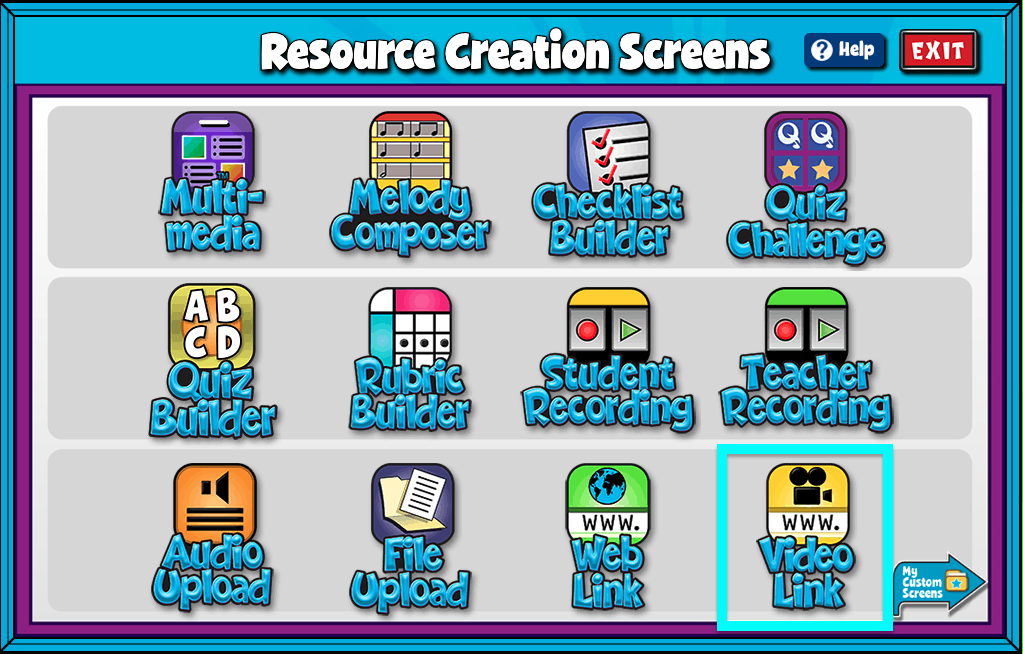
Quaver teachers can add a YouTube or Vimeo link to any lesson or assignment.
Video Link Features #
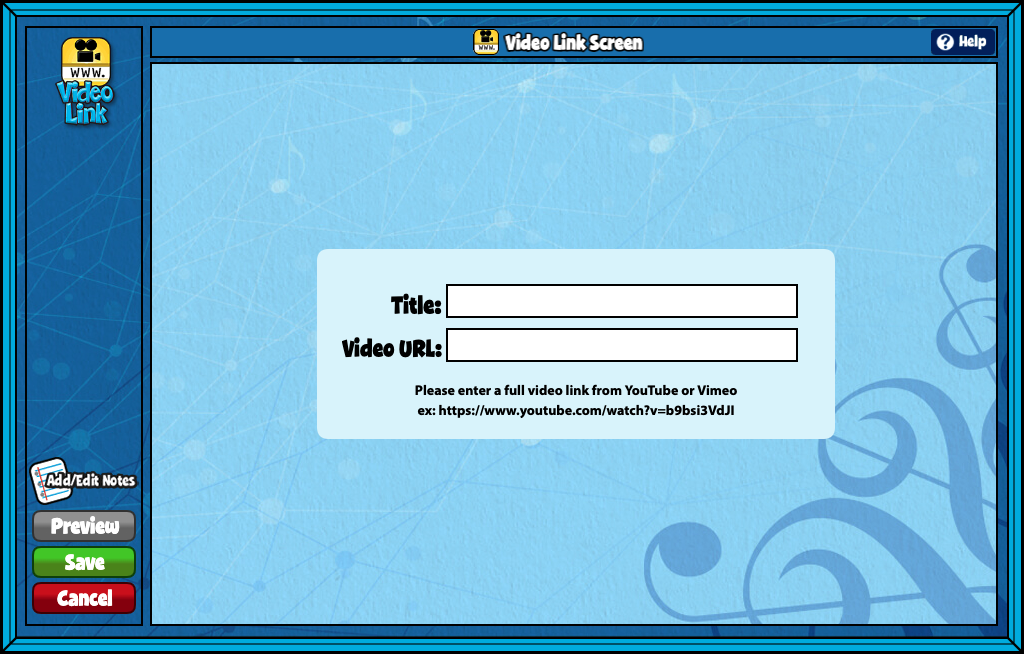
- Give your screen a title by clicking in the “Title” text box.
- Add a full URL from YouTube or Vimeo.
- Add/Edit Notes: Using the add/edit notes icon, you can add custom notes to any video link screen.
Uploaded videos must be an MP4 or .mov file and under 300MB and 5 minutes in length.

Is there a way to disable the “Watch on YouTube” pop out link at the bottom left of the video??
Hi Joanie,
Unfortunately, the “Watch on YouTube” pop-up link at the bottom left of the video can’t be disabled. However, we are working to minimize any YouTube branding or logos within our content.
As a potential workaround, you can add “?controls=0” to the end of your YouTube URL. Adding that text removes only the “Watch on YouTube” pop-up. But note that it doesn’t eliminate all elements like the share, watch later, and YouTube logo on the right side.
I hope this helps!
I created a folder with a video link screen but when my students try and open the assignment, it says it’s empty?
I have a student teacher who created some video link resources. Is there a way for him to share them with me? Or do I need to create the resource using the same links?
Hello,
Has the option to embed videos in Quaver lessons been removed? When I tried to create a custom screen to embed a YouTube video, the button to embed a video link was missing.
Thank you!
Hi Meg,
For many of our users, resource creation has been updated to include Screen Studio. Screen studio is a multi-media screen building app, which includes the ability to add a video link. Take a look at this help page for it! If you still need help, please reach out to our customer service team in whatever way you prefer, that way they can help you directly. Thank you so much, Meg!