Skip to content
Help Center
  • QuaverEd.com
  • FAQs
  • Site Status
  • Contact Us
Help Center
  • QuaverEd.com
  • FAQs
  • Site Status
  • Contact Us

Help Center

Getting Started

  • Substitute Teacher Access

Lessons

Admin Tools

  • QRewards and QuaverNotes
  • Attendance
  • Admin Tools Overview
  • Classes
  • Student Accounts
  • GradeBook
  • Creating & Distributing Assignments
  • Chat

Creatives

Supplemental Resources

Creating Resources

  • Resource Creation Overview
  • Multimedia
  • Melody Composer
  • Checklist Builder
  • Quiz Challenge
  • Quiz Builder
  • Rubric Builder
  • Student Recording
  • Teacher Recording
  • Audio Upload
  • File Upload
  • Web Link
  • Video Link

Music Integration

Creating and Assigning Resources

  • Resource Creation Overview
  • Video Link
  • Web Link
  • File Upload
  • Audio Upload
  • Teacher Recording
  • Student Recording
  • Rubric Builder
  • Quiz Builder
  • Quiz Challenge
  • Checklist Builder
  • Melody Composer
  • Multimedia

Curriculum Documentation

Single Sign-on

  • ClassLink and QuaverEd
  • Clever and QuaverEd
  • Google and QuaverEd
  • Schoology and QuaverEd
  • Canvas and QuaverEd
  • Single Sign-On Other

Accessibility

  • Accessibility
  • Features and Enhancements
  • Accessibility FAQ
  • Home
  • Home
  • QuaverMusic
  • Creating & Assigning Resources
  • Checklist Builder

Checklist Builder

Create an interactive checklist to include in any custom lesson or assignment with the Checklist Builder.


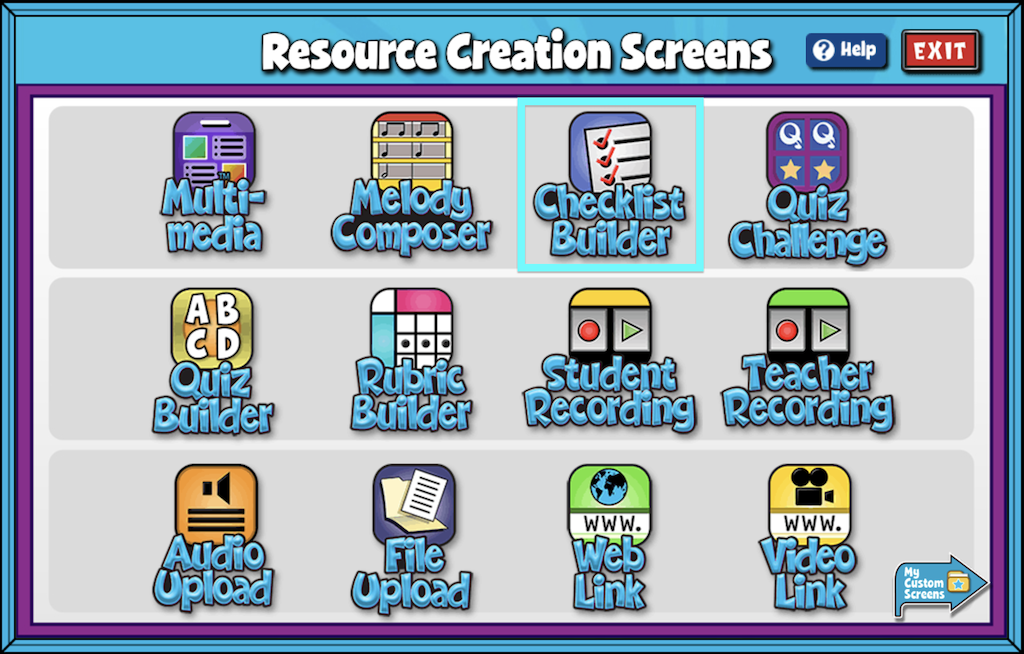
A screenshot of the Resource Creation Screens page, with Checklist Builder highlighted.

Checklist Builder Features #

  • Give your screen a title by clicking the box labeled “Type Your Screen Title Here.” Click Enter to save.
  • Enter the first item on your checklist by clicking the box that reads Sample Checklist Item and entering text.
  • Select + Add New at the bottom of the screen to add another item to your list.
  • To remove an item select the red “X”
  • Add/Edit Notes: Using the add/edit notes icon, you can add custom notes to any checklist builder screen.

Checklist items can be reordered by simply clicking on a selected list item and dragging and dropping it into place.

You can head to your My Custom Screens folder in Resource Manager to see your screen. This screen will remain in this folder, ready to be added to a custom lesson or assignment at any time.
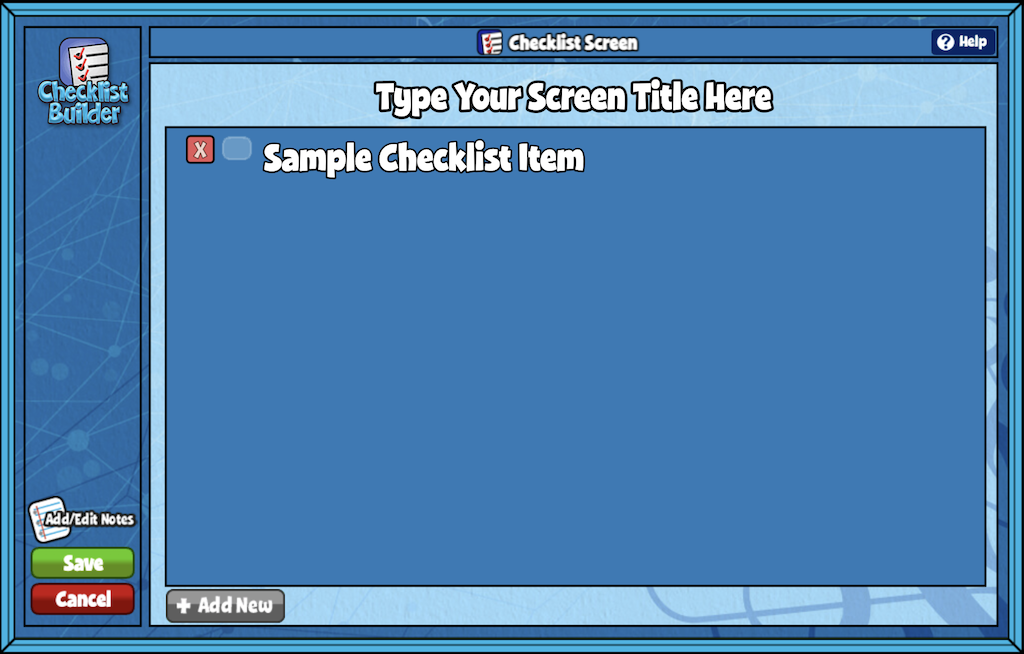

A screenshot of the Checklist Screen, as described in this section.

Did you find this article helpful?
Need more information? Reach out to us.

How can we help?

Leave a Reply Cancel reply

Your email address will not be published. Required fields are marked *

Table of Contents
  • Checklist Builder Features
  • QuaverEd.com
  • FAQs
  • Site Status
  • Contact Us
×

We're Here to Help!

We apologize if this page didn't meet your needs. Please provide more details:

Still need help? Contact Us

Copyright © 2026 QuaverEd, Inc.