QGrooves Plus is a QuaverMusic Creative that allows you to create songs by dragging loops to an instrument grid. In this Creative, you can add pre-recorded loops for Keyboards, Synth/Brass, Drums, Percussion, Bass, Guitar, and Vocals.
Teachers or students can navigate to the Creatives icon from their Dashboard to freely create.
Starting a New QGrooves Plus #
Click Menu > New to start a new QGrooves Plus.
- Title your Composition
- Enter the Composer’s name
- Click Ok to begin!

Instrument Grid #
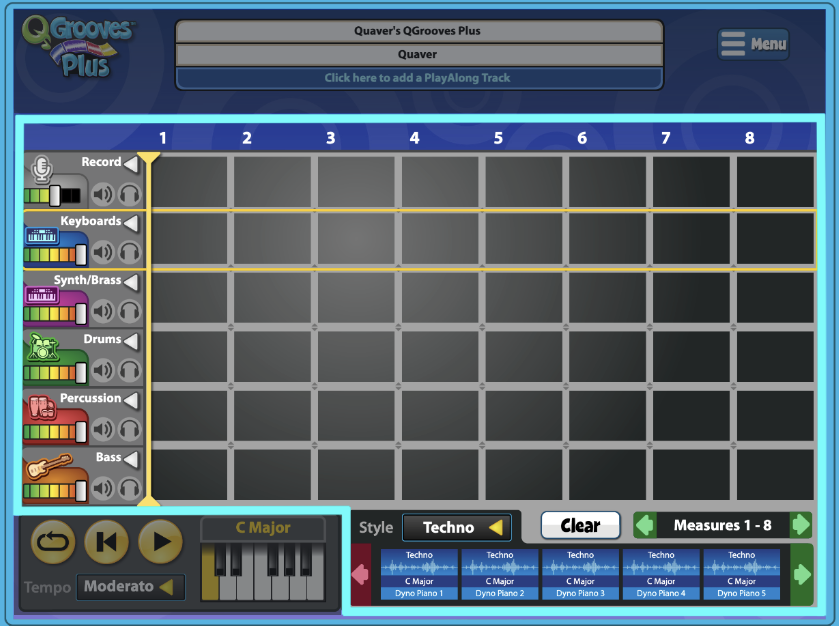
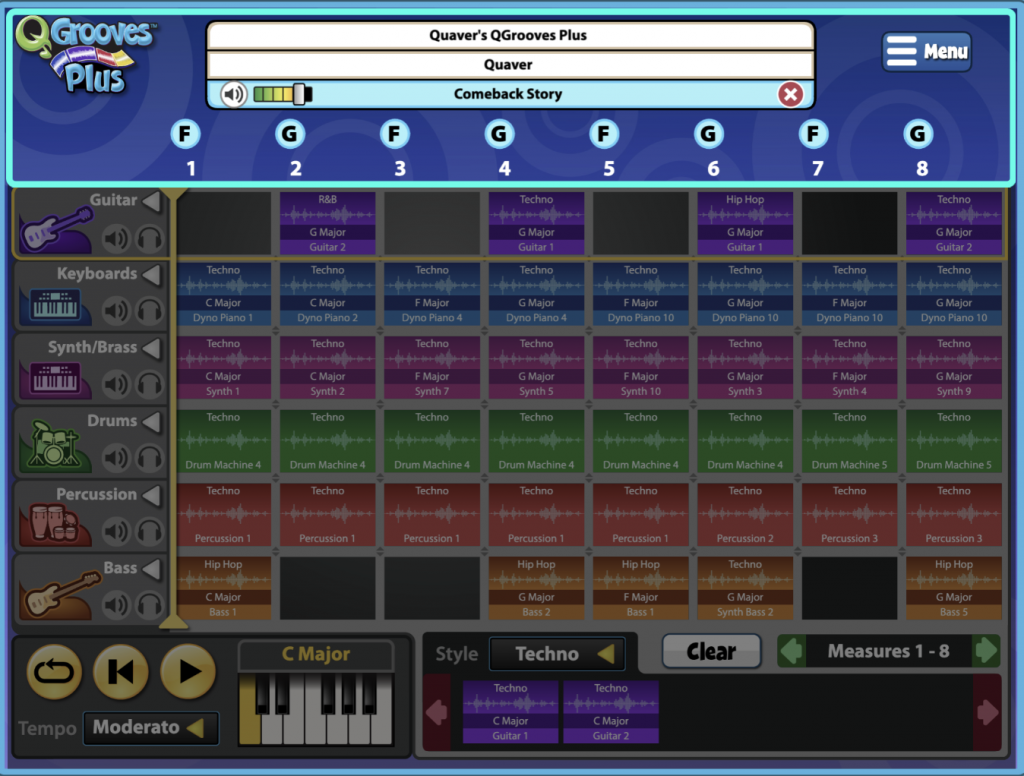
The Instrument Grid is the main section of QGrooves Plus. This is where you add instrument loops to make up your song.
- Each column (up and down) is a measure.
- There are measure numbers at the top of each column.
- Select a measure number, at the top, to start your composition at any measure other than measure 1.
- Each row (left to right) is an instrument.
- Click the white arrow to change to a new instrument.
- Use the volume sliders to mix each individual instrument
- Drag and drop any of the colored loops from the bottom control panel to the grid to start!
- There is a yellow box that will highlight as you select different instrument rows. This will also change the available instrument loops in the bottom control panel.
- Clicking the speaker icon will mute the instrument row.
- Clicking the headphone icon will solo the instrument row.
To remove an instrument loop from the grid, drag the selected loop off the grid/screen.
Recording into QGrooves Plus #
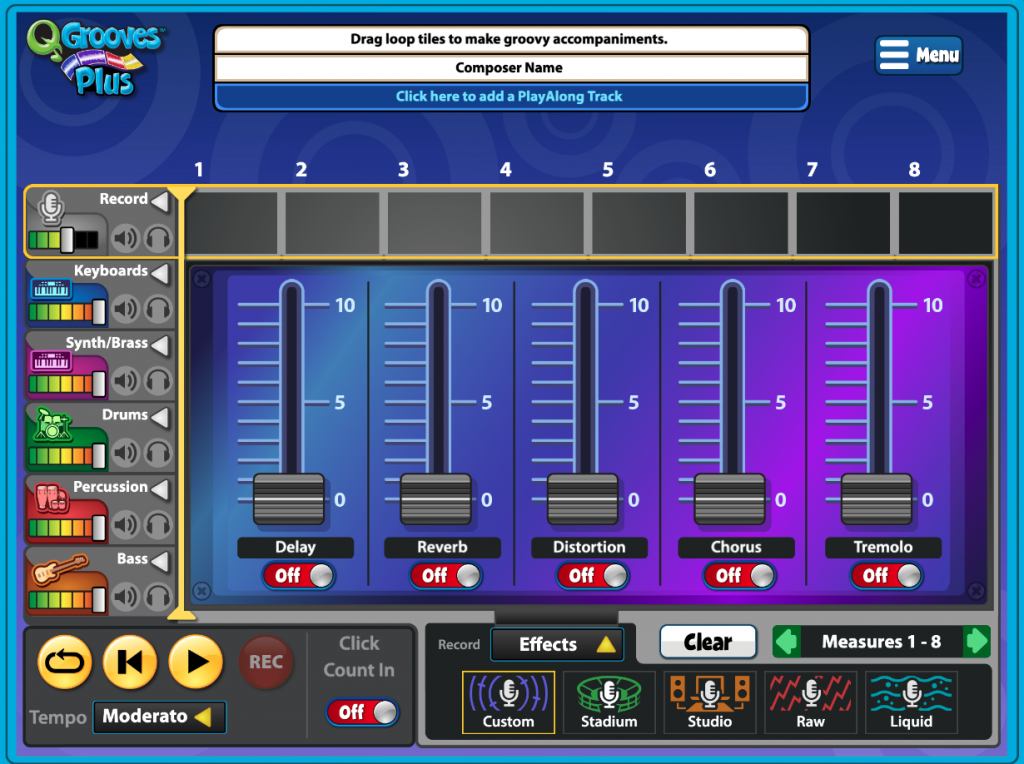
First, make sure your device and browser have your microphone enabled, or this feature will not work
- If not already selected, make sure you have the Record option selected in the instruments dropdown.
- Once ready to record, click the red REC button. You can also toggle a Click Count In to count you in before you record.
- After you have recorded there are preset effects you can use such as Custom, Stadium, Studio, Raw, or Liquid.
- If you want to customize your own effects click the Effects menu to open faders where you can adjust effects like Delay, Reverb, Distortion, Chorus, and Tremolo.
Control Panel #
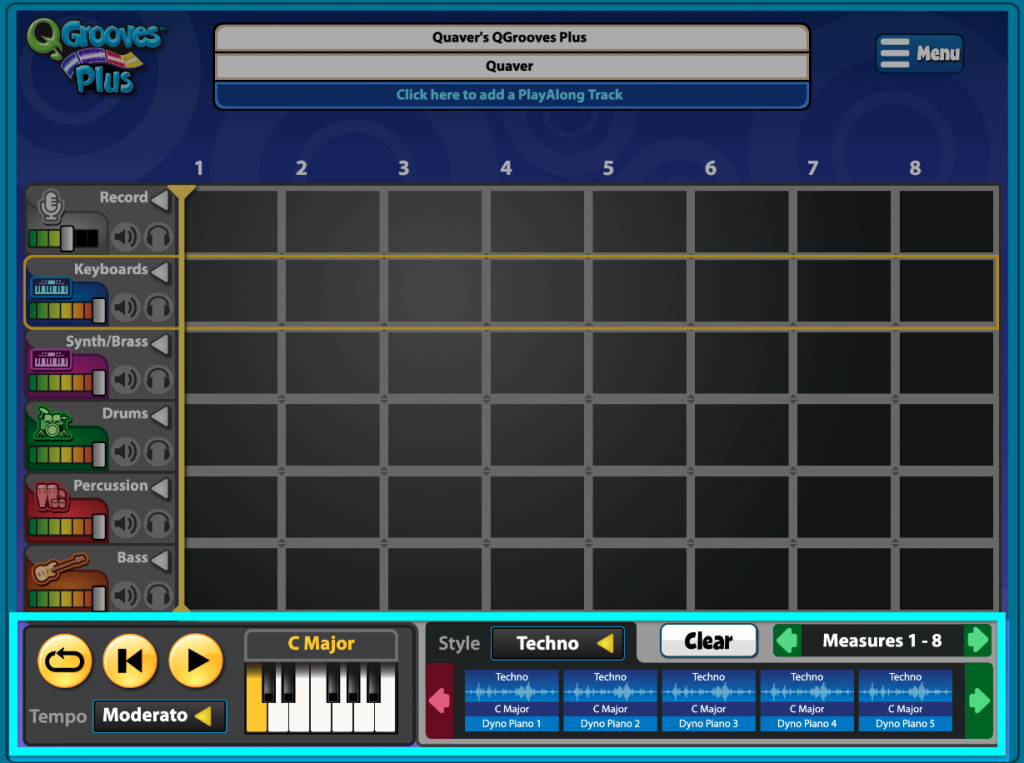
- Playback Controls: The playback buttons include a loop, backto beginning, and play button.
- Click the play button and it will turn into a pause button
- When you click the loop button it will deactivate the loop
- Tempo: To change the tempo, click the Tempo drop-down.
- Key: To change the key of the loops showing, select a piano key.
- Based off of a C Major scale
- Loop Styles: To change the loop styles, click the Style drop-down.
- Clear: Click Clear to clear your QGrooves Plus and start over.
- Measure Navigation: Use arrows to add/view additional measures.
- You can create up to 32 measures
- Select a measure number, at the top, to start your composition at any measure other than measure 1.
- Loop Tiles: Use the arrows to view additional instrument loops. Check out the Instrument Grid section for more on adding loops to the instrument gird.
Adding a PlayAlong Track #
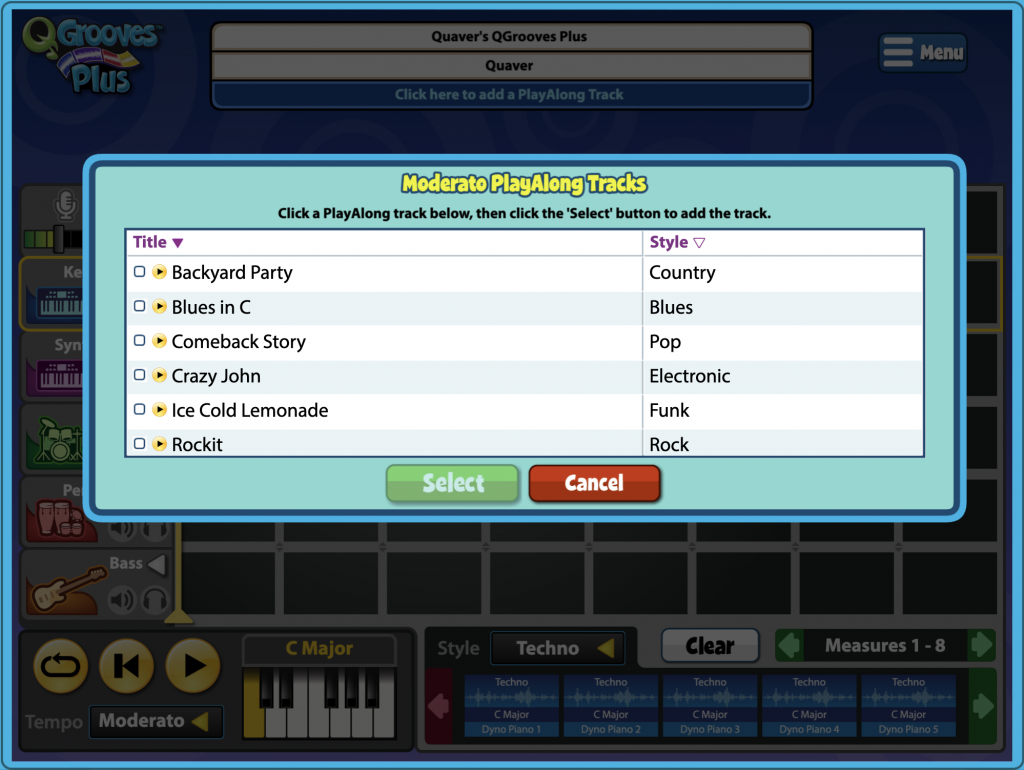
- Click on the blue bar below your title and composer name to add a PlayAlong Track.
- You can also click Menu > PlayAlong to add
- Click the Play button next to the title to preview any PlayAlong track.
- Select a check box next to PlayAlong you wish to add.
- Click Select to add the PlayAlong as a backing track.
After Adding PlayAlong Track #
- Once added, you will notice the chord progression of the PlayAlong Track is at the top of each column.
- Once added, a volume slider will appear next to your PlayAlong’s title, allowing you to edit the mix of the PlayAlong vs. your QGrooves Plus.
- Click the red X to remove the PlayAlong Track.
Note: Play-Along Tracks are tempo specific; if you change the tempo of your composition, you will lose your current Play-Along Track.
Saving your QGrooves Plus #
Click Menu > Save to save your QGrooves Plus Creative. Your Creative will be saved in your account, ready for you to view or edit in the future!
Opening your QGrooves Plus #
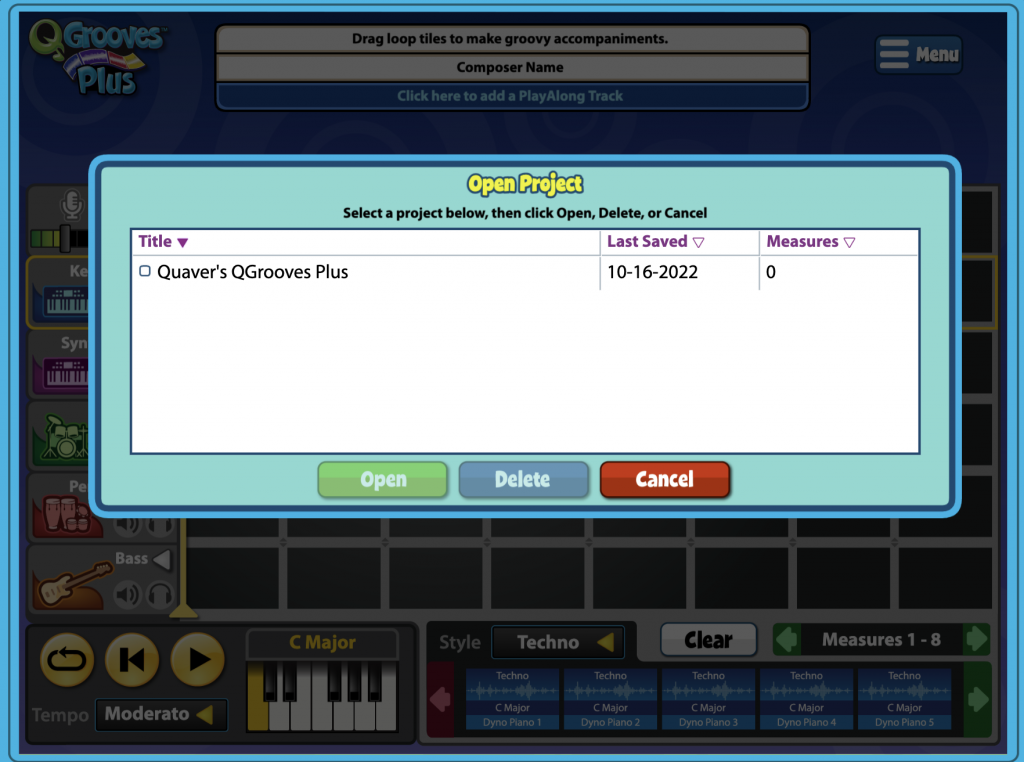
Click Menu > Open to Open or Delete your QGrooves Plus
- Choose to Open or Delete
- Click Cancel to go back to QGrooves Plus.
Download and Make an Mp3 of your QGrooves Plus #
- Click Menu > Save. If you have not already, you will be asked to give your QGrooves Plus a title.
- After saving your project, you can make an mp3 to download it. Click Menu > Make Mp3 from the menu and then Menu > Download the mp3 when it’s ready.
How to Assign QGrooves Plus to Your Students #
To begin, create a folder where your assignment will live.
- With no folder selected, click Menu, New Folder, and give it a title.
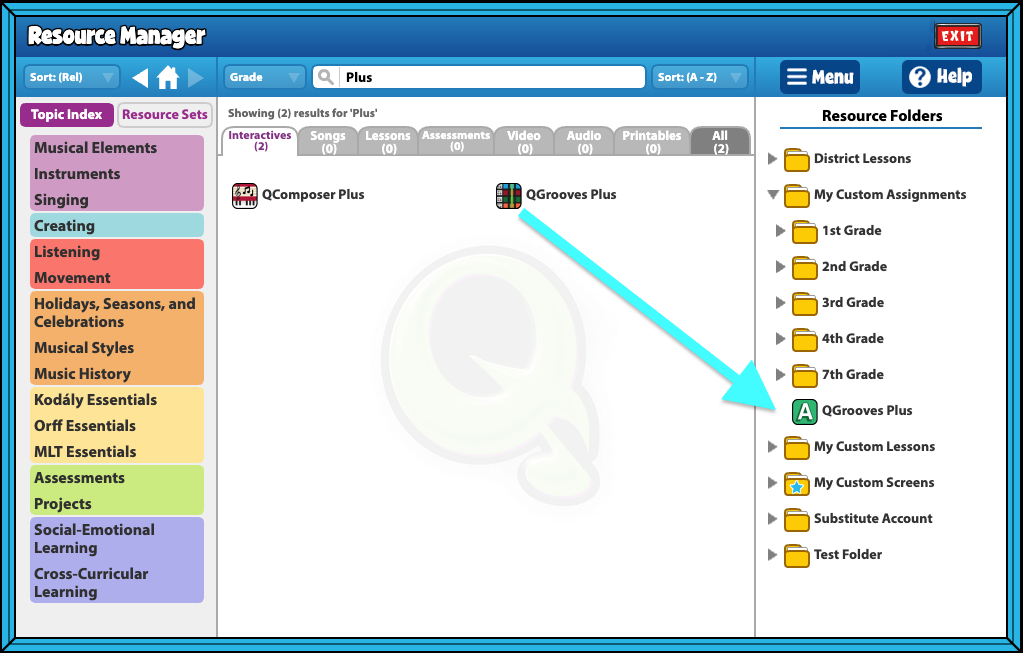
Your folder will now appear on the right side of your Resource Manager.
- Search for QGrooves Plus in Resource Manager.
- Drag the resource into your folder on the right side of the screen.
- Select the folder and hit Menu and New Assignment Template.
- Name your assignment “QGrooves Plus.”
- Open the folder and see your named Assignment with a green “A” next to it.
How to assign the assignment template to students: #
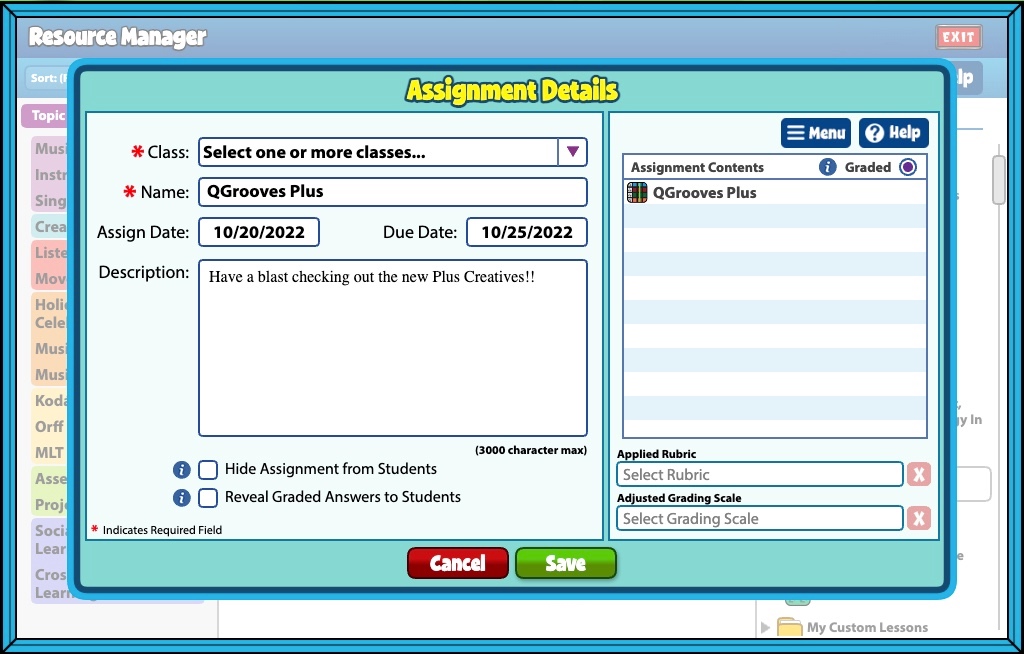
- Click Menu > Assign to Class to choose a class or classes you would like to give the assignment to. Use the Assignment Details screen to select your class(es), student(s), assign date, due date, and more!
- Students can submit their composition by clicking Menu > Submit on their QComposer Plus.
- Students should Save their submission if they wish to access it at a later time.
- Completed submissions will appear in your GradeBook next to the student’s name with an orange checkmark, meaning submitted.
- Click the checkmark to open the assignment review screen and view their work.

Is there a way to download the help video to add to my slides to show students in class?
Hi Kaitlin! You can link videos from Youtube or Vimeo in lessons through Resource Creation. Here is the help page on the subject. Hope this helps!