
Unlock the full potential of your lesson planning and development with the Resource Manager. Seamlessly search for resources and create lessons or assignments in one powerful tool.
There are three main sections of Resource Manager:
- Search and Filter
- Topic Index and Resource Sets
- Resource Folders
Search and Filters #
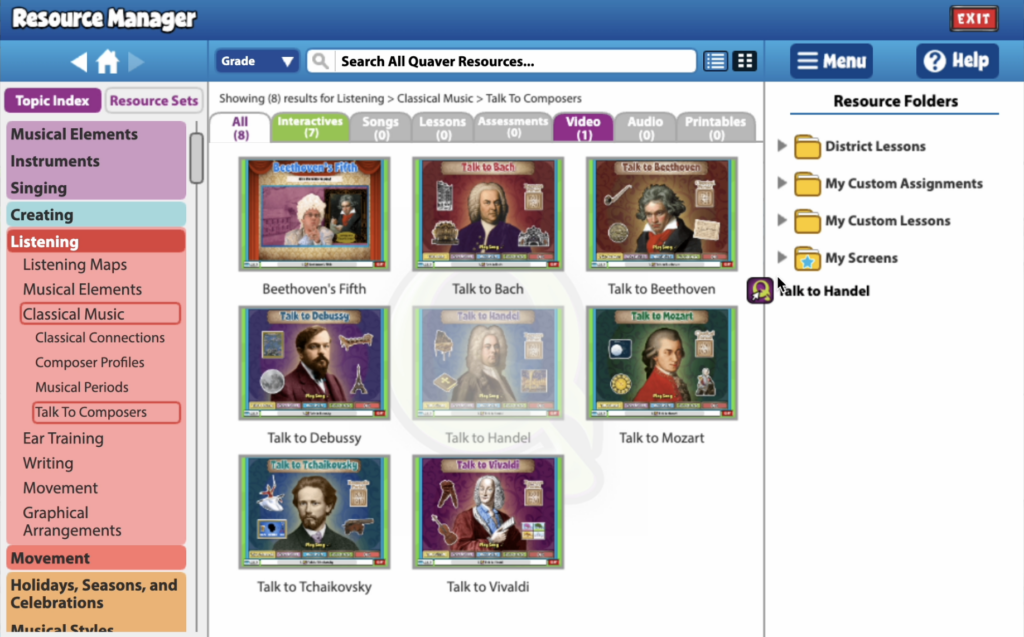
Use the center section of Resource Manager to search for specific resources by title or keyword. To begin a search, select the search box and start typing. As you type, a dropdown with closely related search options will make it easier to find what you’re looking for.

Once you choose your keyword for searching, a tile view will appear, displaying screenshots of your search results. You can use the yellow arrows at the screen’s bottom to navigate through additional search results.

Topic Index and Resource Sets #
You can browse the tabs on the left-hand side of the screen. This is a complete library of Quaver content. These tools act as another way to search for Quaver resources easily. When you select an option, the center section will populate with resources related to your chosen topic.
The Topic Index shows the major lesson themes or topics throughout QuaverMusic.
You’ll notice the topics are color-coded. The first four sections address the four domains used throughout NCCAS and many state standards. Below, you’ll find additional topics covering common teaching styles or classroom needs, such as assessments, projects, or specific cross-curricular subjects. For more info on these topics, click here.

Resource Sets #
The Resource Sets align with the icons on your Dashboard, filtering the available resources for each icon.
However, Custom Resources provides access to your collection of custom screens, lessons, assignments, and shared materials from colleagues.

My Favorites houses all the screens you have marked as favorites, whether from within the Lessons or in the Resource Manager. You can also manage your favorites here, allowing you to tidy up your favorites at any time.

Preview and Launch Resources #
While reviewing results in the middle section—whether from a keyword search, Topic Index, or Resource Sets—clicking on a thumbnail will expand and reveal several menu options, such as Launch, Favorite, and Menu.
The available menu dropdown options will vary based on the type of resource you are previewing and may include: Get Link, Lesson Plan, View, or Remove From Search Results.

Grabbing a Resource Link #
Select Menu > Get Link to generate a shareable link for your students.
Link expiration date:
Resource links are tied to your QuaverEd license. If your license expires, any copied QR codes/Links will no longer work.
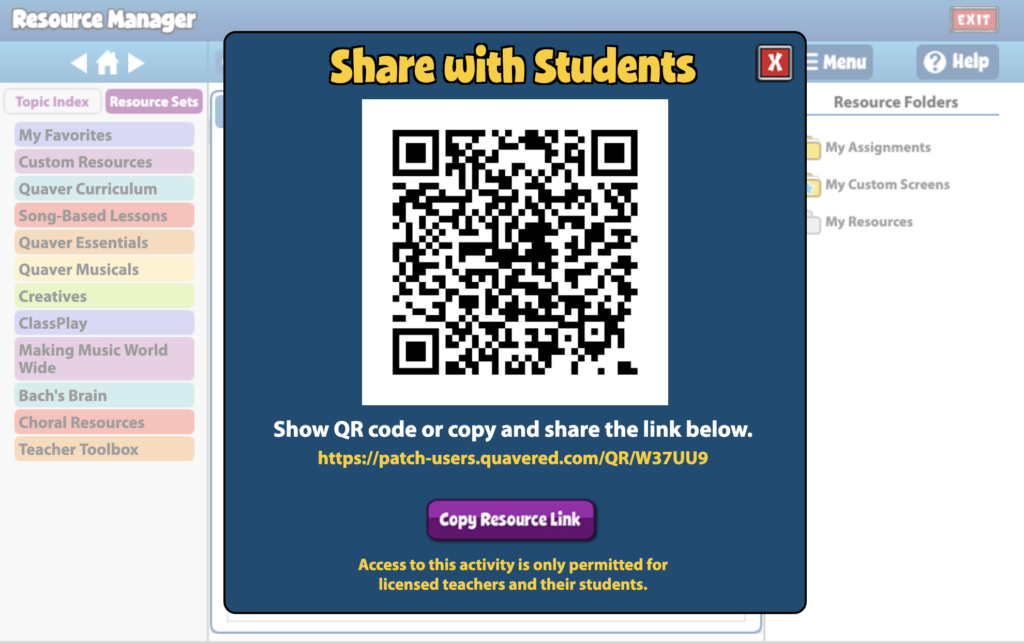

If it takes some time to renew your license, or if there is a break in your license period, your QR codes/links will remain linked to your account once your license is renewed.
Resource Folders #
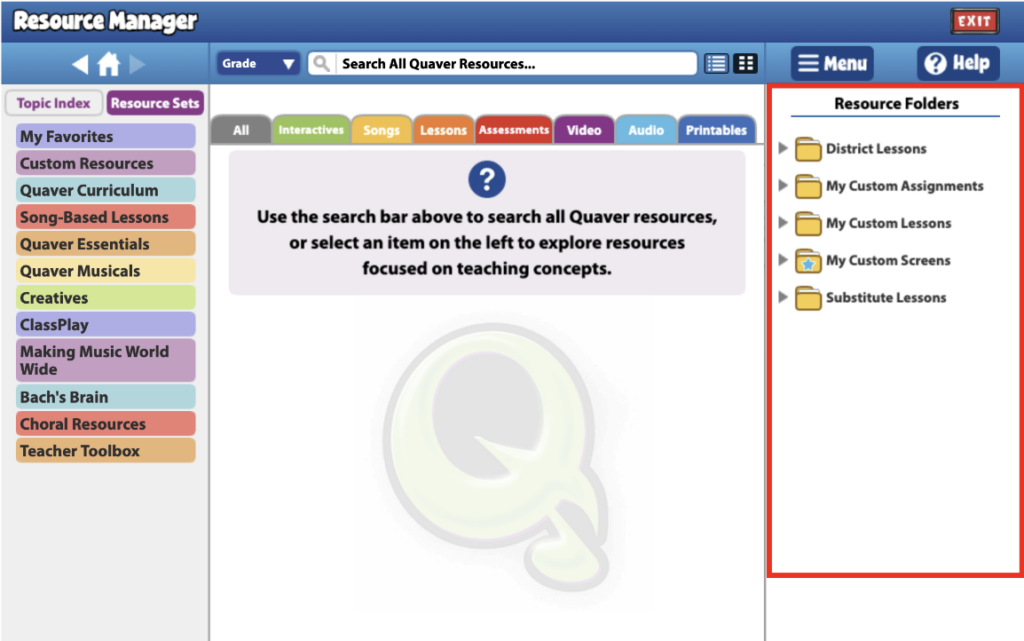
The section on the right-hand side of Resource Manager is called Resource Folders. You can use the folder provided or select Menu>New Folder to create your folder. Folders can contain screens, lessons, assignments, or other folders.
Organizing your Folders #
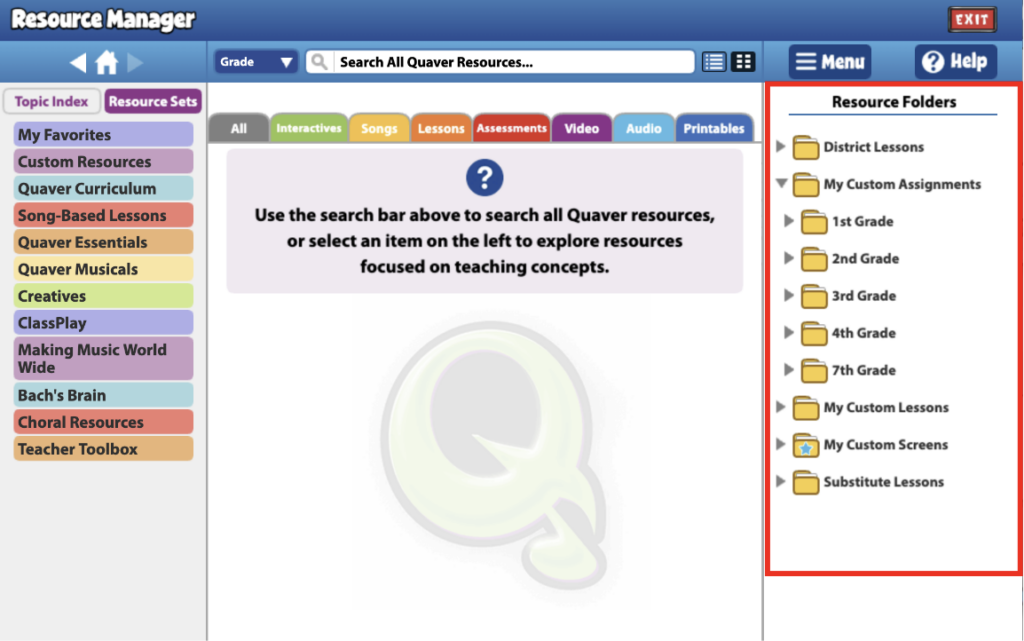
Folders can be nested inside other folders for organizational purposes. For example, you may create a folder labeled, ‘My Custom Assignments.’ You can then right-click (or select the folder and use Menu) to add other sub-folders such as Kindergarten, 1st Grade, 2nd Grade, and so on.
This will allow you to seamlessly access any resources you house in your Resource Folders.
Adding Content to a Folder
The primary method for adding content to a folder is dragging and dropping. As mentioned, you can search for resources using the search bar, topic index, or resource sets. Once you have located the resource you wish to add to a folder, drag and drop it into your preferred folder, lesson, or assignment from the center section.
Any screens created in Resource Creation will be automatically placed in your ‘My Custom Screens’ folder or the folder with the blue star.
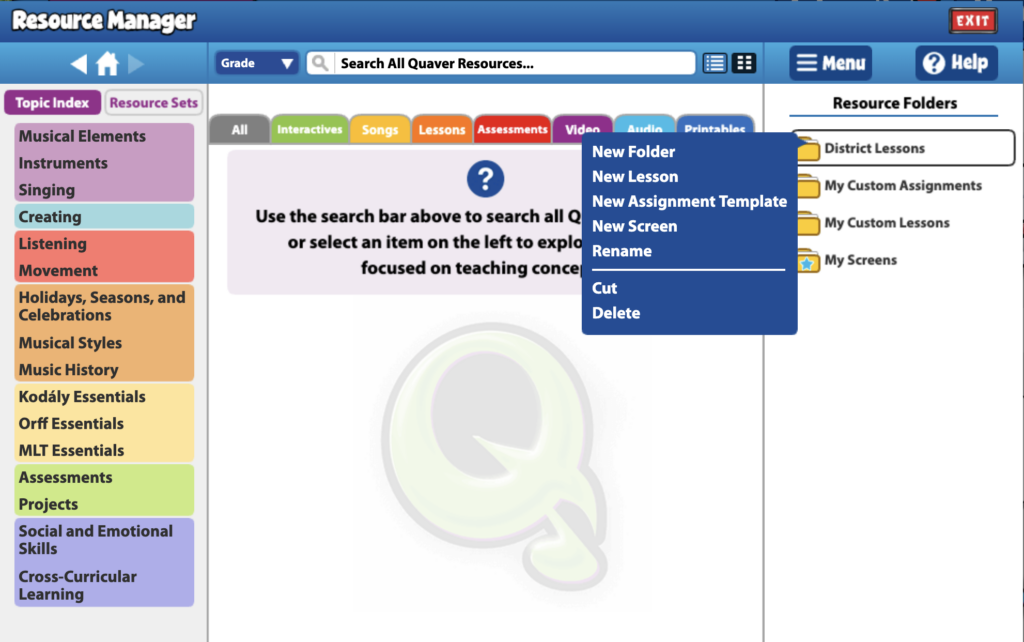
Folder Menu Options #
Right-click a folder to see a contextual menu with:
- New Folder: Creates a new folder.
- New Lesson: Creates an empty lesson to be customized.
- New Assignment Template: Creates an empty assignment to be customized.
- New Screen: Navigates to Resource Creation to create a new screen. Resources created here will populate in an auto-generated My Custom Screens folder.
- Rename: Renames selected item.
- Cut: Cuts selected item to be pasted in another location.
- Delete: Deletes selected item.
After gaining knowledge on effectively locating and organizing resources within the Resource Manager, the next progressive step involves the customization and creation of personalized lessons and assignments. This process allows you to tailor content to suit specific educational needs and preferences.

Lessons
Lessons are collections of screens, either pre-created by Quaver or custom-made by you, stored in Resource Folders. Select ‘Learn More’ for details on creating, editing, and sharing lessons.

Assignments
Assignments are lessons that can be assigned to student accounts and include options for auto-grading. Select ‘Learn More’ for details on creating, editing, and distributing assignments.

Hello,
How do you find the lesson for resource found in the resource manager? For instance, the song “Bate, Bate” is found when searching hispanic heritage month, but how do you go to the lesson from the resource manager. The song is in a Pre-K lesson but you cannot find the lesson from the resource manager. They are not linked.
Is there a way to delete old custom assessments? I’m struggling with identifying which one is the current assessment I want to assign because there are old items and I can’t open them up before I assign them to make sure I have the right one. Its very frustrating!
How do I select all screen in the resource manager and then drag and drop into the lesson I am creating?
Hi Aleesa,
Unfortunately, Resource Manager does not have that functionality yet. Screens need to be individually moved into folders, but I’ll pass this note along to the proper team! Thank you so much.