
Overview #
Quaver Essentials is a set of episodes covering various musical topics. Click on the Quaver Essentials icon in the bottom section of your Dashboard.

Quaver Essentials Classrooms #
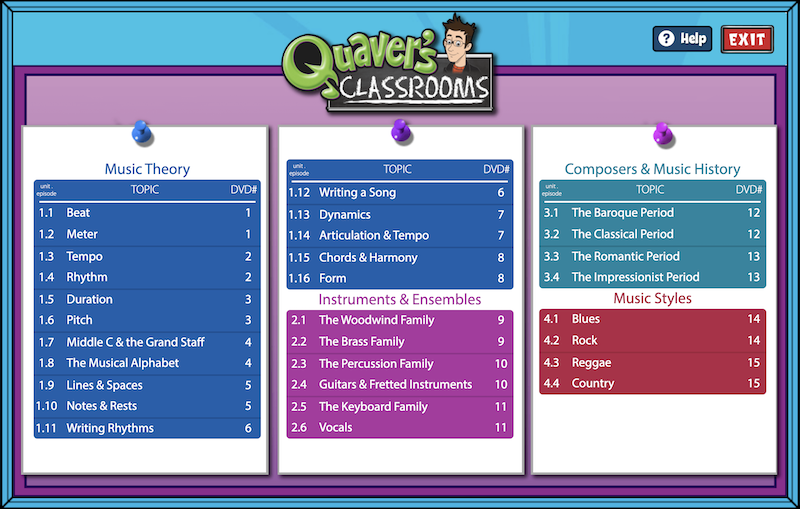
The menu is organized into four units that cover a total of 30 topics. Each topic acts as a musical classroom containing a video with accompanying activities. These are non-grade-level specific resources for you to supplement your instruction.
Classroom Menu #
Let’s take a look at the Beat topic.

You will see a Classroom Menu with resources and activities that include:
- A 14 to 20 minute video episode featuring Quaver and friends.
- A Teacher Guide with fun lesson ideas.
- Printable music scores for songs relevant to the topic.
- A variety of musical tracks to enhance your lesson.
- A teacher toolbox with adaptable digital tools.
- A collection of interactive whiteboard activities.
- A 10-question Quaver Quiz to assess your students’ knowledge.
- And printable worksheets to build upon lesson objectives.
To exit the classroom menu, click the blue arrow at the top right that says “Classroom Lobby.”


how do i assign the video to students to watch independently? i uploaded it to their schoology page and they can’t access it.
Hi Chantell!
There are two ways to share content:
Sharing a Link: You can grab a link for the essential video and then share it on Schoology or any other platform you choose. Here is a guide on how to do that using the Resource Manager: Grabbing a Resource Link: https://help.quavered.com/docs/music-resource-manager/#grabbing-a-resource-link-
Using QuaverMusic’s Assignment Tool: Another option is to use QuaverMusic’s Assignment tool to send the content directly to individual students. You can find detailed instructions on creating and distributing assignments here: https://help.quavered.com/docs/music-assignments/.
When assigning your assignment to a specific class, you can also select individual students to give it to.
Is there a video episode for the String Family? (Violins, violas, cellos and basses?)
Hi Lindsay!
There isn’t a specific episode dedicated to the Strings family like we have for other topics. However, there are similar videos available in the Resource Manager when you search for “Strings Family.” The two videos I recommend are “The Four Strings” and “The Strong Quartet,” both of which provide a good overview of classical-era strings. There are also “Instrument Anatomies” screens covering the different parts of the string instruments.
I hope this is helpful!
Is there a location I can see an example of the Crafts listed under many of the worksheet sections? I’m unsure how to utilize some of them, especially those that show they need to be cut out. I’m sure they could be beneficial though!
Hi Eliza!
While not every activity in the lesson includes detailed examples, you’ll often find additional guidance or instructions for the printouts in the Lesson Plan. It’s a great place to check for context or teaching tips.
I hope this helps!
where can I find the video on Saxophone? At end of the woodwind video he said that saxophone was another video?
Hi Amy!
Unfortunately there isn’t an episode dedicated to the saxophone yet. However, if you go to the Resource Manager and search for “Saxophone,” you can access a variety of interactives, as well as songs.The interactive screens titled “Saxophones Basic” and “Saxophones Advanced” might be a great place to start!
I hope this helps!
Hello! Is there a way to know inside what lessons is each episode? Like a list of the episodes and the lesson or grade in which they appear?
TIA
Hi,
Thanks for reaching out! The Quaver Essentials Classroom menu organizes the lessons into four unit types, which is the best way to find each episode. The lessons are not grade-specific. Hope this helps!
Hi there,
Thanks for reaching out! If you go to Resource Manager (from your dashboard home), there is a search function you can use to find specific videos. Or, if you prefer, you can use the filter function on the lefthand side of that same page to see Quaver Essentials content (Resource Sets > Quaver Essentials > Video tab). Hope this helps!
I came here to ask this same question, but it wasn’t answered. The videos are hidden in the lessons and we need to know which lessons have which videos without having to click on every lesson.
Hi Amanda,
Thanks for reaching out! If you go to Resource Manager (from your dashboard home), there is a search function you can use to find specific videos. Or, if you prefer, you can use the filter function on the lefthand side of that same page to see Quaver Essentials content (Resource Sets > Quaver Essentials > Video tab). Hope this helps!