
Skip to content
Help Center
  • QuaverEd.com
  • FAQs
  • Site Status
  • Contact Us
Help Center
  • QuaverEd.com
  • FAQs
  • Site Status
  • Contact Us

Help Center

Getting Started

  • Getting Started with QuaverMusic
  • QuaverMusic Dashboard
  • Substitute Teacher Access
  • Dashboard Icons
  • Resource Manager

Lessons

  • Quaver Curriculum
  • Song-Based Lessons
  • Quaver Essentials
  • Creating & Customizing Lessons

Admin Tools

  • QRewards and QuaverNotes
  • Attendance
  • Admin Tools Overview
  • Classes
  • Student Accounts
  • GradeBook
  • Creating & Distributing Assignments
  • Chat

Creatives

  • QBackBeat
  • QComposer
  • QGrooves
  • QSoundFX
  • QComposer Plus
  • QGrooves Plus
  • SongBrush
  • QStrum
  • QSynth

Supplemental Resources

  • ClassPlay
  • QuaverMusic Toolboxes
  • Quaver Choral Resources
  • Bach’s Brain
  • Making Music Worldwide
  • QuaverMusicals
  • Quaver Contests
  • QuaverStreet Overview
  • Quaver Street: Avatar Customization
  • Quaver Street: Music Room
  • Quaver Street: Music Store
  • Quaver Street: Metro

Creating Resources

  • Resource Creation Overview
  • Multimedia
  • Melody Composer
  • Checklist Builder
  • Quiz Challenge
  • Quiz Builder
  • Rubric Builder
  • Student Recording
  • Teacher Recording
  • Audio Upload
  • File Upload
  • Web Link
  • Video Link

Music Integration

  • Quaver Music Integration Dashboard
  • Music Integration Lessons

Creating and Assigning Resources

  • Resource Creation Overview
  • Video Link
  • Web Link
  • File Upload
  • Audio Upload
  • Teacher Recording
  • Student Recording
  • Rubric Builder
  • Quiz Builder
  • Quiz Challenge
  • Checklist Builder
  • Melody Composer
  • Multimedia

Curriculum Documentation

  • General Information
  • Scope and Sequences
  • Curriculum Maps
  • Standards Alignment
  • Classical Connections
  • Cross-Curricular Connections
  • Movement Maps
  • Curriculum Materials and Instruments
  • State-Specific Documentation
  • Best Practices

Single Sign-on

  • ClassLink and QuaverEd
  • Clever and QuaverEd
  • Google and QuaverEd
  • Schoology and QuaverEd
  • Canvas and QuaverEd
  • Single Sign-On Other

Accessibility

  • Accessibility
  • Features and Enhancements
  • Accessibility FAQ
  • Home
  • Home
  • QuaverMusic
  • Supplemental Resources
  • Quaver Street: Metro

Quaver Street: Metro

The Metro area of Quaver Street allows you to take virtual field trips and explore musical styles from around the world.

Select a venue from the Departures board to access that venue and all the activities that go with it.
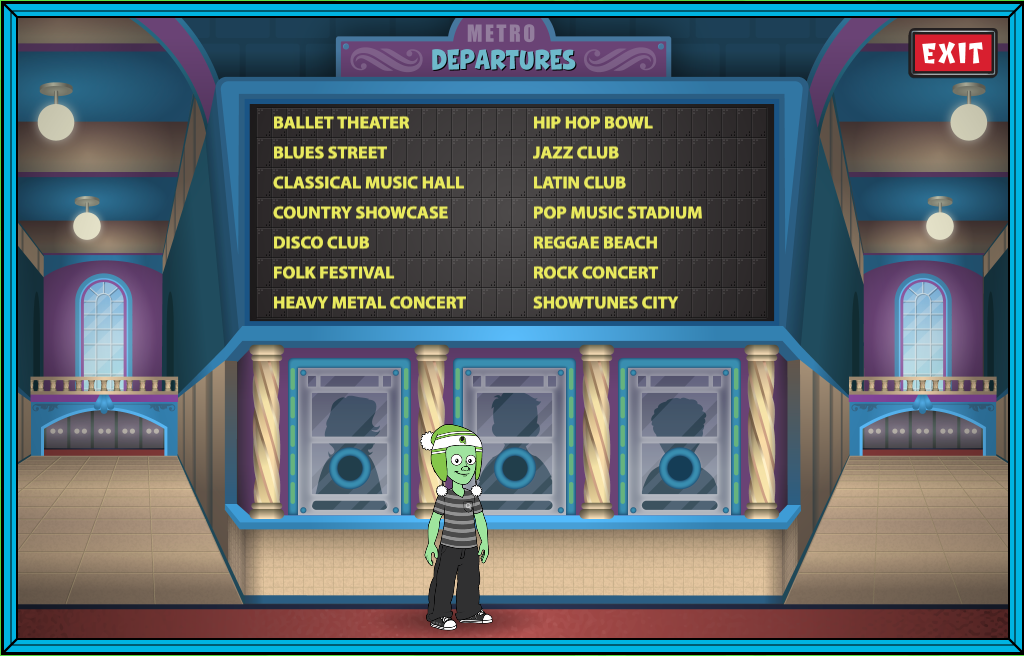

A screenshot of the QuaverStreet Metro, as described in this section.

Click the Activities tab at the bottom of the screen to select from a menu of activities:

  • Info  – watch a short animated video about the musical style. 
  • Book – read the Basic or Advanced QuaverBook about the musical style.
  • Map – view an animated map of where the venue is located.
  • Music – listen to a playlist of songs inspired by the musical style.
  • Puzzle– complete a jigsaw puzzle featuring the scene on the main page of the venue.
  • Matching Game– match cards featuring significant composers of the musical style.

To return to the Departures selection menu, click Exit at the top right. Click Exit again to return to Quaver Street.
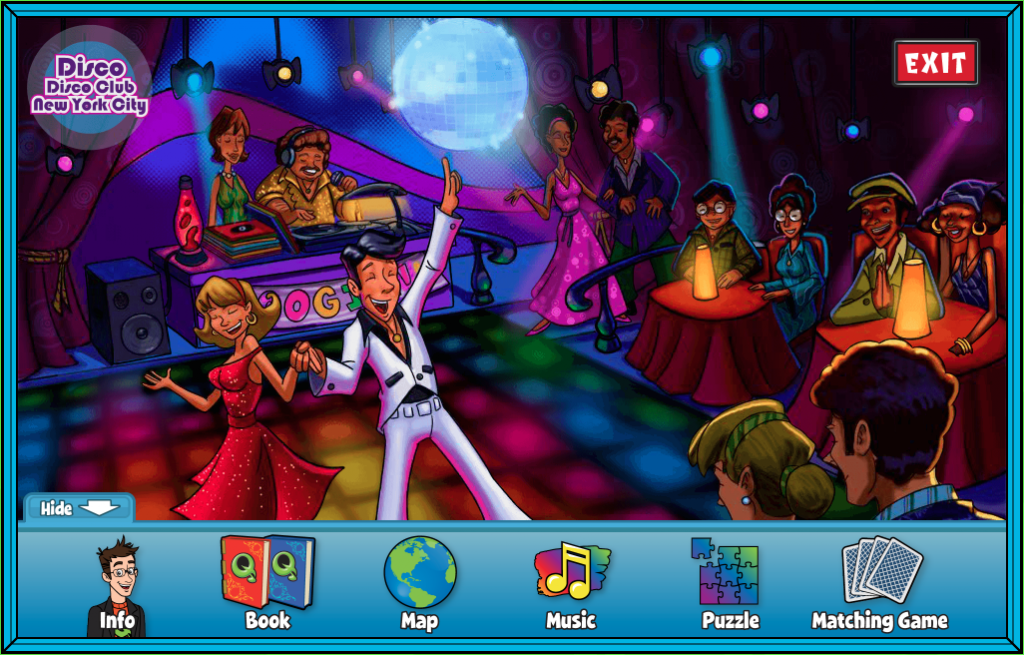

A screenshot example of an activity screen, as described in this section.

Did you find this article helpful?
Need more information? Reach out to us.

How can we help?

4 thoughts on “Quaver Street: Metro”

  1. Jan peterson
    October 17, 2023 at 5:42 am

    Hi. I’m a teacher and can’t see where to enter Quaver Street any longer. It is helpful to have access to areas students will use so we can demonstrate. Plus it was fun having a avatar too.

    Reply
    1. Van O (Product Support Manager)
      October 17, 2023 at 4:54 pm

      Hi Jan!

      You may need to add Quaver Street to your Dashboard. If you use the ‘Customize’ button on your dashboard, scroll down to the left-hand side, and you can add the Quaver Street app to your dashboard. Make sure to Save your changes as well.

      Reply
  2. Nakita Jile
    April 7, 2026 at 3:06 pm

    Hey!!! I like to use the Metro Matching games as a class activity. Is there a way I can turn the timer off? This would help ensure each student has a chance to participate.

    Reply
    1. Ryne Walker
      April 14, 2026 at 4:00 pm

      Hi Nakita,

      Thank you so much for reaching out. Unfortunately, I don’t believe you can disable the timer within the Metro matching games at this moment, but I can pass this along to the right team members for feedback! In the future, you can also submit content feedback and get direct customer support through our contact us page!

      Reply

Leave a Reply to Ryne Walker Cancel reply

Your email address will not be published. Required fields are marked *

  • QuaverEd.com
  • FAQs
  • Site Status
  • Contact Us
×

We're Here to Help!

We apologize if this page didn't meet your needs. Please provide more details:

Still need help? Contact Us

Copyright © 2026 QuaverEd, Inc.