
Skip to content
Help Center
  • QuaverEd.com
  • FAQs
  • Site Status
  • Contact Us
Help Center
  • QuaverEd.com
  • FAQs
  • Site Status
  • Contact Us

Help Center

Getting Started

  • Substitute Teacher Access

Lessons

Admin Tools

  • QRewards and QuaverNotes
  • Attendance
  • Admin Tools Overview
  • Classes
  • Student Accounts
  • GradeBook
  • Creating & Distributing Assignments
  • Chat

Creatives

Supplemental Resources

Creating Resources

  • Resource Creation Overview
  • Multimedia
  • Melody Composer
  • Checklist Builder
  • Quiz Challenge
  • Quiz Builder
  • Rubric Builder
  • Student Recording
  • Teacher Recording
  • Audio Upload
  • File Upload
  • Web Link
  • Video Link

Music Integration

Creating and Assigning Resources

  • Resource Creation Overview
  • Video Link
  • Web Link
  • File Upload
  • Audio Upload
  • Teacher Recording
  • Student Recording
  • Rubric Builder
  • Quiz Builder
  • Quiz Challenge
  • Checklist Builder
  • Melody Composer
  • Multimedia

Curriculum Documentation

Single Sign-on

  • ClassLink and QuaverEd
  • Clever and QuaverEd
  • Google and QuaverEd
  • Schoology and QuaverEd
  • Canvas and QuaverEd
  • Single Sign-On Other

Accessibility

  • Accessibility
  • Features and Enhancements
  • Accessibility FAQ
  • Home
  • Home
  • QuaverMusic
  • Creating & Assigning Resources
  • Teacher Recording

Teacher Recording

Create a custom video recording to add to any lesson or assignment using the Teacher Recording screen on the Resource Creation menu.

A Teacher Recording screen may be particularly helpful for remote instruction.
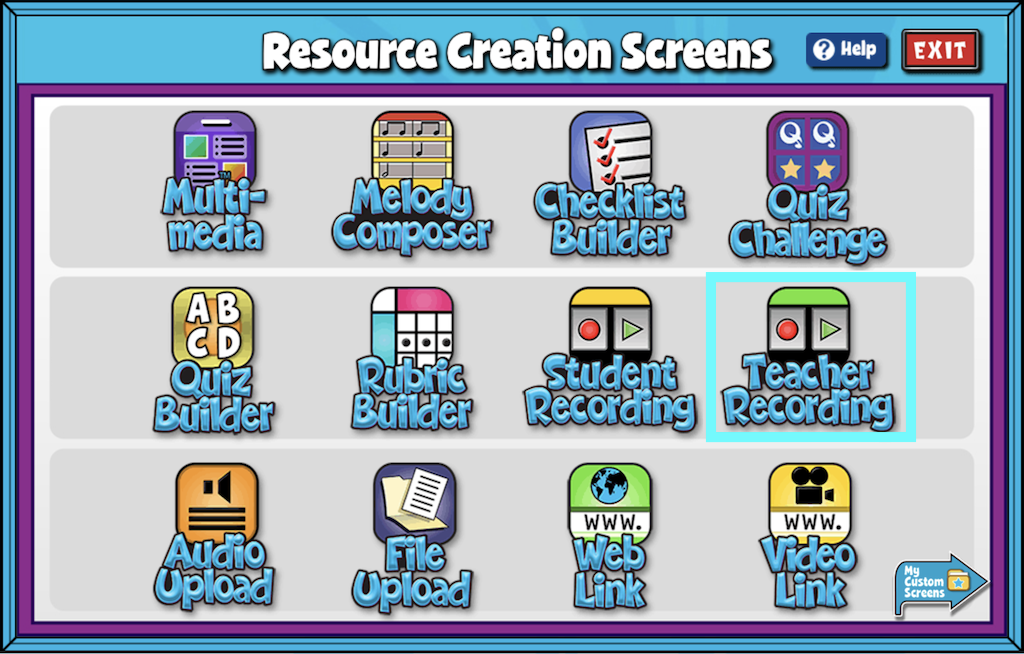

A screenshot of the Resource Creation Screens page with Teacher Recording highlighted.

Teacher Recording Features #

  • After adding a title, you can either record or upload a video. The option is controlled by the Change Mode button on the left of the screen.
  • Add/Edit Notes: Using the add/edit notes icon, you can add custom notes to any teacher recording screen.
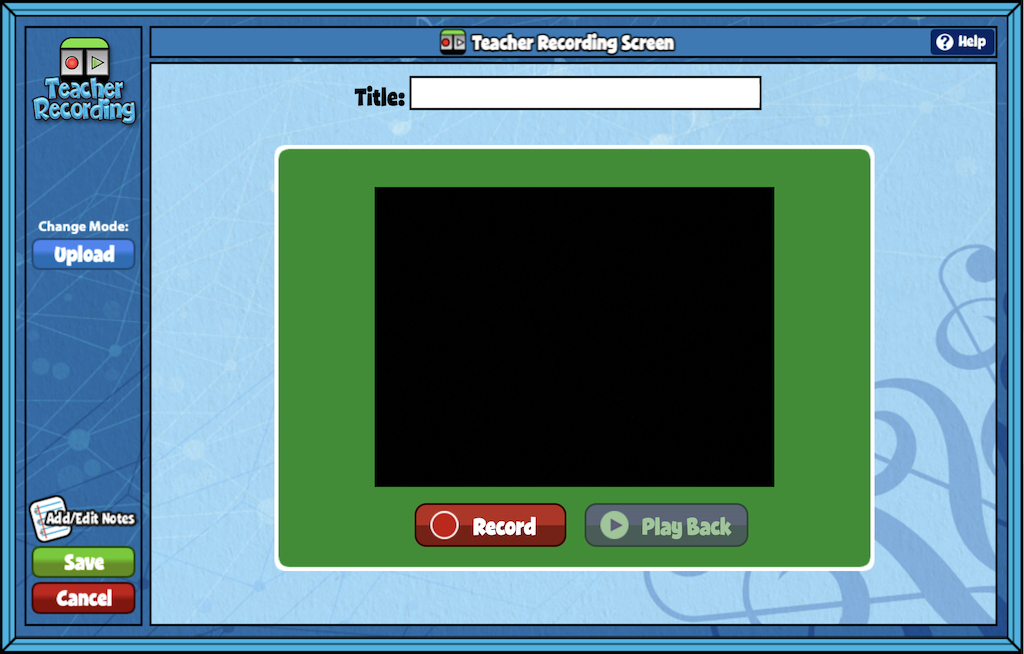

A screenshot of the Teacher Recording Screen, as described in this section.

Did you find this article helpful?
Need more information? Reach out to us.

How can we help?

2 thoughts on “Teacher Recording”

  1. Sheila Zery
    December 21, 2024 at 8:31 pm

    I am not given an option to record.
    Only given option to upload.
    :/

    Reply
    1. Van O (Product Support Manager)
      January 7, 2025 at 2:26 pm

      Hi Shelia!

      If you do not see the option to record, either your computer or browser permissions are not allowing you to use your camera/microphone. This should be an easy fix in your computer/browser settings. If that doesn’t work, you can still upload a video you record outside of Quaver. I hope this helps. Have a great day!

      Reply

Leave a Reply to Van O (Product Support Manager) Cancel reply

Your email address will not be published. Required fields are marked *

Table of Contents
  • Teacher Recording Features
  • QuaverEd.com
  • FAQs
  • Site Status
  • Contact Us
×

We're Here to Help!

We apologize if this page didn't meet your needs. Please provide more details:

Still need help? Contact Us

Copyright © 2026 QuaverEd, Inc.