
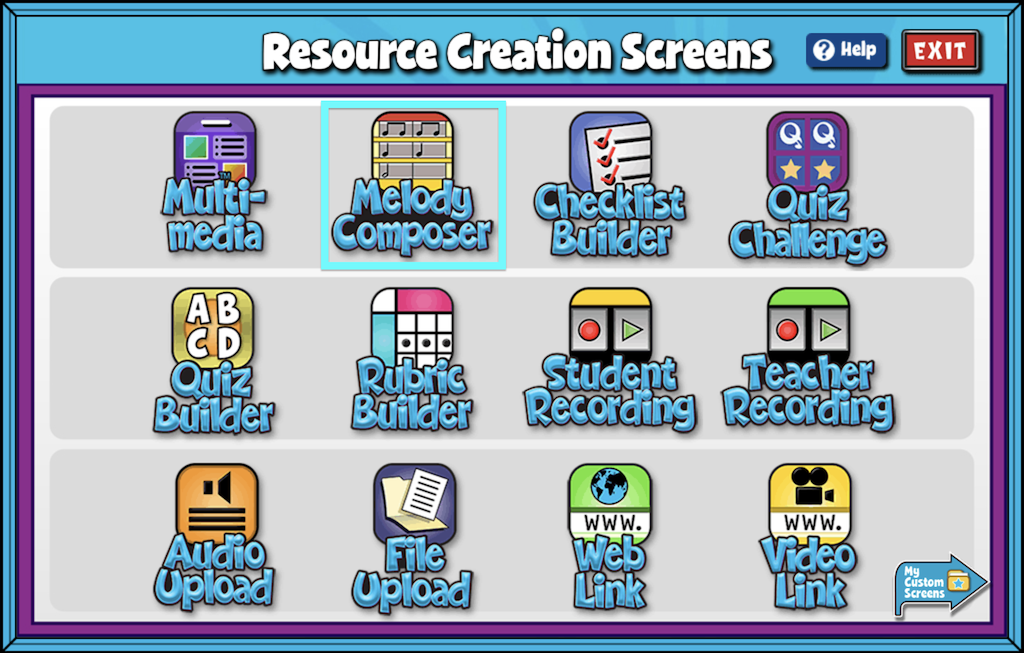
In Melody Composer, teachers can build a template for students to compose from. The template consists of a predetermined rhythm pattern, key, and tempo. It can even be limited to specific solfege notes.
Students drag-and-drop pitches onto the grand staff to create a melody within the parameters. As a result, students learn how to create melodies in an ear-pleasing way.
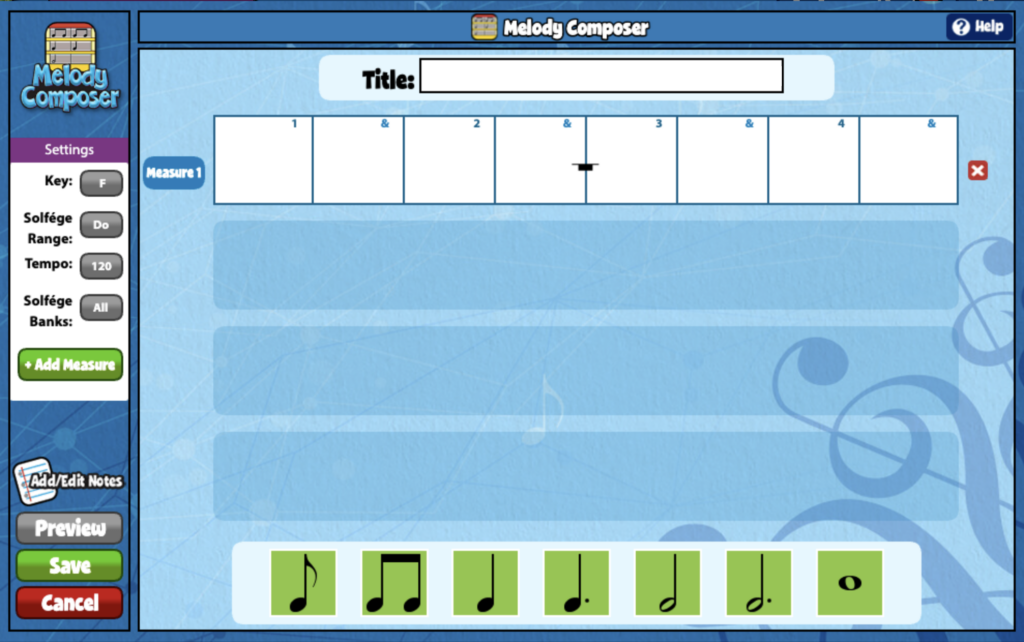
Melody Composer Editor #
- Click the Title text box and choose a name. Click Enter to save.
- Use the options on the left to adjust the key, tempo, and solfège. The Solfège Bank allows you to limit the available Solfège syllables (Notes) within the scale. For instance, you can narrow the Solfège syllables to include only ‘Do’ and ‘Sol’ or choose a pentatonic scale to facilitate learning.
- The Solfège Range lets you adjust the one-octave range to other starting and ending pitches, such as ‘Re’ to ‘Re’ or ‘Sol’ to ‘Sol.’ This provides increased flexibility in melody creation.
- By default, the activity is only one measure. You can add additional measures by clicking the green Add Measure button. You can have up to four measures.
Add/Edit Notes: Using the add/edit notes icon, you can add custom notes to any multimedia screen.
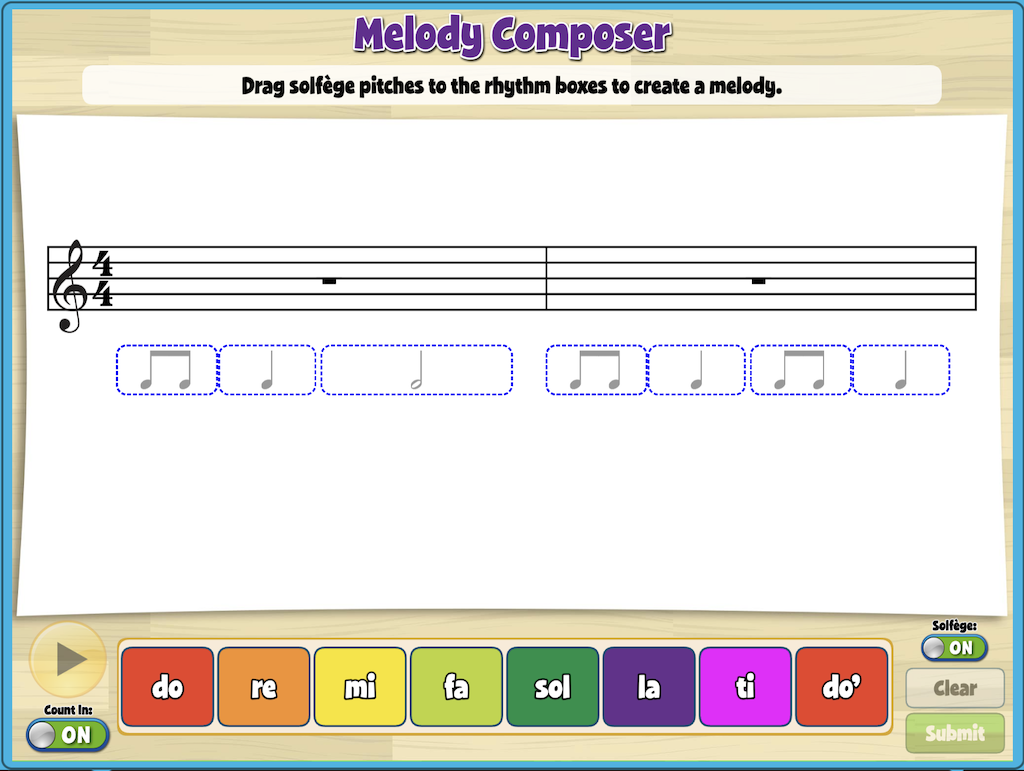
Student View #
Click the Preview button to see what the activity will look like for students once assigned. Students can drag any solfège pitch into the rhythm boxes underneath the staff.
Toggle the Solfège button in the lower right to see the note names instead of the solfège names. Students can click the Play button at any time to hear their composition. Use the Count In button to add a four-click count-in. Use the Clear button to clear all notations.
Back in the main Melody Composer window, click Save to save your screen.
To view your screen, head to the My Custom Screens folder in Resource Manager. This screen will remain in this folder, ready to be added to a custom lesson or assignment.
Assigning to Students #
You must convert this screen into an assignment to distribute to students. For information on creating and distributing assignments, click here.
When distributing to students, you can decide whether you want it graded. By making it a graded assignment, students can click the Submit button in the lower right corner of the Student View window.

I love this screen! Just want to put another pitch out (I think I mentioned this in an email last year) to have an option to compose in 6/8 meter. This would be such a helpful activity for my students creating melodies in compound meter! Thanks!
This screen is a great tool to assist with melody creation. However, I wish that there was a way to only use quarter notes. This would help my students greatly.
Hi Candyss!
Thank you for the kind words—we’re glad you find Melody Composer helpful in your classroom! While it is possible to create melodies using only quarter notes, there isn’t currently a way to restrict the note values to just quarters like you can with the Solfége Bank. I understand how that kind of setting could benefit your students, and I’ll be sure to share your feedback with our Content and Development team!
With the melody composer, I also with you could do the accidentals like fi instead of fa and si instead of sol. So then we could do a whole tone composition but the students then only get the options of the whole tone letters.
Hi Lia!
Thanks so much for sharing this idea—it’s a great one! We love hearing how you’re thinking creatively with the Melody Composer. I’ll pass your feedback along to our Content and Development team for consideration! We really appreciate you taking the time to share it with us.
I absolutely love this resource. I wish there was a way to allow students to choose their own rhythms in the same way they can choose solfege. Then we could change which rhythms are available to choose from on our end in a rhythm bank below the solfege bank.
I wish we could set this in 6/8 time and have more rhythmic options.
Thank you so much for the feedback, Bryan! I’m happy to pass this along to the appropriate team. In the future, you can also submit content feedback through our contact us page.