
QuaverEd supports ClassLink Single Sign-On (SSO) access via Oauth2 to our resources; QuaverEd can also support SAML and LTI integration in ClassLink if needed.
We integrate directly with the ClassLink OneRoster API or support rostering via OneRoster CSVs delivered by ClassLink.

How to Access QuaverEd from ClassLink #
This section is directed toward teachers and students using ClassLink with QuaverEd. Your district IT administrator must first set up a ClassLink SSO integration with QuaverEd, following the setup instructions above.
1. Sign in to your district ClassLink account. This is often linked from your district’s website. Alternatively, you can visit launchpad.classlink.com and search for your school to find your ClassLink portal. (If you are not sure how to access ClassLink, contact your district IT specialist).
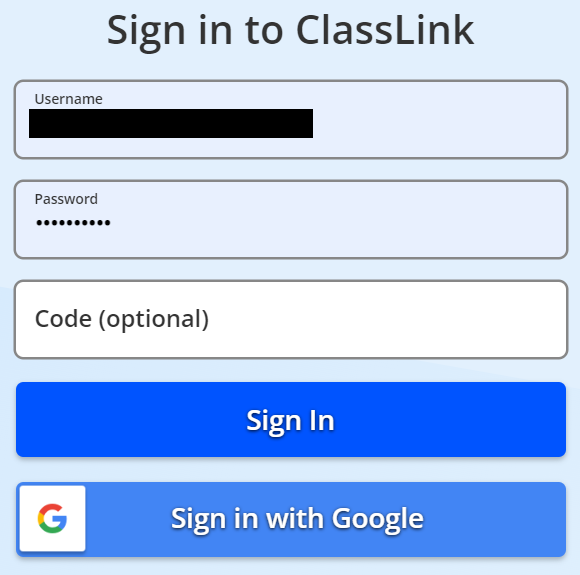
2. On your ClassLink dashboard, select the QuaverEd app icon.
If this is your first time accessing QuaverEd from ClassLink, proceed to step 3. Otherwise, you can skip step 5!
3. This page is essential! If this is your first time logging into QuaverEd from ClassLink, you’ll likely see our Single Sign-On account provisioning page.
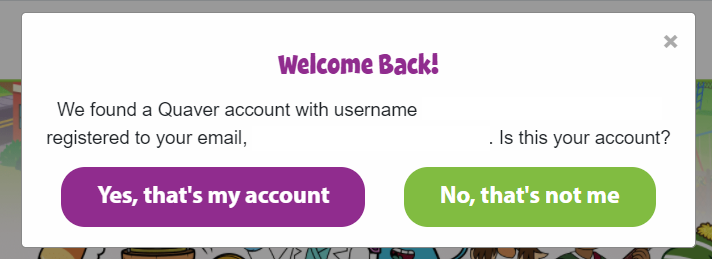
If we find an existing QuaverEd account associated with your email address, you will see the message seen to the right.
Select Yes, that’s my account to link to that QuaverEd account. Select No, that’s not me if you’d like to connect a different QuaverEd account.
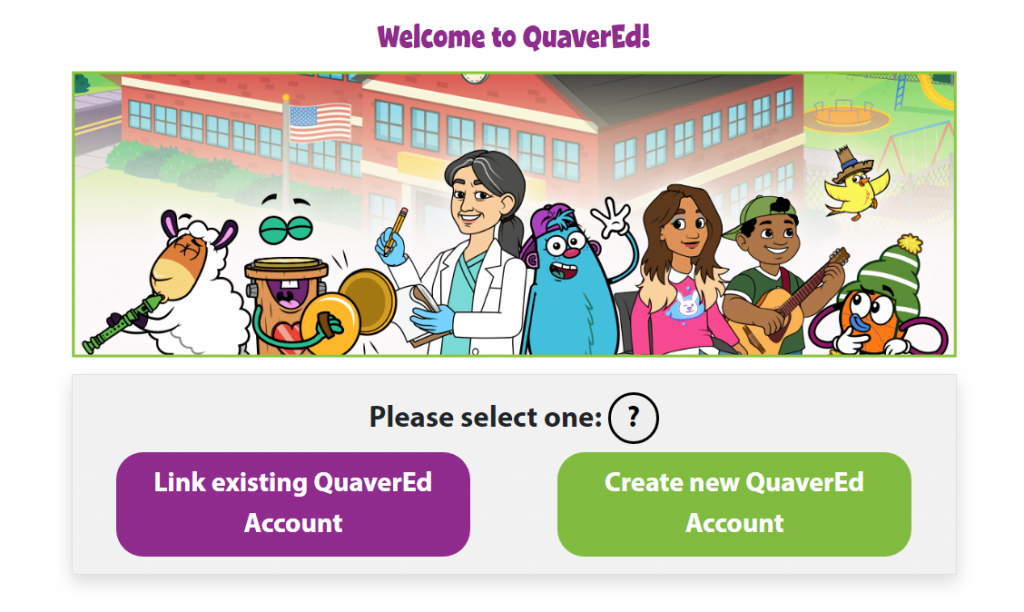
4. If you have created a QuaverEd account before, select Link existing QuaverEd Account. This will allow you to link your ClassLink account to your existing QuaverEd account.
If you do not have a QuaverEd account, select Create new QuaverEd Account.
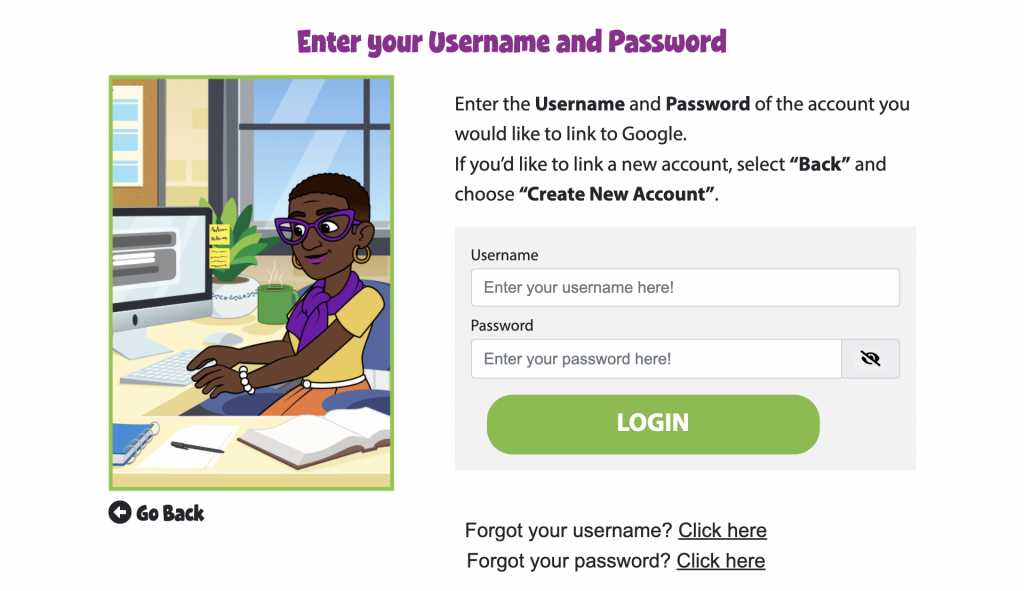
5. Enter your QuaverEd Username and password and select LOGIN to link your ClassLink account to your existing QuaverEd account.
If you have never created a QuaverEd account before, select Go Back and select Create new QuaverEd Account on step 4.
6. Depending on the type of account you’re using, you will land at one of the following places…
Teacher Dashboard

If a teacher lands on their Teacher Dashboard, this will indicate that the teacher has successfully linked their QuaverEd teacher account with ClassLink.
Student Dashboard

If a student lands on their Student Dashboard, this will indicate that the student has successfully linked their QuaverEd student account with ClassLink.

I am in Quaver and I think my Quaver account isn’t properly linked through Classlink because I cannot edit student accounts to change passwords and the students can’t see my assignments. What do I need to do to fix this problem? Logging into classlink at the beginning of the school year has populated my rosters properly, but that is all. Thank you for any help you can provide!
Hi Tara,
So sorry you’re experiencing issues! If you haven’t already, please reach out to integrations@quavered.com for direct help on this. They can assure everything gets set up properly!
I am trying to figure out how does the students log on? I am new to QuaverEd.
Hi Portia,
Here is our login / sign up page! If you have any trouble, feel free to reach out to our customer service team here. Thanks so much, and welcome to QuaverEd!