
Quaver teachers can choose to track student attendance in Admin Tools in two different ways.
- Manual Attendance
- Automatic Attendance

Before you can take attendance, you’ll need to have your students enrolled in Classes. Learn how here.
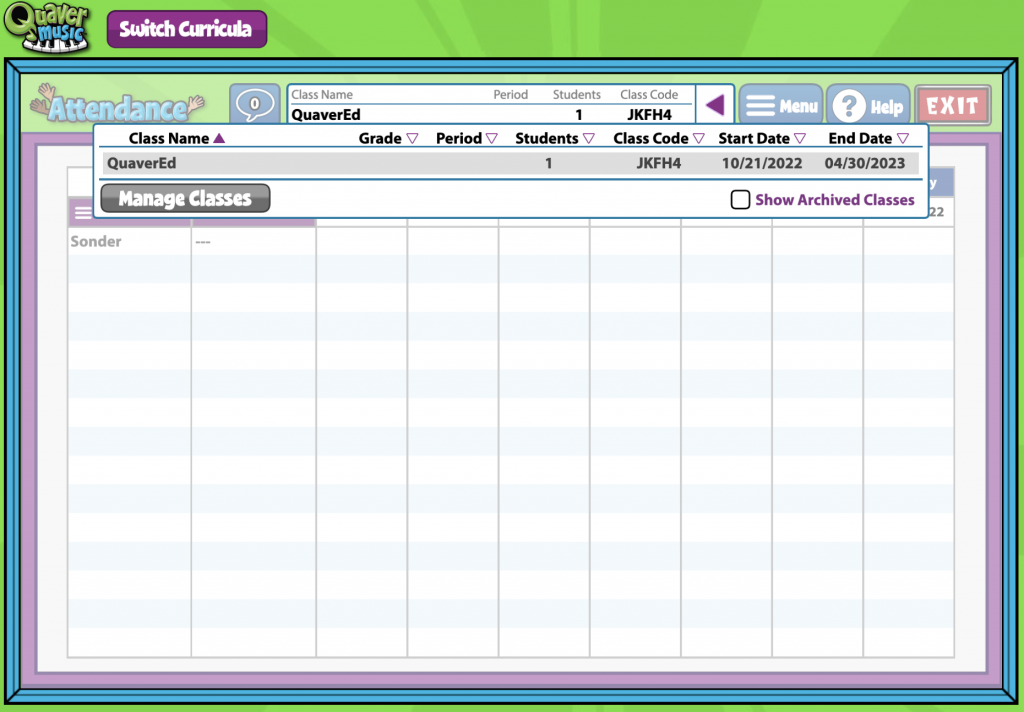
Choose a date: #
Across the top of the screen, you’ll see the dates of the current week. These dates are color-coded to help you find the date you need. Days in the past have a grey background. Today’s date is purple. Future dates are dark blue.
Use the yellow arrows in the top left corner to move forward or backward a full week. You can also click the calendar icon to select any date. This list will always show you a full week view from Sunday to Saturday.

Record Attendance: #
Attendance can be recorded for a single student or the whole class with a simple click.
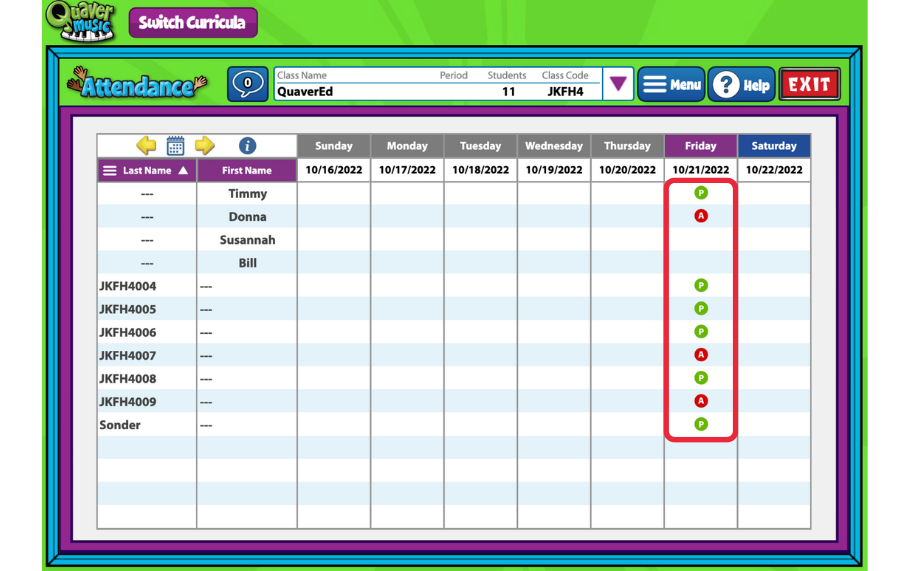
Click in any cell to mark the individual student as PRESENT with a green “P.”
Click again to see that status change to a red A to indicate ABSENT, and so on.
An icon legend is provided with the different ways you can record student attendance and absences. You can view this legend by clicking HELP and ICON LEGEND.

Mark the default attendance of an entire class as “Present” by clicking on the date or day of the week. Click again to remove the default status. Select an individual icon to change that student’s attendance.
Record Student Attendance Automatically at Login #
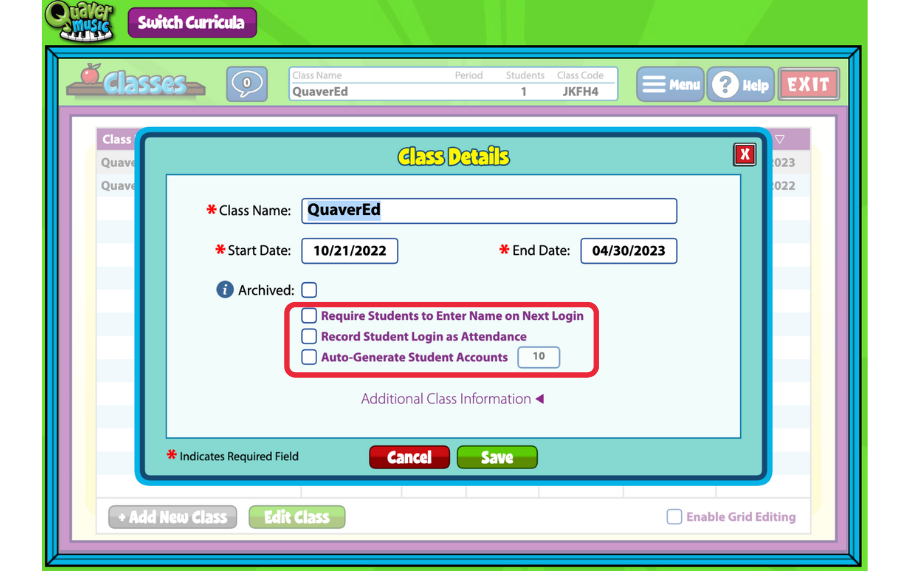
Quaver teachers also have the option to record student login as attendance automatically. This means that when a student logs in to Quaver, it will automatically mark them as present.
To automatically record student login as attendance: #
- Select CLASSES from the Admin Tools menu
- Here, you can choose to edit an existing class or create a new class.
- On the Class window, check the box that says Record Student Login as Attendance.
Leave Attendance and Behavior Notes #
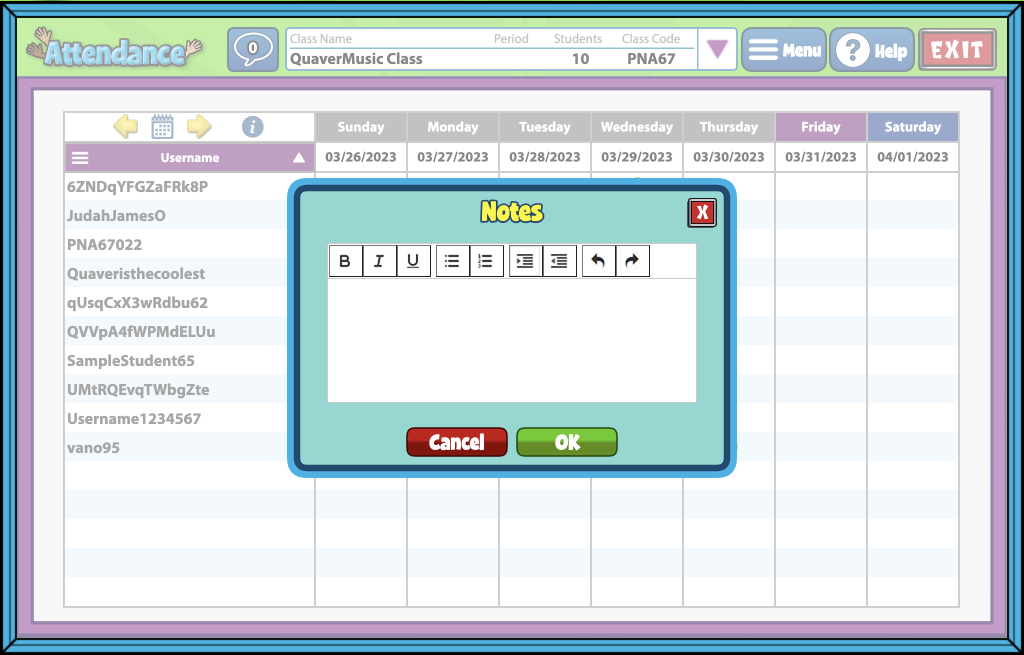
If you’d like to leave notes for yourself about a student’s behavior or attendance, right-click any cell. This will pull up a NOTES window. Enter your notes and click the green OK button to save.
The corner of that cell will now show a blue triangle. Hover over the blue triangle to see the notes you’ve entered. To remove the note, right click to edit and remove all text from the text box before selecting OK.

Is it possible to view attendance over a range of dates-for example, every Thursday for a 10-week quarter?
Hi Lisa!
Currently, it’s not possible to do that in Attendance. You would need to navigate using the yellow arrows and calendar. I understand how this makes sense for some school schedules. I’ve passed your request to our Content & Development team for consideration. Thank you for reaching out!
I agree that it would be wonderful to have the option to enter a specific schedule for each class. My classes meet once a week, and I would love to have one screen that shows a quarter/semester of weekly attendance so I can see trends attendance data.
Mac users cannot right click: When I try to do our equivalent of right-clicking, nothing happens.
Hi Emily!
I’m on an Apple MacBook and can right-click. If you’re using the trackpad, right-clicking may require a two-finger tap. You can check your settings by searching for “Trackpad” in your computer’s settings to see which type of secondary click is selected.
If you continue to have issues, it may be worth contacting your school’s IT department. Alternatively, you can call our Customer Service team at 866-917-3633, and we’d be happy to help where we can!
I second this request!
Hi Trisha!
Thank you for reaching out! I’ll pass along your feedback to our Content and Development team, as they work to make improvements.
Have a fantastic day!
Can we print a log of attendance for the year? Can we print a log of notes for conferences? These things would be most helpful.
Hi Crisaundra,
Thank you so much for the feedback. The attendance page, unfortunately, does not have a print option, but I’ll happily pass this along to our content / development team for future updates! If you are just hoping to print a roster, a workaround for this is to navigate to Admin Tools > Gradebook > Menu > Download Gradebook. From there, you can print your list of students, along with their grades. I hope this is helpful!
Love to at least hide Saturday and Sunday. but Seeing groups of the days of the week would be helpful. Like all Mondays, all Tuesdays etc… would be really cool.