
QComposer is a QuaverMusic Creative that allows you to create melodies and chords by simply dragging notes to the staff.
Starting a New QComposer #
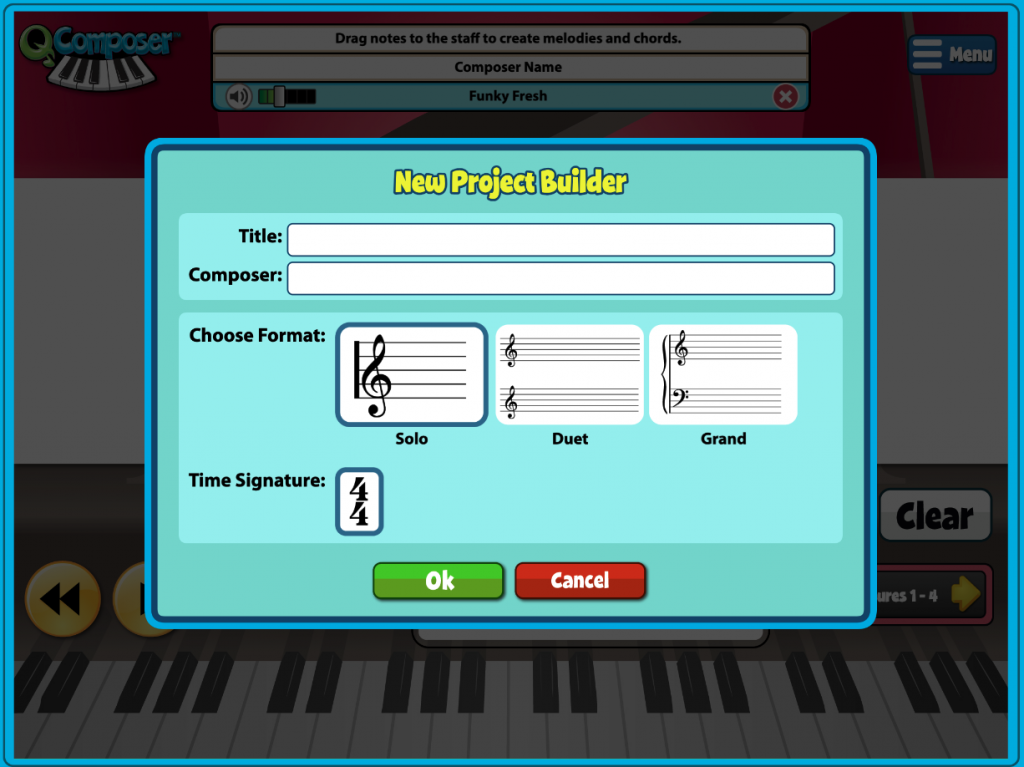
Select Menu > New to start a new QComposer.
- Title your Composition
- Enter the Composer’s name
- Select the format for the Staff
- Select OK to begin!
Opening your QComposer #
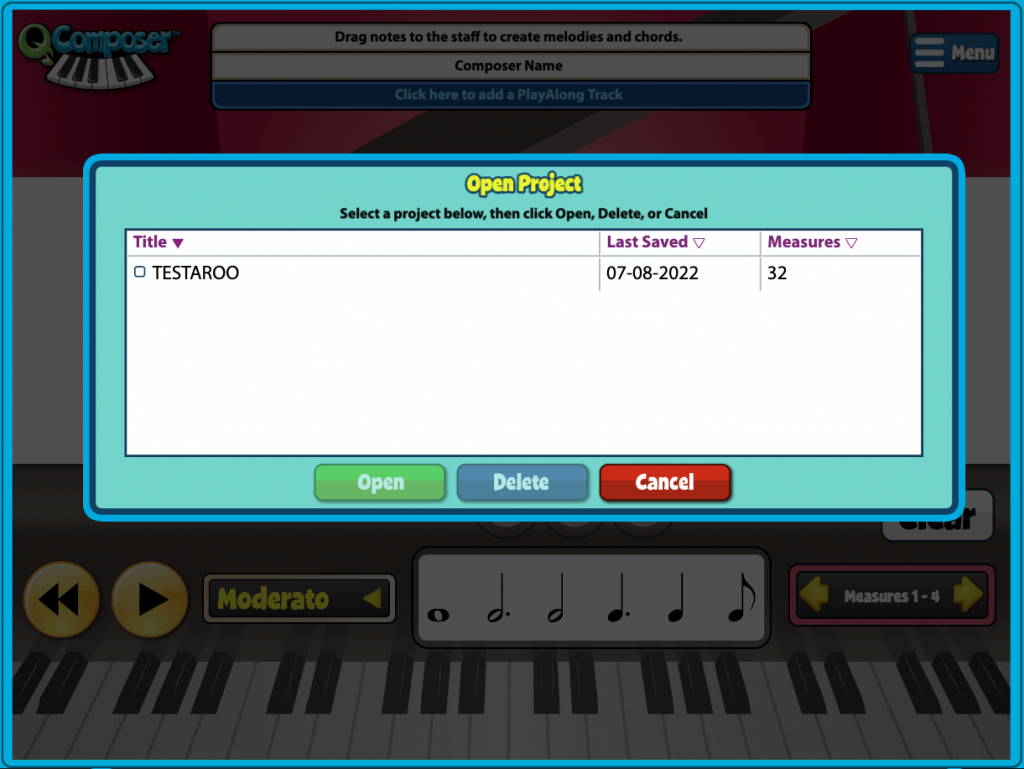
Select Menu > Open if you want to open a previously saved composition.
- This will open a window where you can select to Open, Delete, or Cancel from a list of your composition.
Create Your Composition #
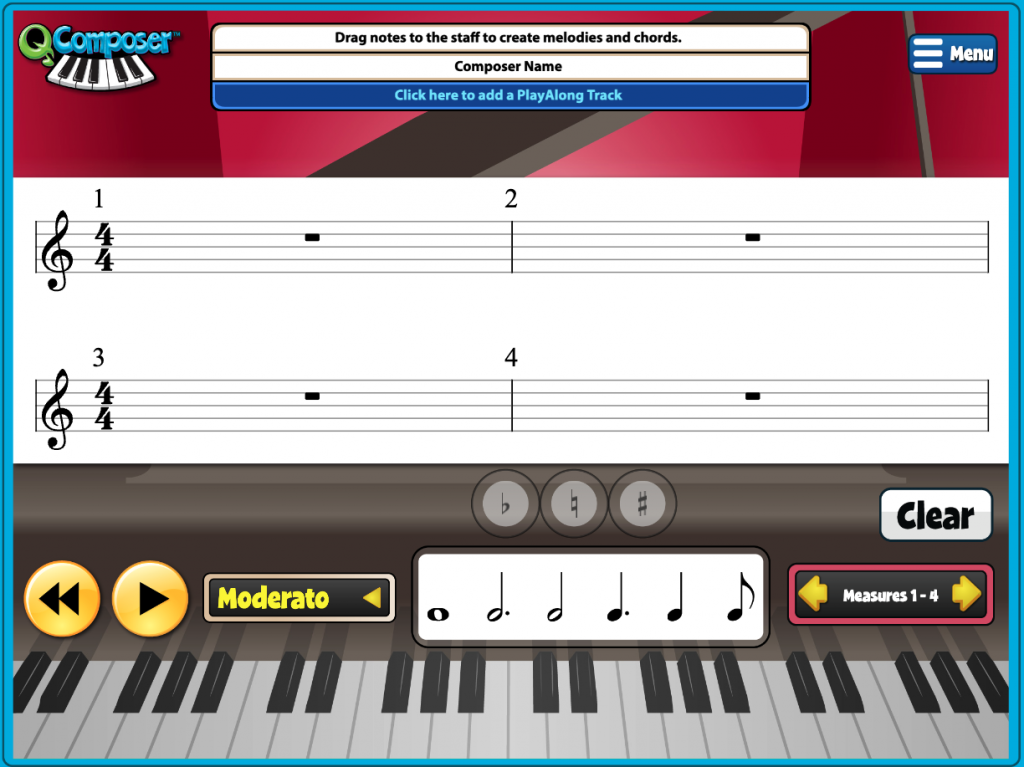
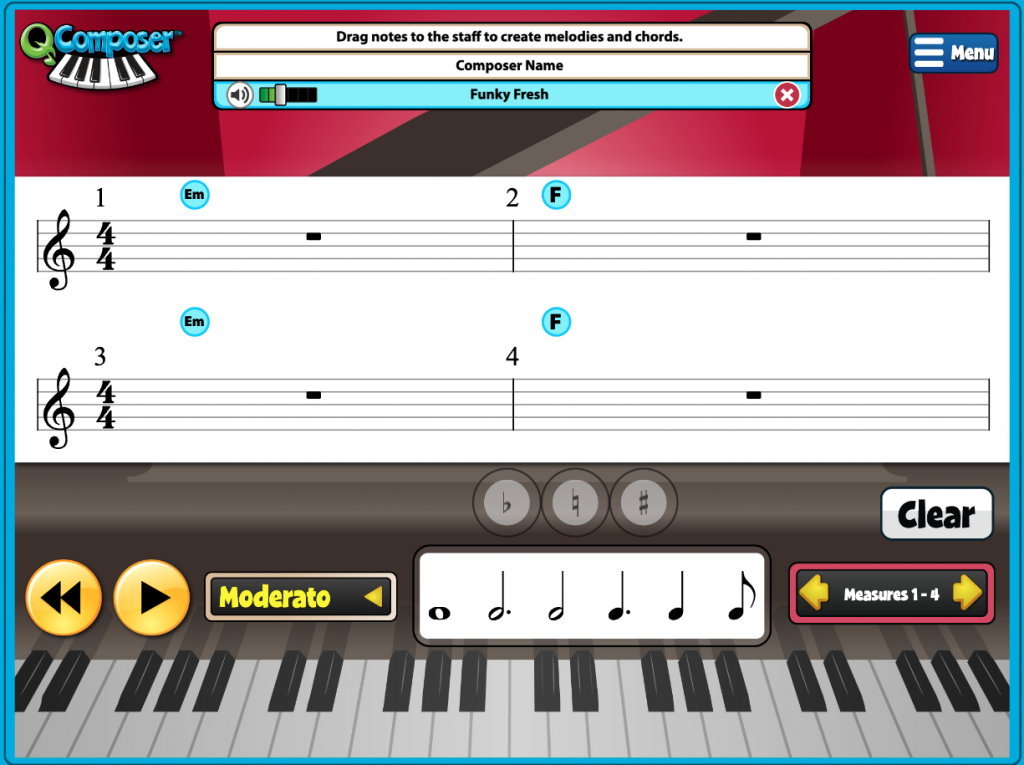
- Select a note from the note options and drag it to a line or space on the staff.
- To adjust the accidentals, select the flat, natural, or sharp signs.
- You can adjust the tempo settings by selecting Moderato and making your selection.
- Add additional measures by selecting the yellow arrows on the bottom right.
- Select the yellow Play button to play your project. The Play button will turn into a Pause button when selected.
- The Rewind button will start your project back from the beginning.
- Select Clear to clear your project and start over.
Adding a Play-Along Track #
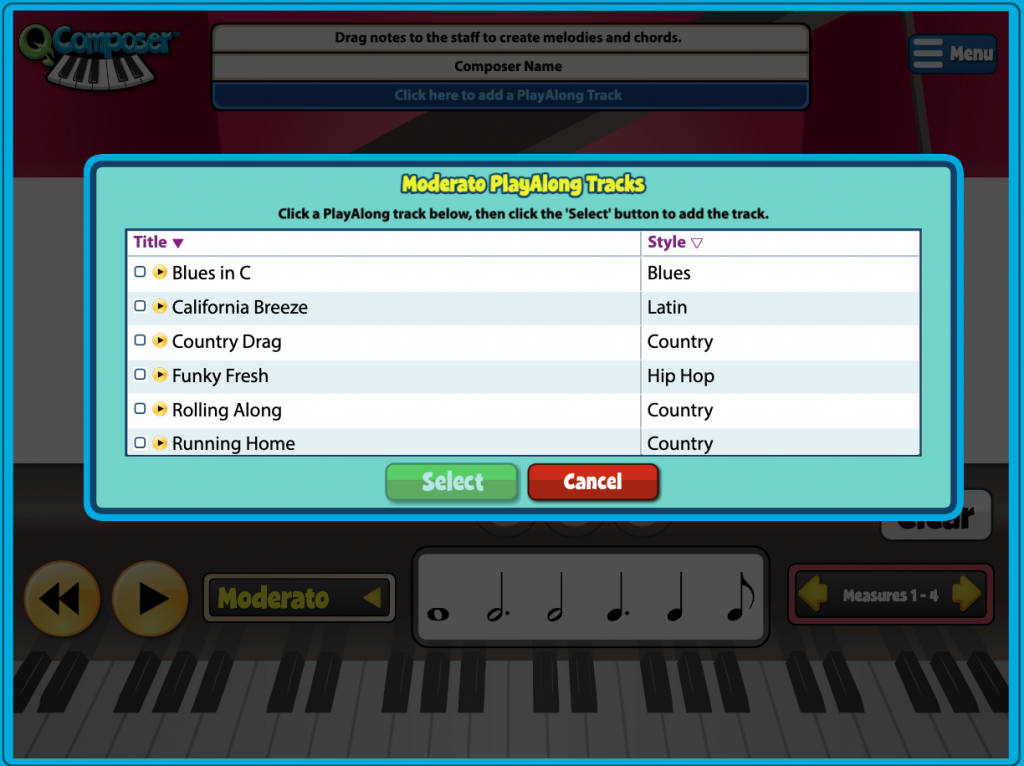
- Select on the blue bar below your title and composer name to add a PlayAlong Track.
- You can also select Menu > PlayAlong to add
- Select the Play button next to the title to preview any PlayAlong track.
- Select a check box next to PlayAlong you wish to add.
- Choose Select to add the PlayAlong as a backing track.
After Adding PlayAlong Track #
- You can preview your PlayAlong before adding notes to the staff.
- Once added, you will notice the chord progression of the PlayAlong Track is at the beginning of each measure.
- Once added, a volume slider will appear next to your PlayAlong’s title, allowing you to edit the mix of the PlayAlong vs. your composition.
- Select the red X to remove the PlayAlong Track.
Note: Play-Along Tracks are tempo specific; if you change the tempo of your composition, you will lose your current Play-Along Track.
Save Your Project and Download It #
- Select MENU in the top right corner of the screen and Select SAVE to save your project. You will be asked to give your project a title if you have not already.
- Select MAKE MP3 from the menu and then DOWNLOAD the mp3 when it’s ready.
Assigning QComposer #
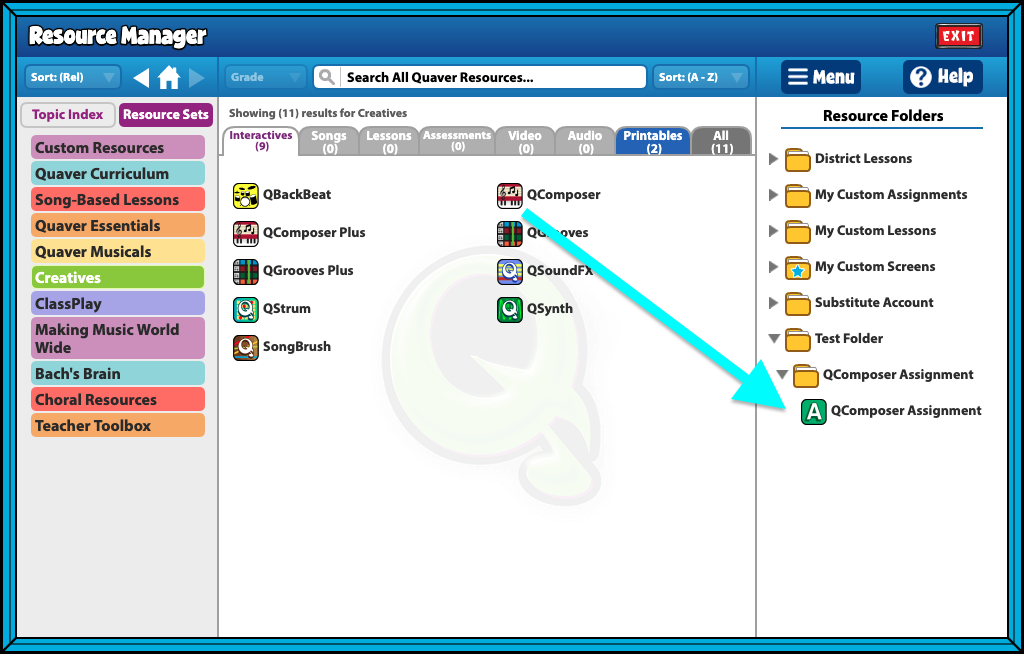
To begin, create a folder in the Resource Manager where your assignment will live.
- With no folder selected, select Menu > New Folder, and title your folder.
Your folder will now appear in your Resource Folders on the right-side of your Resource Manager.
- Select the folder and select Menu > New Assignment Template.
- Title your assignment “QComposer Assignment.”
- Open your folder, and you’ll see your Assignment with a green “A” next to it. The green “A” icon indicates it’s an assignment template.
- Search for QComposer in the Resource Manager.
- Drag and Drop the resource into your assignment template on the right side of the screen.
How to assign the assignment template to students: #
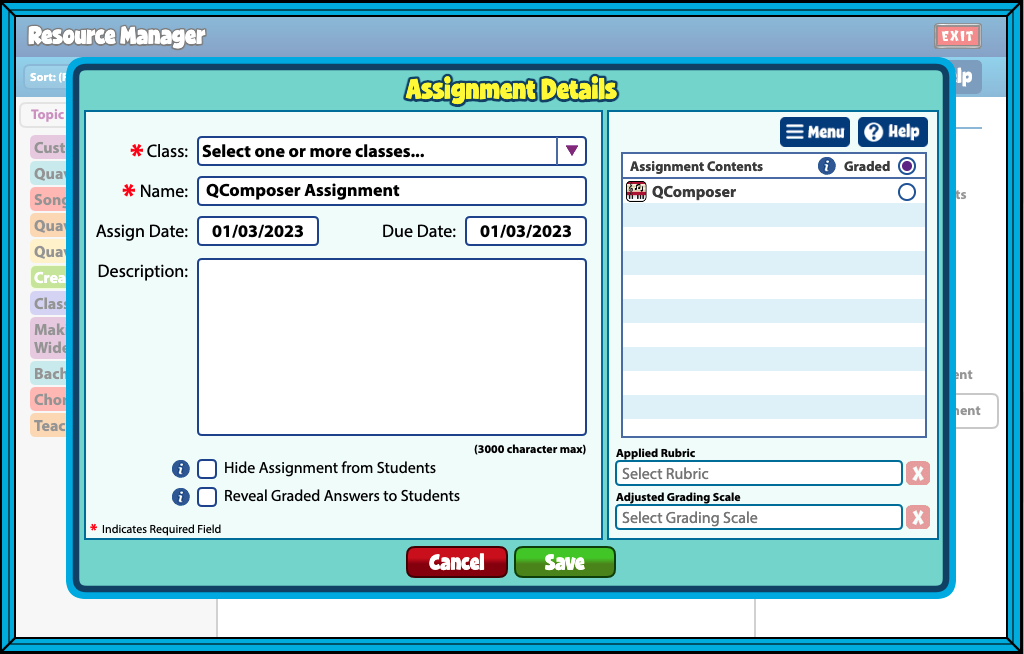
- Right-click on the Assignment to Assign to Class. Use the Assignment Details screen to select your class(es), student(s), assign date, due date, and more! Select Save to send off!
- Students can submit their composition by selecting Menu > Submit on their QComposer.
- Students should Save their submission if they wish to access it at a later time.
- Completed submissions will appear in your GradeBook next to the student’s name with an orange checkmark, meaning submitted.
- Select the checkmark to open the assignment review screen and view their work.
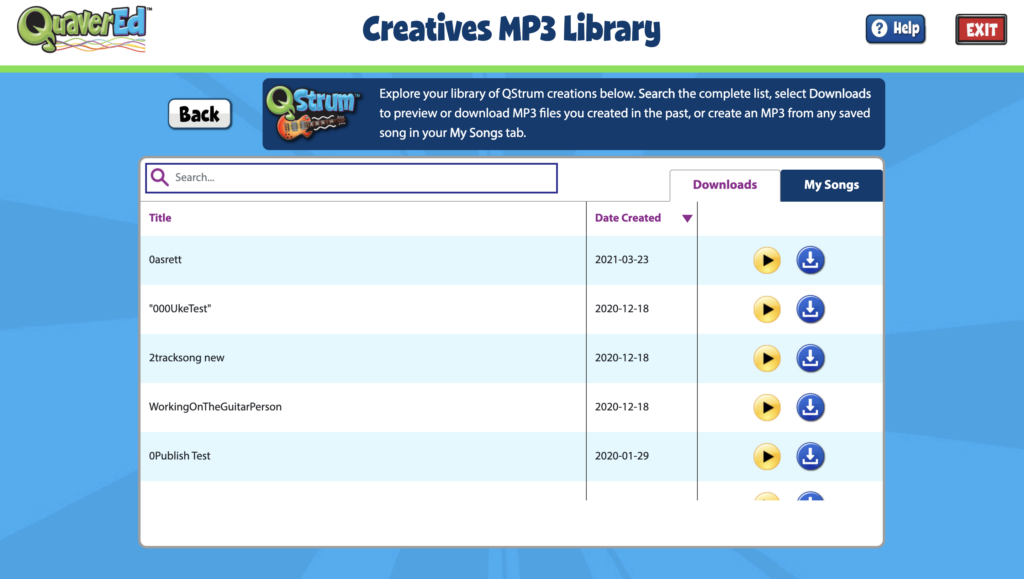
Classic Creative Mp3 Download #
If you had QuaverMusic while on Adobe Flash, which is no longer supported, you will see a third tab ‘Classic Creatives’ tab.
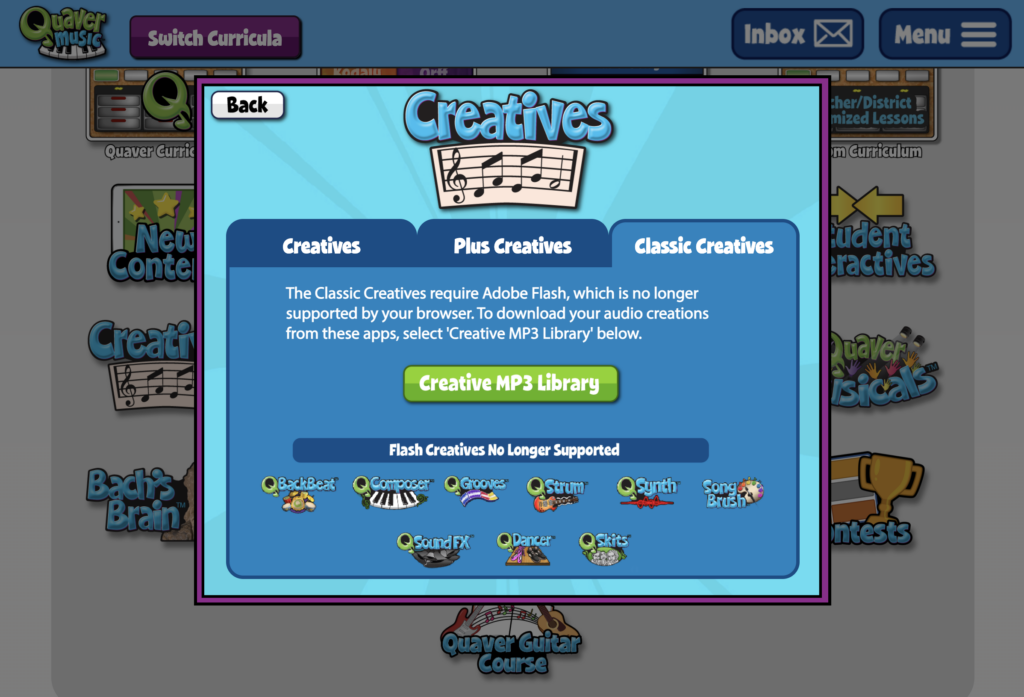
Although QGrooves, QComposer, QBackBeat, and QStrum are no longer supported by Adobe Flash in their original form, you can still access any saved creations you made. Search your list, select Downloads to preview or download MP3 files you created in the past, or create an MP3 from any saved song in your My Songs tab.

I’m wondering if there is a way to change the key of the accompaniment. This 2nd grade lesson goes through pentatonic (in G) so I’d love to do a composition using the same notes… but it looks like the accompaniments are in C. Can that be changed?
Hi Scott!
That is not currently a feature offered. All accompaniments are only in one key. I’ve passed your request to our Content & Development team for consideration. Thank you for reaching out!
Are beamed eighth notes available for students? Also, how is a note or rest deleted if you don’t want it as a part of the composition? For example, I wanted two eighth notes on the same pitch, but when I tried to add another eighth note, there was a message saying there was a note in that space. It gives notes and rests automatically.
Hi Cassaundra!
– In QComposer, you can beam eighth notes by placing individual eighth notes next to each other, and they will automatically beam together. In QComposer Plus, we offer many more beamed notes in the note bank, including eighth notes, dotted eighth notes, and sixteenth notes.
– To remove notes from the staff, click and drag any note to the white space off the staff or entirely off the composition. This will remove the note. Rests cannot be deleted. Rests are always there by default until you replace the rest it with a note.
– You can add two eighth notes on the same pitch as long as they are on different beats. For example, one eighth note on beat one and another eighth note on the and of one.
I may have missed this but is there a way to print a composition? Thank you.
Hi Taraine!
Currently, there is no way to print a composition from QComposer. I will pass this request/idea directly to our Content & Development team for consideration in the future. Have a great day!
Is there a way to add lyrics to Qcomposer?
Hi Monica!
Unfortunately, that is not currently a feature that’s available. I’ll share your request to our Content & Development team for consideration. Thank you for reaching out!
My fifth grade students are currently working on creating a 32 measure composition. Some students are adding a backing track, but the track will only play through the 16th measure and then stops. Is there a way to remedy this so that it will play along for all 32 measures?
Hi Rachel,
Thanks for reaching out! The backing tracks in QGrooves are currently limited to 16 measures, which is why they stop playing before your students reach the end of their 32-measure compositions. At this time, there isn’t a way to extend the tracks beyond that limit.
I’ll share your feedback with our Content and Development team—it’s always helpful to hear how the tools are being used in the classroom!
Is there a way to export the composition as a pdf?
Hi Daniel!
At this time, there unfortunately isn’t a way to export compositions as PDFs in QComposer. I will send this request to our Content & Development team for consideration for changes in the future.
Have a fantastic day!
I would really like to be able to limit the rhythms that students can use in their compositions (half, quarter, and eighth). Can Quaver come up with a way to make available rhythm removeable?
Hi Sarah,
Thanks so much for the feedback! I’ll pass these thoughts along to our content / development team.
How do we shorten the amount of measures in the composition. Would love to have students write a twelve bar blues melody.
Hi Miguel,
Ending the piece after twelve bars would automatically make the piece a twelve measure one. You can select the Final Measure button at the bottom of the screen to set the piece to end or repeat. Hope this helps!
Is there a way to print what has been created in QComposer?
Hi Aimee,
Thanks for reaching out. Unfortunately, there isn’t a direct print action within QComposer. You can download an mp3 version of the project, but not print out the sheet music. I would suggest using Full Screen and taking screenshots if printing is necessary. If you’d like to submit feedback on this, or have any more questions, feel free to do so through our contact us page. You can also get direct customer support through that same page. Thanks again!