
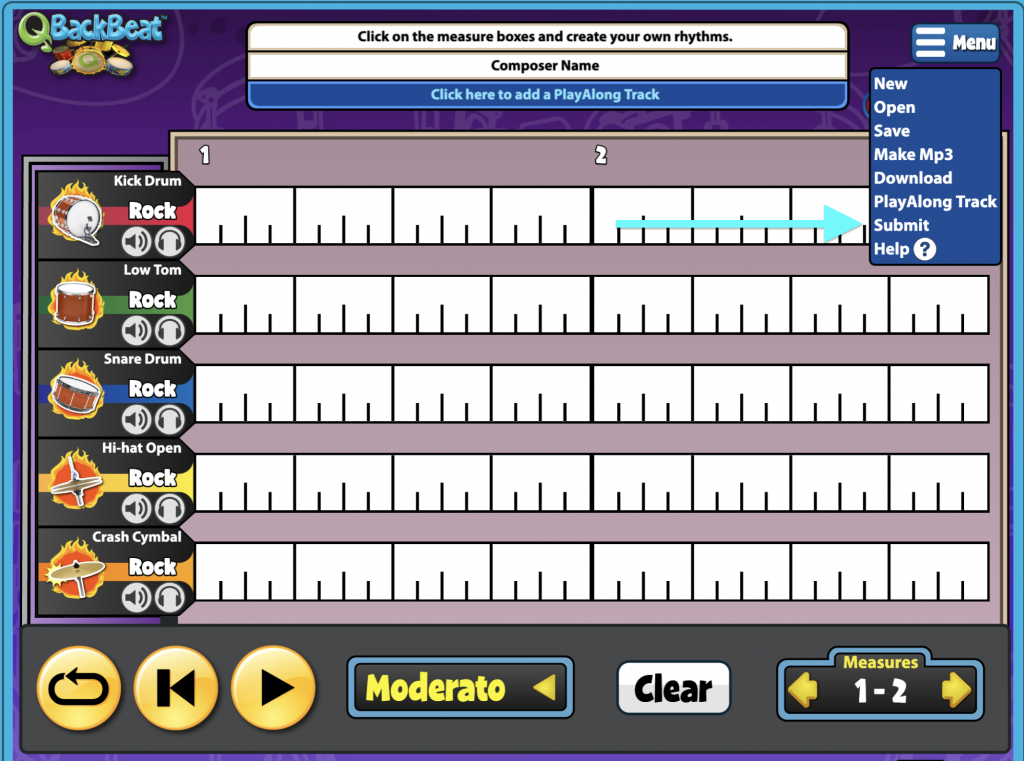
QBackBeat is a QuaverMusic Creative that allows you to create rhythmic beats by selecting the white segments next to various percussive instruments, including Kick Drums, Toms, Snare Drums, Cymbals, Percussion, and Boomwhackers®.
New Composition #
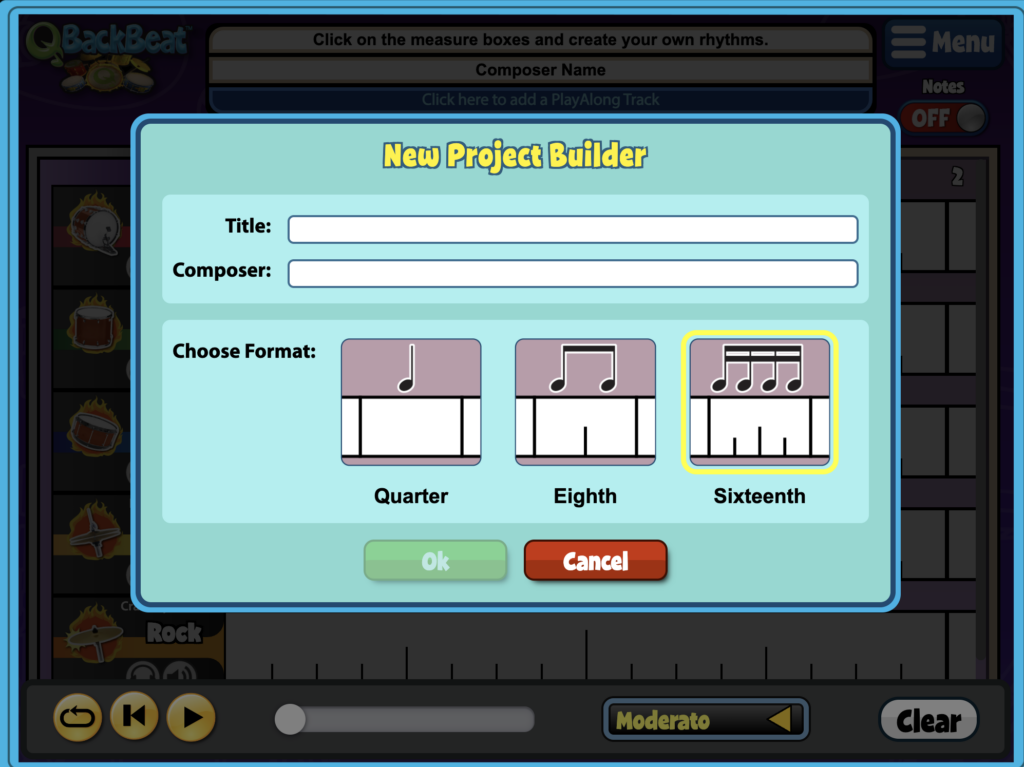
- To create a new project, select MENU in the top right corner of the screen and click NEW. You will need to fill in a Title and Composer.
- You also need to select a quarter, eighth, or sixteenth format. This will set the subdivision for your new QBackBeat grid.
Open Existing Files #
If you’d like to open a saved project, click MENU and OPEN.
Instrument Grid #
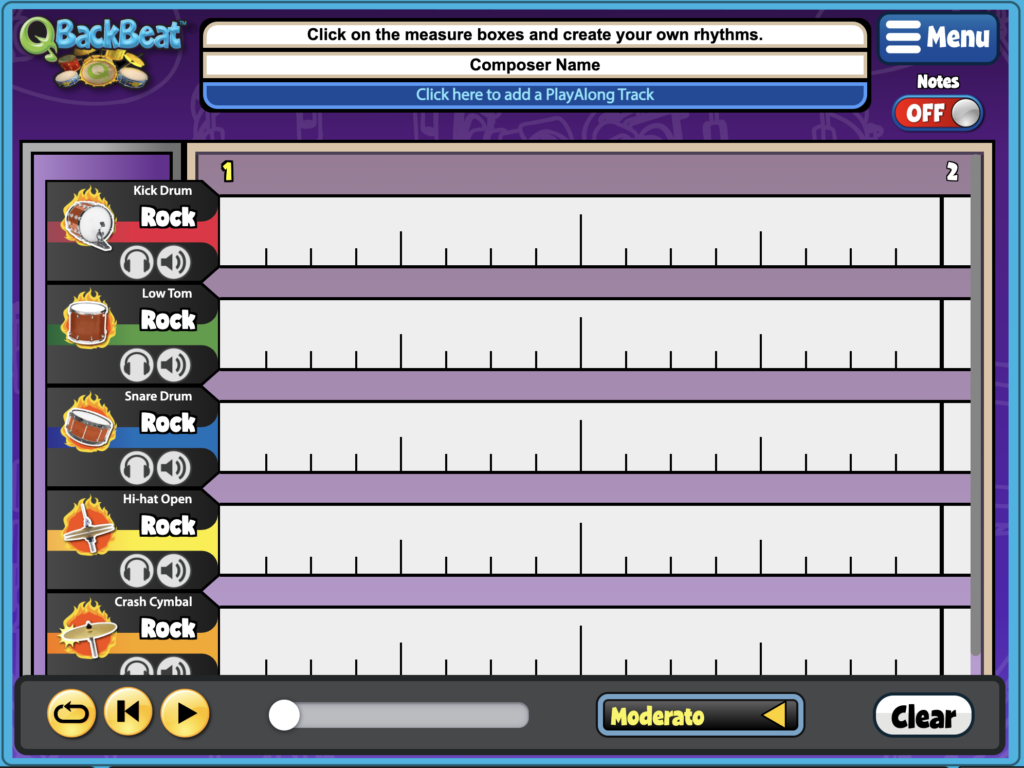
- A QBackBeat window will contain five instrument rows and two measures.
- Select a grid section to add a rhythm or a beat. The section you select will illuminate, indicating your beat has been added. Select it again to remove the beat or rhythm you added.
QBackBeat Instruments #
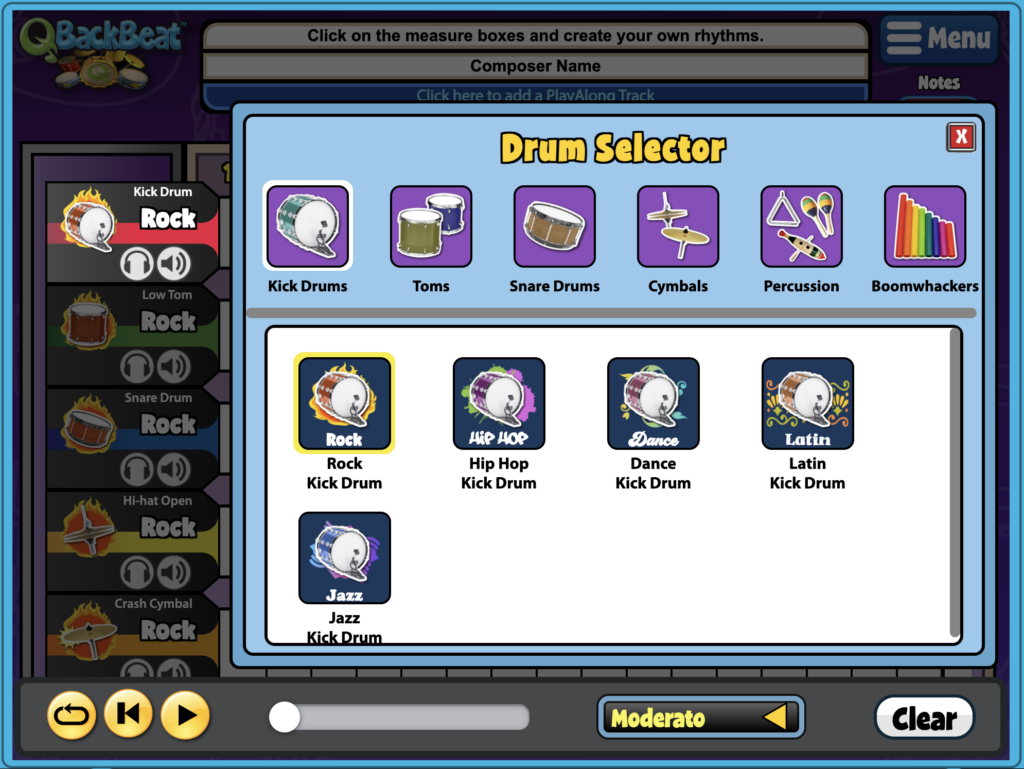
- When you select either the instrument name or image a instrument selector window will appear. Here you can select from:
- Kick Drums
- Toms
- Snare Drums
- Cymbals
- Percussion
- Boomwhackers®
- Select the speaker icon to mute the instruments row.
- Select the headphone icon to solo the instruments row.
Control Bar #
- Playback Controls: The playback buttons include a loop, back to beginning, and play button.
- The play button can also be used as a pause button
- When you select the loop button it will deactivate the loop
- Tempo: To change tempos, select a Tempo from the drop-down.
- Clear: Select Clear to clear your QGrooves and start over.
- Measure Navigation: Use arrows to add/view additional measures.
- You can create up to 64 measures
Adding a PlayAlong Track #
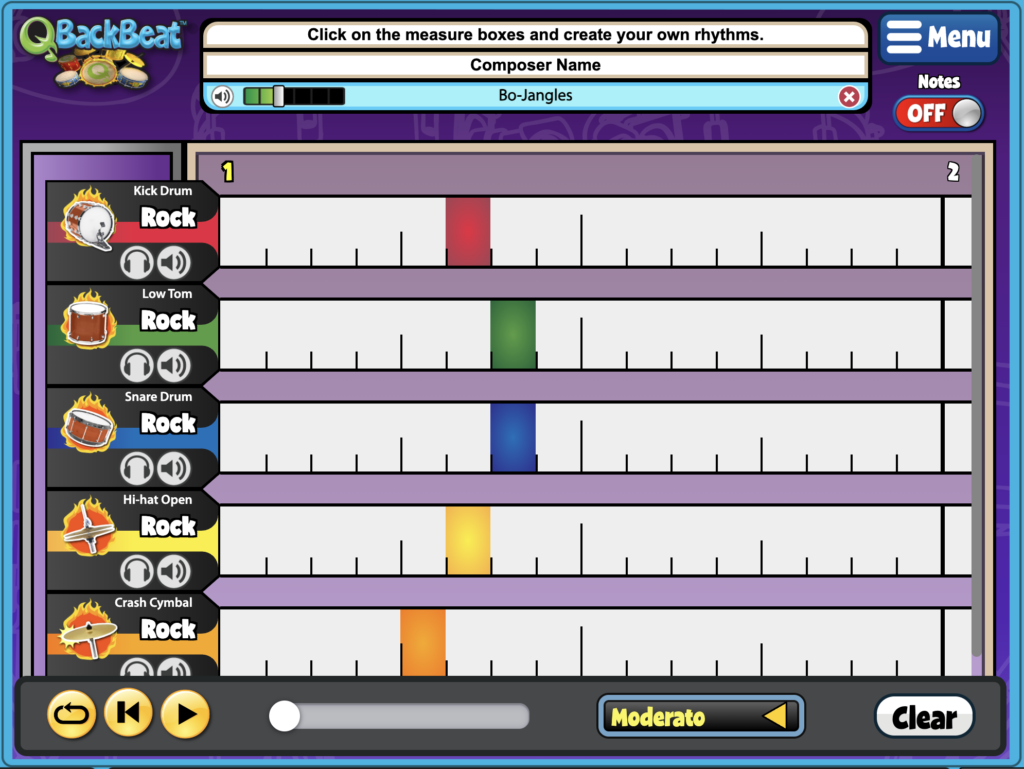
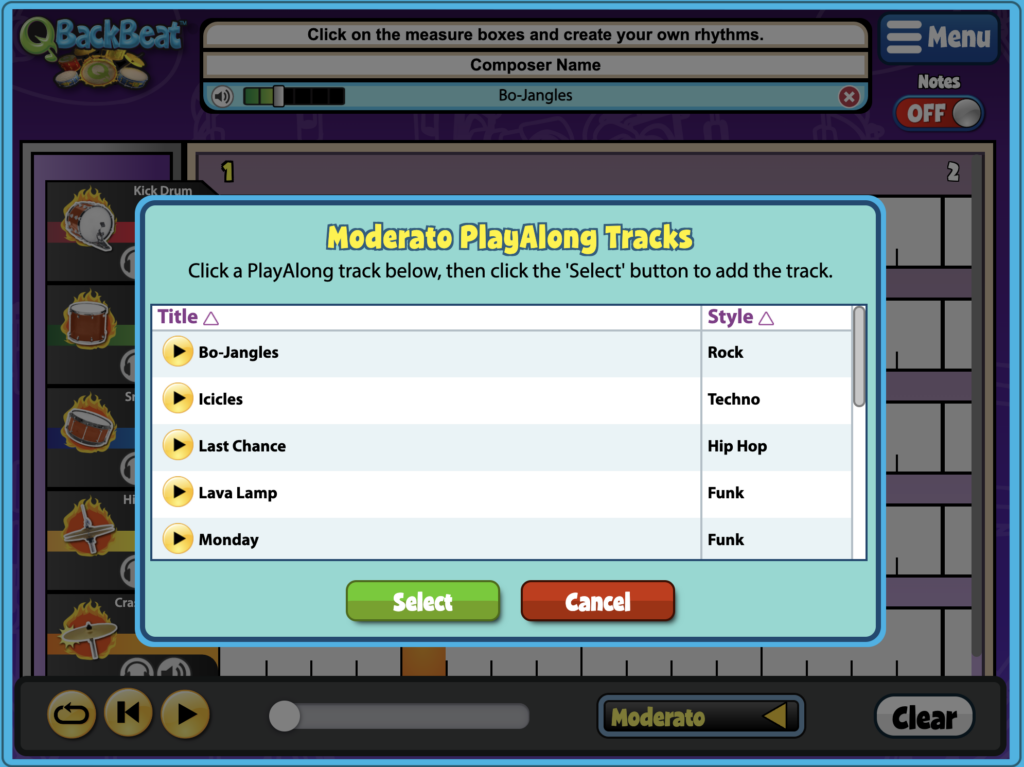
- Click on the blue bar below your title and composer name to add a PlayAlong Track.
- You can also click Menu > PlayAlong to add
- Click the Play button next to the title to preview any PlayAlong track.
- Select a check box next to PlayAlong you wish to add.
- Click Select to add the PlayAlong as a backing track.
After Adding a PlayAlong Track #
- You can play through the PlayAlong, before adding loops.
- Once added, a volume slider will appear next to your PlayAlong’s title, allowing you to edit the mix of the PlayAlong vs. your QGrooves.
- Click the red X to remove the PlayAlong Track.
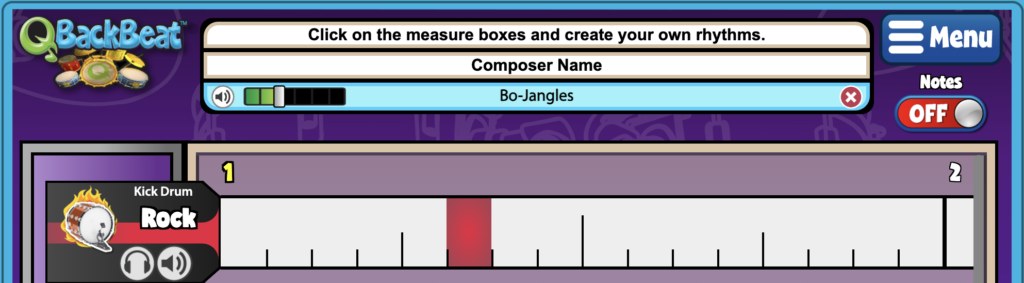
Note: Play-Along Tracks are tempo specific; if you change the tempo of your composition, you will lose your current Play-Along Track.
Music Notation Toggle #
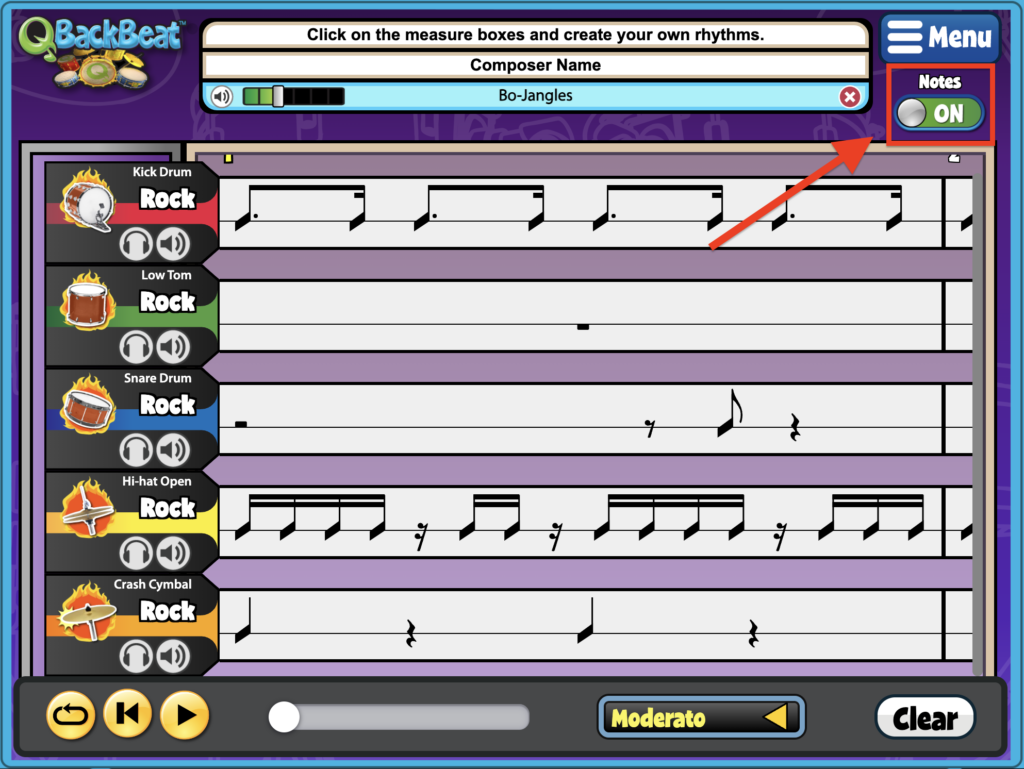
After you have created your QBackBeat, use the toggle button below the Menu in the upper right-hand corner. Toggle the Notes button On to view and listen to your QBackBeat Composition as musical notes on a single-line staff!
Select the toggle button again to go back to the original QBackBeat view.
Save and Download Your Project #
- Select MENU in the top right corner of the screen and click SAVE to save your project. You will be asked to give your project a title if you have not already.
- Click MAKE MP3 from the menu and then DOWNLOAD the mp3 when it’s ready.
- If you would like to open a past project, at any point, select MENU and OPEN.
Assigning QBackBeat #
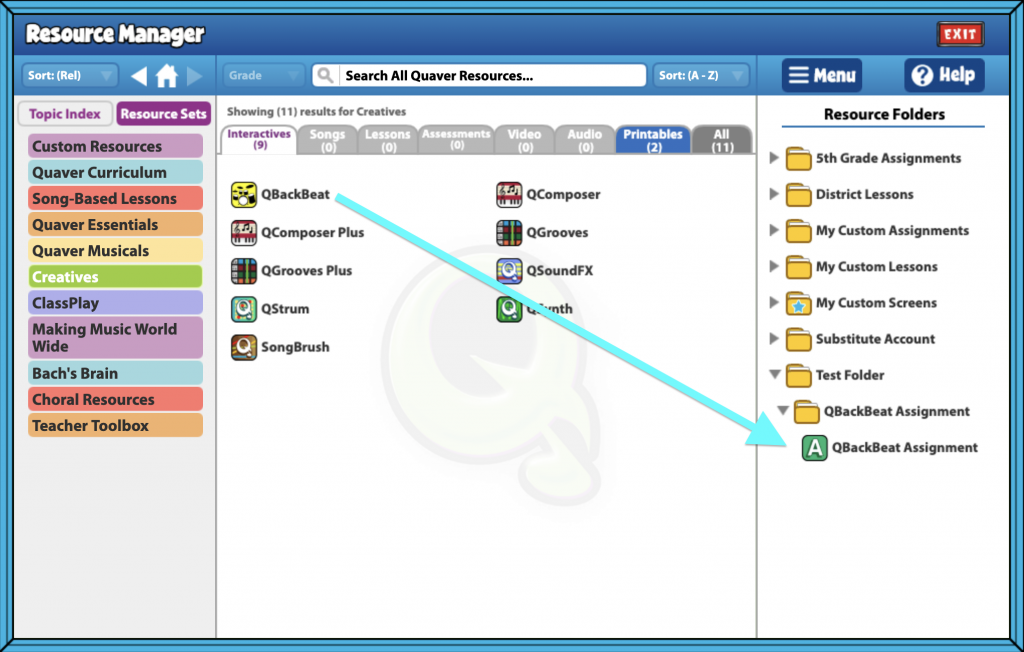
First, create a folder in Resource Creation where your assignment will live.
- Click MENU, NEW FOLDER.
- Name your folder and click OK.
Your folder will now appear on the right side of your Resource Manager.
- Search for QBackBeat in Resource Manager.
- Drag the resource into your new folder.
- Select the folder and hit MENU and NEW ASSIGNMENT TEMPLATE.
- Name your assignment, “QBackBeat”
- Open the folder and you’ll see your named Assignment with a green “A” next to it.
- Click MENU and ASSIGN TO CLASS to choose a class or classes you would like to give the assignment to.
How students submit QBackBeat #
- Students can submit their compositions by clicking MENU and SUBMIT.
- Students should SAVE their submission if they wish to access it at a later time.
- Completed submissions will show up in your GradeBook next to the student’s name with an orange checkmark.
Classic Creative Mp3 Download #
If you had QuaverMusic while on Adobe Flash, which is no longer supported, you will see a third tab ‘Classic Creatives’ tab.
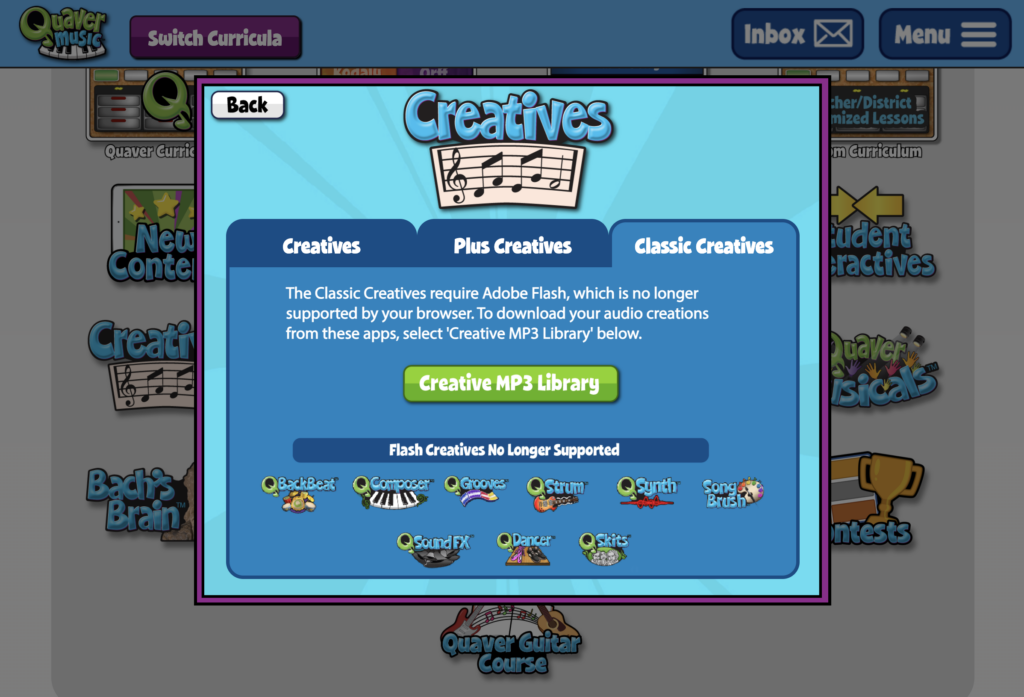
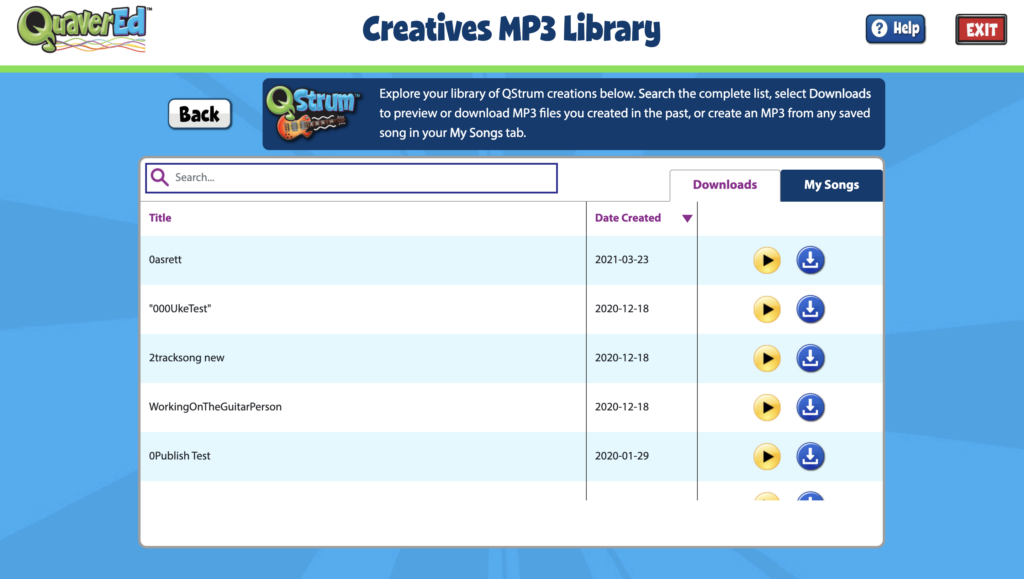
Although QGrooves, QComposer, QBackBeat, and QStrum are no longer supported by Adobe Flash in their original form, you can still access any saved creations you made. Search your list, select Downloads to preview or download MP3 files you created in the past, or create an MP3 from any saved song in your My Songs tab.

My students are working on the Music in Technology project in the 7th grade curriculum. Many of them are experiencing problems with QBackBeat not playing the first measure or two of their rhythm. Any fixes for this?
Hi Monica! So sorry you’re having issues! We aren’t finding any evidence of bugs on our end, so far. Some playalong tracks in backbeat don’t have any audio for the first few measures, so perhaps it’s something as simple as that? If not, then we would need more information to investigate. If the problem persists, please reach out to our customer service team here, so we can help you directly!
My students are also experiencing the same thing. I realize that some of the songs don’t immediately start, but it’s muting their rhythms they’ve created on their own as well. Some of their compositions are also starting very slow and then getting very fast. Half of my class is currently experiencing these issues, so I feel like there must be some kind of glitch going on. Thanks in advance for your attention and help!
Hi Bill,
So sorry you and your students are having issues! I am going to email you shortly to get some specifics, if you don’t mind — that way we can look into this properly.
My students were also have this problem with glitching and also no audio on the beginning of their QBack Beat project. Then, when they submitted it to me, it played back fine when I listed. This problem did not happen the same way each time and only for some students.
Hi Kim,
It sounds like you might need some help from our tech support team. You can contact them here, and they’ll be more than happy to help troubleshoot the issue.