
Use Quiz Challenge to create a gameshow-style assessment with flexible options for team play. Feel free to add to any custom lesson or assignment.
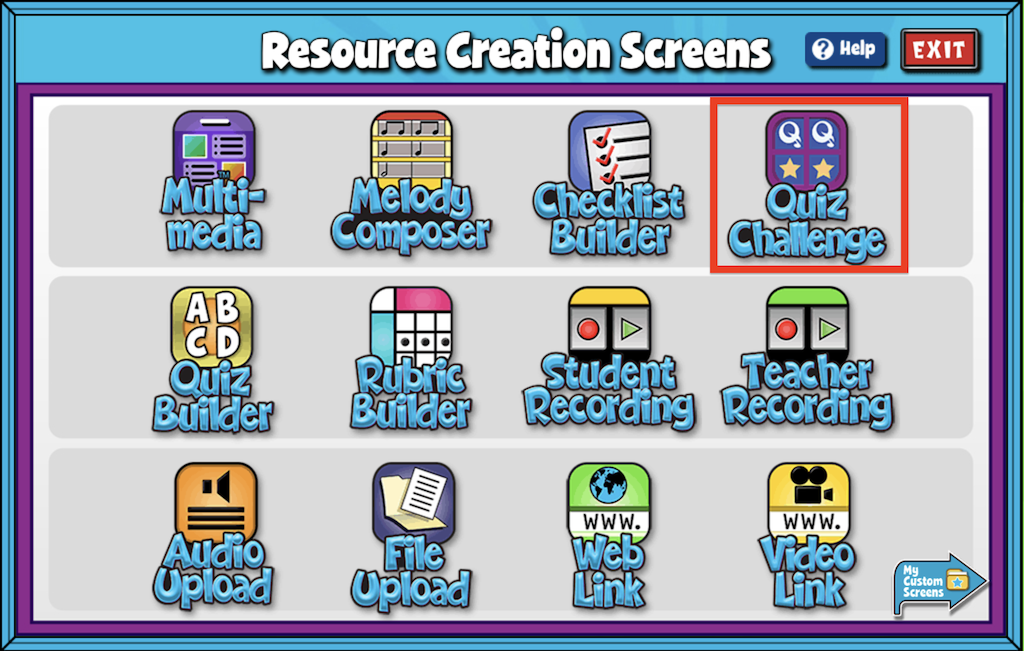
Quiz Challenge Editor #
- Give your screen a title by clicking the box labeled “Type Your Screen Title Here.” Click Enter to save.
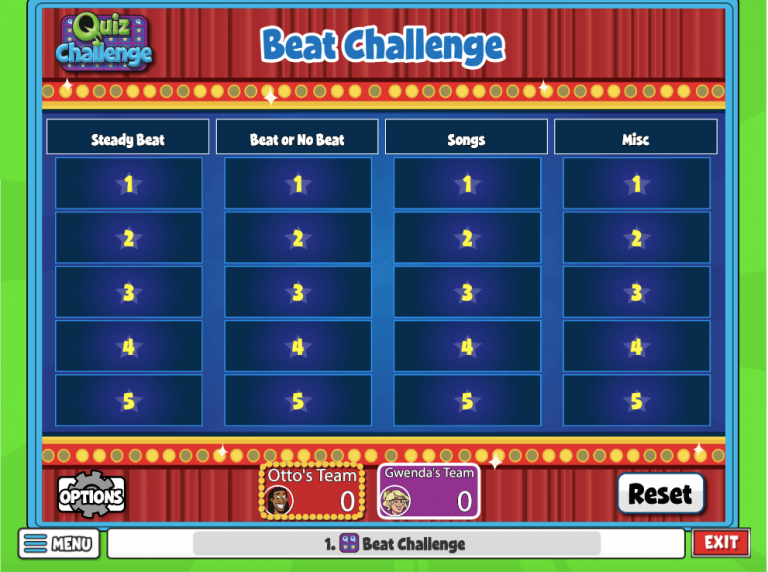
- Select the individual categories boxes to create categories.
- To create questions click on the board’s tiles worth 10, 20, 30, etc.
- To delete a column or row on your board click the red “X”
- On the left-hand side, use the Settings section to edit each question’s length of time and point values.
- Add/Edit Notes: Using the add/edit notes icon, you can add custom notes to any multi-media screen.
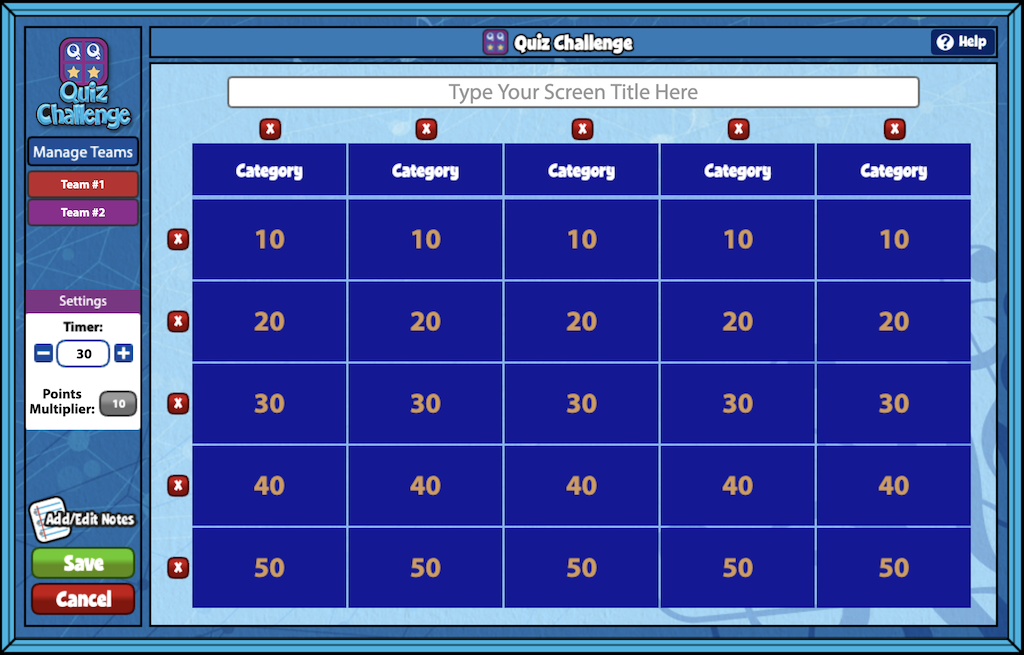
Question Editing Screen #
- Enter your desired question where it reads “Sample Question Text.”
- Click the green + to add potential answers.
- Click the image icon to add an image or audio file
- Make sure to click SAVE to save your question and answers.
Once a question is saved, the tile will appear on the game board.
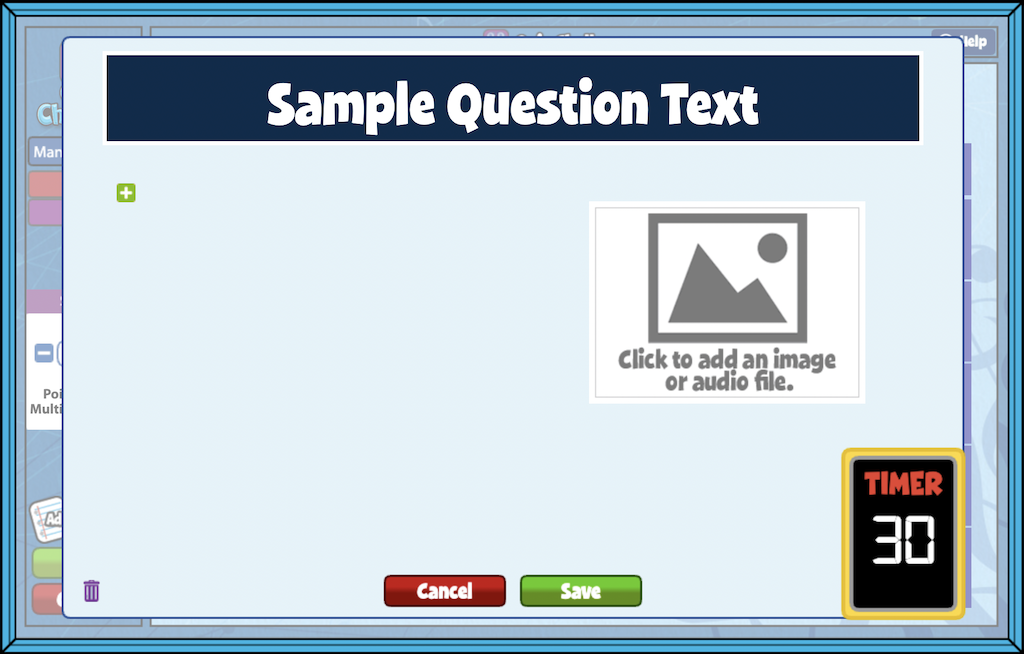
Manage Your Teams #
- In the left-hand corner use the Manage Teams button to add up to four teams, change team names, and associated characters.
- Click the gray +ADD TEAM button to add up to four teams.
- Click the text that reads “Team #1” to change the team name.
- Click the character image to change the team character.
- You have the option for the team with the correct answer to retain control of the board. The default is set to off.
- Click the green OK button to save your preferences.
Head to your My Custom Screens folder in Resource Manager to view your screen. This screen will remain in this folder ready to be added to a custom lesson or assignment at any time.

Can you add questions from the tests to the custom made Quiz Challenge or do you have to type them in? Thanks!
Hi Karen!
Thanks for reaching out. In short, yes, all questions for a Quiz Challenge must be typed out. There is currently no option to import questions from elsewhere in Quaver.
I spent all afternoon creating a composer quiz challenge, and when I tried to save it I got the “spinning wheel of death”. I have no idea if it saved or not. Recommendations??
Beth
Hi Bethany!
Could you please provide the title of your Quiz Challenge so we can investigate further? I can hand this off to our developers to investigate the cause and hopefully recover it. You can also contact our Customer Service team via phone (866-917-3633), email (info@quavered.com), or dashboard chat.
Once you have created and saved your quiz, can you go back in and edit it?
Hi Brittany!
Yes! You can edit a saved quiz by going to Resource Manager > My Content, then dragging the quiz into a lesson folder on the right-hand side. Once it’s in the lesson, right-click the quiz and select “Edit Screen” to make changes to the content.
I hope this helps!
Can the premade quiz challenges from the Quaver Curriculum be edited into a custom screen? I want to add questions to a pre-existing quiz challenge.
Hi Lindsey,
Thanks for reaching out. In short, yes, all questions for a Quiz Challenge must be typed out. There is currently no option to import questions from elsewhere in Quaver.
Is there a way to share a created “quiz challenge” with a colleague so they can use it?