
Skip to content
Help Center
  • QuaverEd.com
  • FAQs
  • Site Status
  • Contact Us
Help Center
  • QuaverEd.com
  • FAQs
  • Site Status
  • Contact Us

Help Center

Getting Started

  • Getting Started with QuaverHealth•PE
  • QuaverHealth•PE Dashboard
  • Health Lessons
  • PE Lessons
  • Resource Manager
  • Creating & Sharing Lessons
  • Custom Curriculums
  • Substitute Teacher Access

HPE Admin Tools

  • Admin Tools Overview
  • Classes
  • Student Accounts
  • Creating & Distributing Assignments
  • Attendance
  • GradeBook
  • Chat
  • QRewards and QuaverNotes

Creating Resources

  • Video Link
  • Web Link
  • File Upload
  • Audio Upload
  • Teacher Recording
  • Student Recording
  • Rubric Builder
  • Quiz Builder
  • Quiz Challenge
  • Checklist Builder
  • Melody Composer
  • Multimedia
  • Resource Creation Overview

Other Content Resources

  • Health•PE Toolboxes
  • Instructional Guides
  • Community Resources

Curriculum Features & Best Practices

  • General Information
  • Correlations
  • Scope and Sequence
  • Best Practices

Single Sign-on

  • ClassLink and QuaverEd
  • Clever and QuaverEd
  • Google and QuaverEd
  • Schoology and QuaverEd
  • Canvas and QuaverEd
  • Single Sign-On Other
  • Home
  • Home
  • QuaverHealth•PE
  • Admin Tools
  • Chat

Chat

Quaver teachers can use the Chat feature in Admin Tools to communicate with students, in class or at home. At the top of the Admin Tools Dashboard, you will see a blue chat icon.

Before you can chat with students, you’ll need to have your students enrolled in Classes. Learn how here.

Note: Districts can disable chat functionality for all of their licenses.
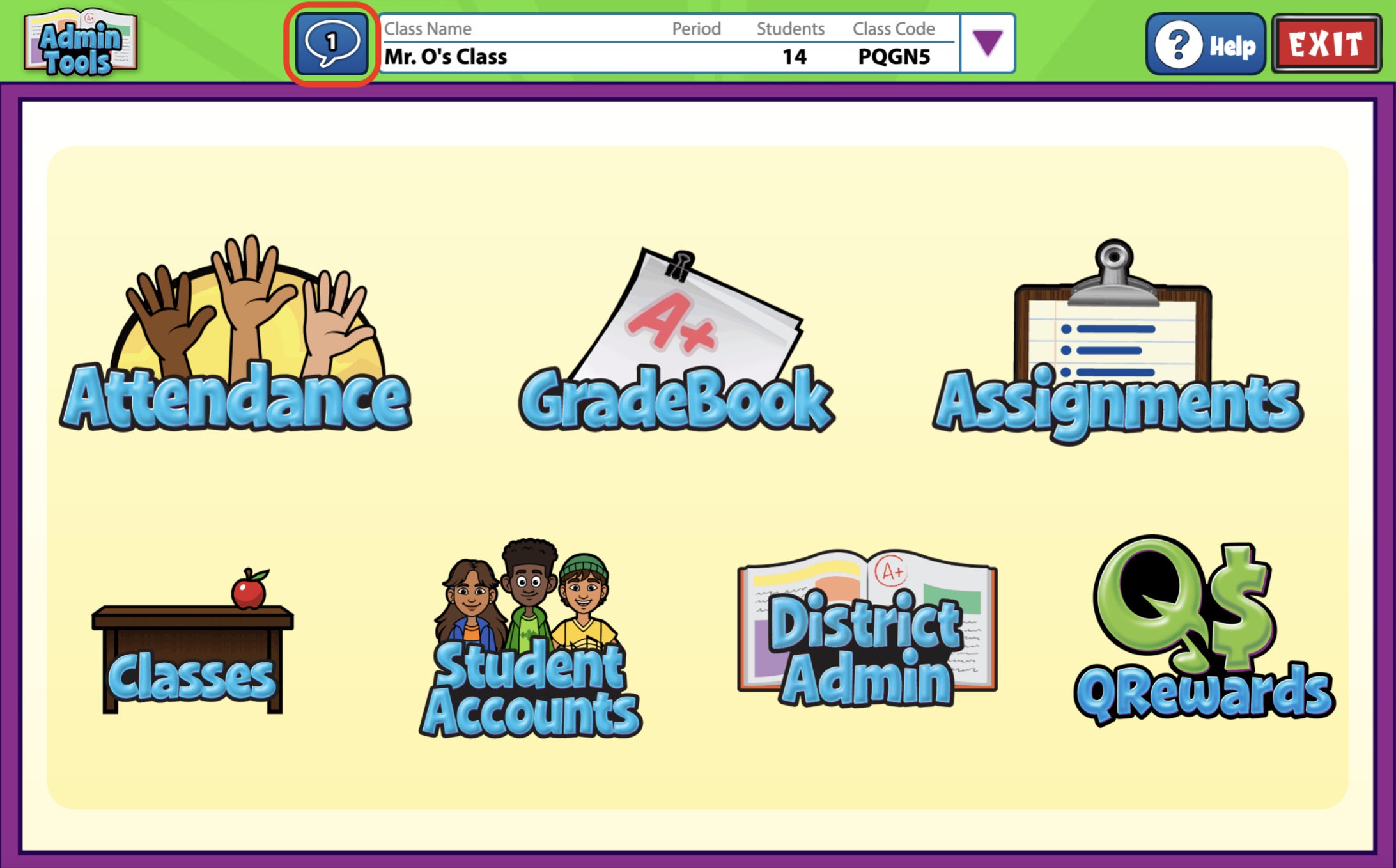

A screenshot of the Admin Tools page, with the chat bubble icon circled in the top center of the screen.

Teacher View #

At the top of the Admin Tools Dashboard, you will see a blue chat icon.

The default setting allows for the teacher to message individual students. You can adjust the settings to apply for each class individually or all classes as a whole.

In the Chat Options panel, next to each class, you’ll find two checkboxes that indicate your current Chat Options selections: 

  • Disable Class – selecting this will disable group chat for only that class, but private teacher/student chat will be enabled.
  • Disable Private – selecting this will disable private teacher/student chat in that class.

If neither box is checked, ALL chat is turned ON for that class. This includes both Class/Group chat and private Teacher/Student chat.

You will also notice an All Classes row at the top of the options list. Checking these boxes disables Group or Private chat for ALL of your active classes.
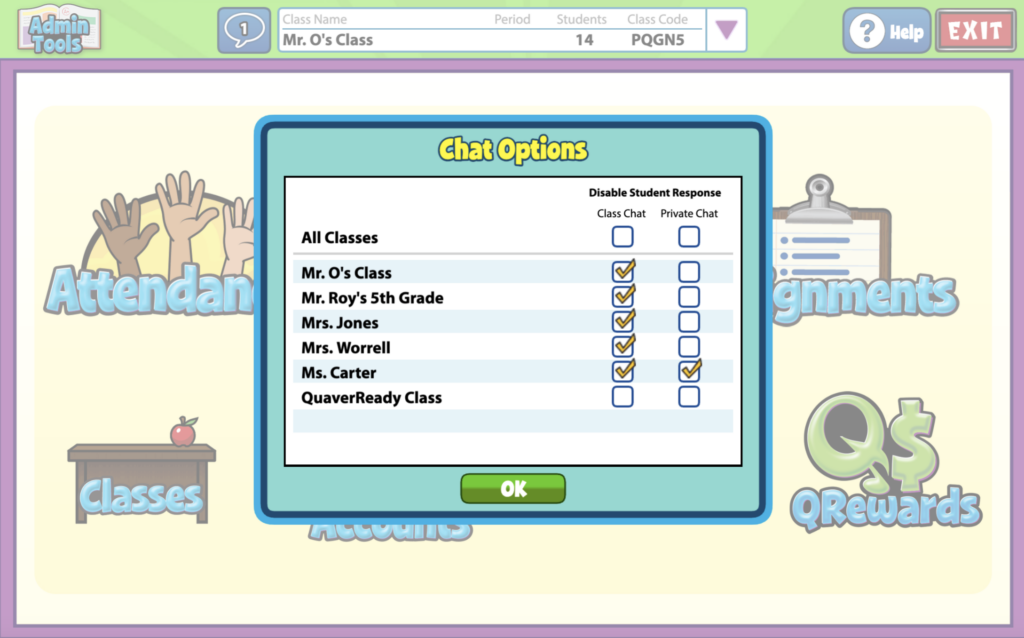

A screenshot of the Admin Tools page, with the Chat Options popup in the center, as described in this section.

To chat with students at any point, select the Chat icon and select the speech bubble icon.

This pulls up the Quaver chat box. Here, you can choose to send a message to the entire class or message an individual student privately.

You can toggle between classes or students by clicking the dropdown arrow to pull up a list of classes or students, depending on which tab you have selected.
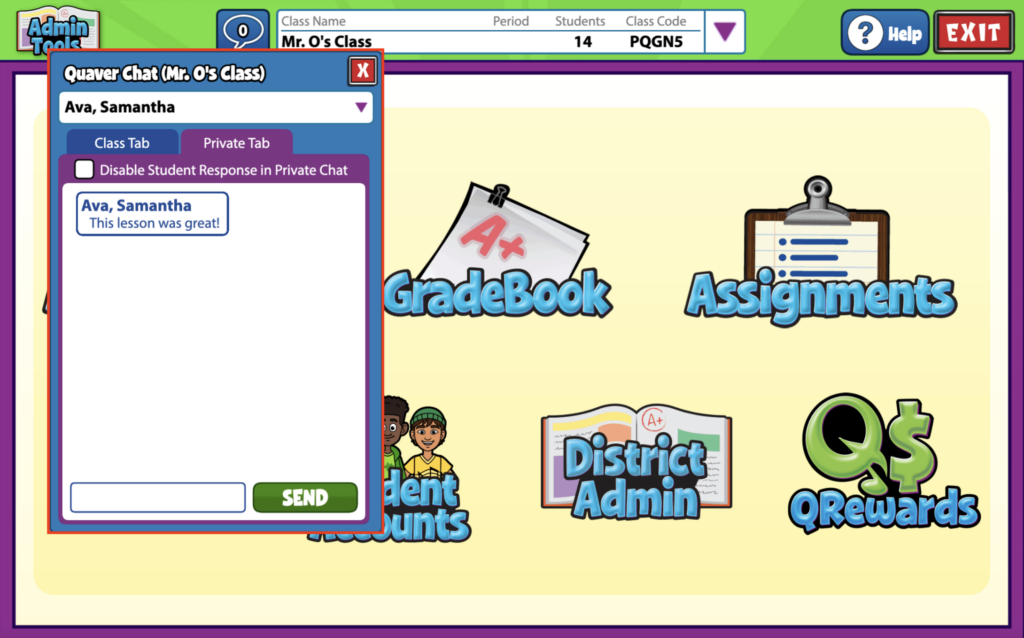

A screenshot of the Admin Tools page, with the chat bubble icon selected. This opens the Quaver Chat popup, where there are two tabs: Private and Class.

Chat in Gradebook #

The chat feature is also available in Gradebook, when an Assignment Review screen is selected.

Messages can be sent to classes or individual students, with an assignment displayed next to the chat.

This feature allows teachers to give specific feedback and notes for a given assignment.

To learn more about Gradebook, click here.
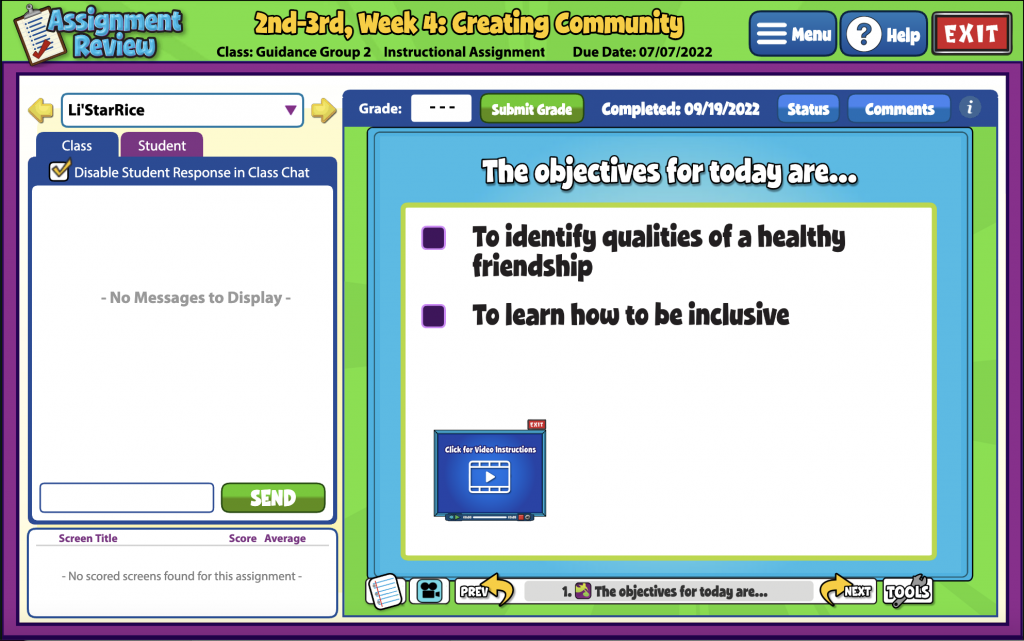

A screenshot of the Assignment Review page, with the chat bubble icon selected. This opens the Quaver Chat popup, where there are two tabs: Class and Student

Student View #

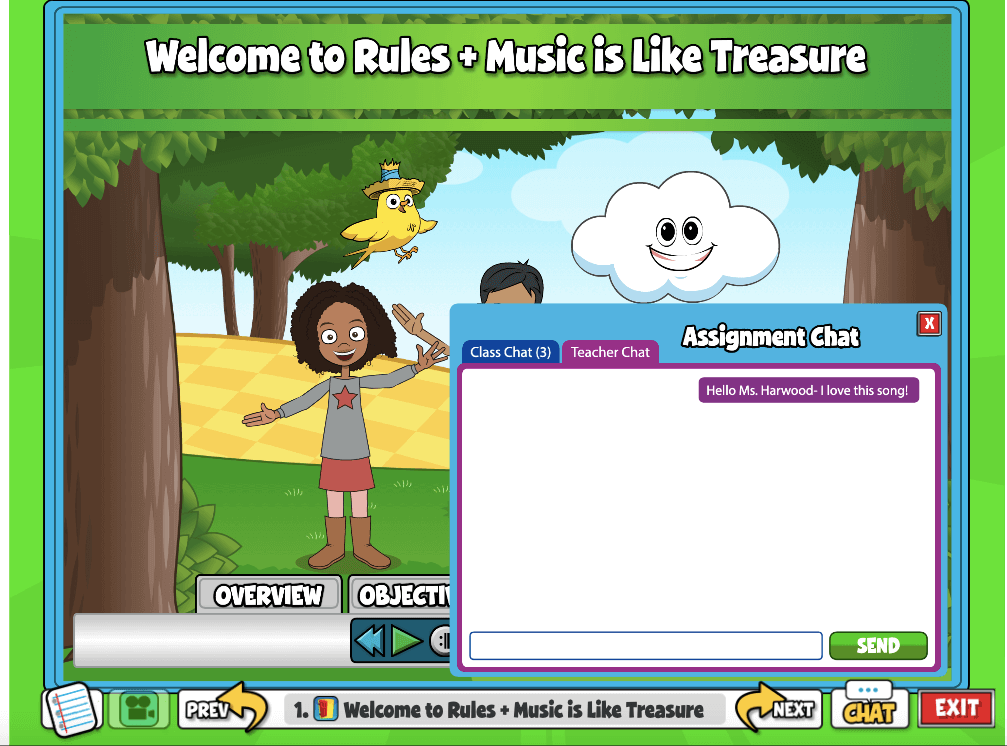
For students, the Chat feature can be found on the Assignments menu or within an assignment.

Within an assignment, students can click CHAT in the bottom right corner to respond to a message or message you, the teacher. You can disable any unwanted messaging using the Chat options above at any point.

A screenshot example of the Student Dashboard
A screenshot example of a Student Lesson with the Assignment Chat opened.
Did you find this article helpful?
Need more information? Reach out to us.

How can we help?

2 thoughts on “Chat”

  1. Carol Swinchoski
    January 28, 2024 at 5:53 pm

    I need to remove acomment I made. I thought I was in student chat and I was in the class chat.
    The comment is for Lillian in my 4th grade class.

    Reply
    1. Van O (Product Support Manager)
      January 29, 2024 at 4:39 pm

      Hi Carol!

      You can right-click any message you sent in the chat and select “Archive.” The message will then turn red. This action allows you to see the message in your teacher account, but students will no longer be able to see it.

      Reply

Leave a Reply to Van O (Product Support Manager) Cancel reply

Your email address will not be published. Required fields are marked *

Table of Contents
  • Teacher View
  • Chat in Gradebook
  • Student View
  • QuaverEd.com
  • FAQs
  • Site Status
  • Contact Us
×

We're Here to Help!

We apologize if this page didn't meet your needs. Please provide more details:

Still need help? Contact Us

Copyright © 2026 QuaverEd, Inc.
