
Skip to content
Help Center
  • QuaverEd.com
  • FAQs
  • Site Status
  • Contact Us
Help Center
  • QuaverEd.com
  • FAQs
  • Site Status
  • Contact Us

Help Center

Getting Started

  • Student Dashboard
  • Assignments Overview
  • Toolboxes
  • Avatars
  • Student Interactives
  • QRewards
  • Take a Quiz Button
  • Home
  • Home
  • QuaverHealth•PE Student
  • Getting Started
  • Take a Quiz Button

Take a Quiz Button

During class, your teacher may have you complete a quiz that requires you to answer the questions using a tablet or laptop. This will allow you to select answers directly from your device as your teacher displays this question on their screen.

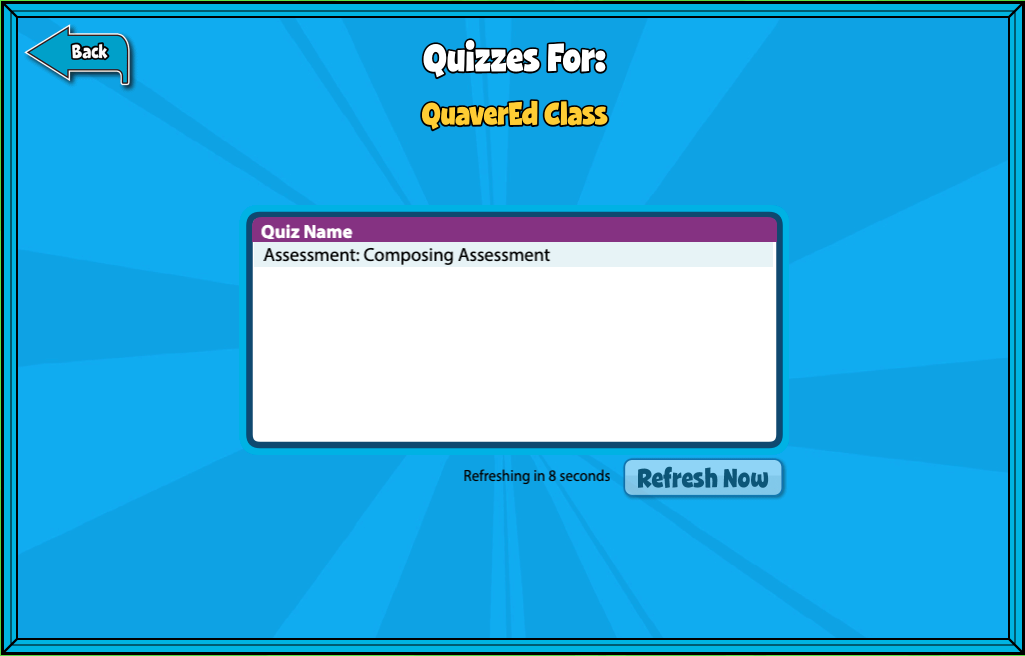
Click the Take a Quiz button on your Student Dashboard. Quizzes your teacher has assigned will appear here. Launch the Quiz to see a blank answer form on your screen. Your teacher will display the quiz questions on their screen. Select the best answer for each question.

When your teacher reaches the final screen of the Quiz and you are finished answering, click Submit on your device. Your score will automatically appear in your teacher’s grade book.


Did you find this article helpful?
Need more information? Reach out to us.

How can we help?

Leave a Reply Cancel reply

Your email address will not be published. Required fields are marked *

  • QuaverEd.com
  • FAQs
  • Site Status
  • Contact Us
×

We're Here to Help!

We apologize if this page didn't meet your needs. Please provide more details:

Still need help? Contact Us

Copyright © 2026 QuaverEd, Inc.