
Overview #
To be accessible means to remove barriers for people with disabilities. In order to make a web page or digital content accessible, it means making sure that the content is perceivable, operable, understandable, and robust. Accessible content is as consistent and equally available as non-accessible content. Users of QuaverEd curricula can identify content using their senses, access controls, buttons, navigation, and other interactive elements; comprehend our content; and use our content on many different devices (PC, Mac, Chromebook, mobile device, and more).
The term a11y stands for “accessibility.” It is a numeronym, with “11” representing the number of letters between the letter “a” and the letter “y” in the word “accessibility.” When read aloud, “a11y” is usually pronounced as “accessibility,” “A-one-one-Y,” or “A-eleven-Y.”
Yes! QuaverEd lessons are designed to be accessible for both students and educators. The curriculum includes features such as printable transcripts, audio descriptions, and keyboard navigation for use by all QuaverEd users. Accordingly, all lesson screens accessed from the Teacher Dashboard, by QR code, or by shared link are accessible.
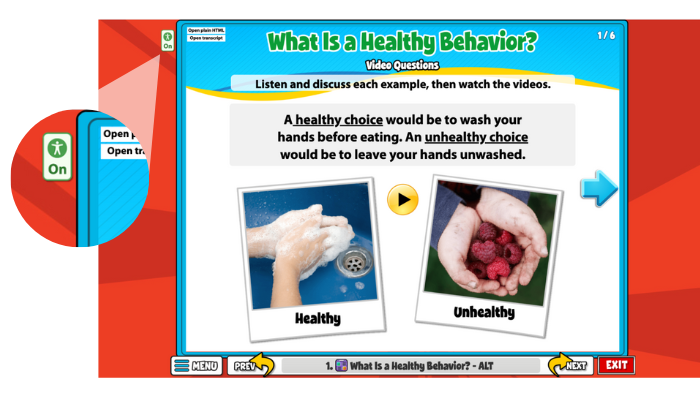
Within a lesson, select the Accessibility Toggle at the top left of the lesson screen. This will trigger a pop-up, select OK, and it will load the accessible screen. NOTE: At this time, accessible lesson screens are only found within Health, PE, and Ready Lessons.
Compliance #
Curricula #
QuaverEd’s Accessibility Team is composed of full-time staff and contractors who bring diverse expertise in education, accessibility, and lived experiences with disabilities. This diversity helps us design and review screens with empathy and a strong understanding of user needs.
Many of our team members have backgrounds in teaching students with disabilities and special education, giving them insight into the challenges learners may face and the accommodations that support success. Some team members also have personal experience living with disabilities, providing valuable perspective on accessibility needs.

In addition to experience, our team holds multiple industry-recognized credentials, including certifications from the International Association of Accessibility Professionals (IAAP). These include Certified Professionals in Accessibility Core Competencies (CPACC) and a Certified Professional in Web Accessibility (CPWA). We also have Certified Trusted Testers trained to evaluate digital accessibility using federal Section 508 standards, along with specialized certifications for assistive technology testing with screen readers such as JAWS and NVDA.
This combination of professional experience, industry certification, and personal insight reflects QuaverEd’s commitment to building accessible digital content that supports all users.
QuaverEd is committed to a fully accessible user experience. As one of the largest teams in QuaverEd’s Content Department, our accessibility professionals are solely dedicated to making all of QuaverEd’s curricula fully accessible.
QuaverEd is committed to providing an accessible user experience. Our accessibility team works to ensure QuaverEd’s curricula meet recognized accessibility standards and are continually improved to support all users.
Functionality #
Yes. In addition to striving for WCAG and Section 508 compliance, QuaverEd.com utilizes a plugin to make our site even more accessible by providing features that would otherwise not be available. Using the accessiBe plugin you can take your QuaverEd.com experience and customize it to make sure you get the most out of our content. By keyboard navigation or mouse clicking the Accessibility Icon floating in the bottom left corner of the window, you’ll open a variety of options to take control of your experience. There are preset profiles for users who would like to use accessibility profiles such as Seizure Safe, Vision Impairment, Keyboard Navigation profiles, and more. You can also adjust individual items such as sizing, scaling, magnification, color adjustments, and orientation within the plugin. We aim to make our site not only accessible but easy to use as well.
- Computers:
- Windows: Use JAWS for best experience
- Mac: Use VoiceOver for best experience
- Chomebooks: Use ChromeVox for best experience
- Mobile devices:
- Apple: Use VoiceOver for best experience
- Android: Use TalkBack or Voice Assistant for best experience
Due to some of the technologies used to create QuaverEd’s interface and to get the best experience while using screen readers, there are some differences in how you will need to navigate the site. Modern assistive technologies are very advanced and will activate certain features when some elements pop up on the page or when a new window is opened. See the questions below to learn more about individual screen reader requirements.
QuaverEd’s accessible lesson framework simplifies lesson navigation using the Tab key. JAWS users must turn off the PC Virtual Cursor while navigating the accessible lessons. To do this use the command Insert + Z. JAWS will turn the Virtual Cursor back on by default when the page is refreshed or a new tab or window is opened. If you’re having difficulty navigating, try using the command to turn it off again.
Accessible lessons are navigated using the TAB or SHIFT + TAB commands and interactive elements are activated using SPACE or ENTER.
This information is also displayed in the Accessibility Mode popup that is displayed when accessing an accessible lesson.
VoiceOver users must ensure QuickNav is off while navigating the accessible lessons. To do this use the command LEFT ARROW + RIGHT ARROW. If you’re having difficulty navigating, try using the command to turn it off again.
Accessible lessons are navigated using the TAB or SHIFT + TAB commands, and interactive elements are activated using SPACE or ENTER.
This information is also displayed in the Accessibility Mode popup that is displayed when accessing an accessible lesson.
QuaverEd’s accessible lesson framework simplifies lesson navigation using the Tab key. NVDA users will need to turn off Browse Mode while navigating the accessible lessons. To do this use the command Insert + SPACE. NVDA will turn Browse Mode back on by default when the page is refreshed or a new tab or window is opened. If you’re having difficulty navigating, try using the command to turn it off again.
Accessible lessons are navigated using the TAB or SHIFT + TAB commands and interactive elements are activated using SPACE or ENTER.
This information is also displayed in the Accessibility Mode popup that is displayed when accessing an accessible lesson.
By default, Safari’s Tab key only jumps to links and form elements on a webpage. Option-Tab is Safari’s default method for keyboard navigation to take you to each item. The default can be switched by going to Safari’s Preferences > Advanced and selecting “Press Tab to highlight each item on a webpage.” Changing this preference will reverse the default settings and you can Tab through each item.
Check to make sure you don’t have a pop-up blocker turned on. If you do, whitelist QuaverEd.com and refresh the site.
Yes! Each and every accessible lesson’s screen is quality tested using screen readers and other assistive technologies on multiple platforms, including computers and mobile devices.
Yes! Transcripts are available for all screens that include audio. For videos, the transcripts are included in Teacher Notes. For all other screens, printable transcripts are linked in the upper left corner of the lesson screen.
Our Spanish resources are not accessible at this time. If you switch to a Spanish Resource, Accessibility Mode will automatically turn off.
ChromeVox users must ensure Sticky Mode is off while navigating the accessible lessons. To do this use the command LAUNCHER or SEARCH twice quickly. If you’re having difficulty navigating, try using the command to turn it off again.
Accessible lessons are navigated using the TAB or SHIFT + TAB commands and interactive elements are activated using SPACE or ENTER.
This information is also displayed in the Accessibility Mode popup that is displayed when accessing an accessible lesson.
QBackBeat, QComposer, QGrooves, QSoundFX, QStrum, and QSynth have been rebuilt and are now accessible! They also now offer keyboard shortcuts that can be enabled in the Menu.

Converted playlist screens now have character key shortcuts available while tabbing through the screen. The “p” key will move focus to the player, the “i” key will move focus to the image related to the song, and the “s” key will move focus back to the currently selected track.
