To exit the Music Room select the “To Quaver Street” on the wall above the TV.
On QuaverStreet, you have access to your very own music room. Here you can explore and add decorative items in the Music Room Editor, play games, and test your knowledge with Ear IQ interactives.
Find your Music Room at the top left corner on QuaverStreet.

Music Room Editor #
Click the white Music Room Editor button at the bottom center of your screen to open the editing menu.
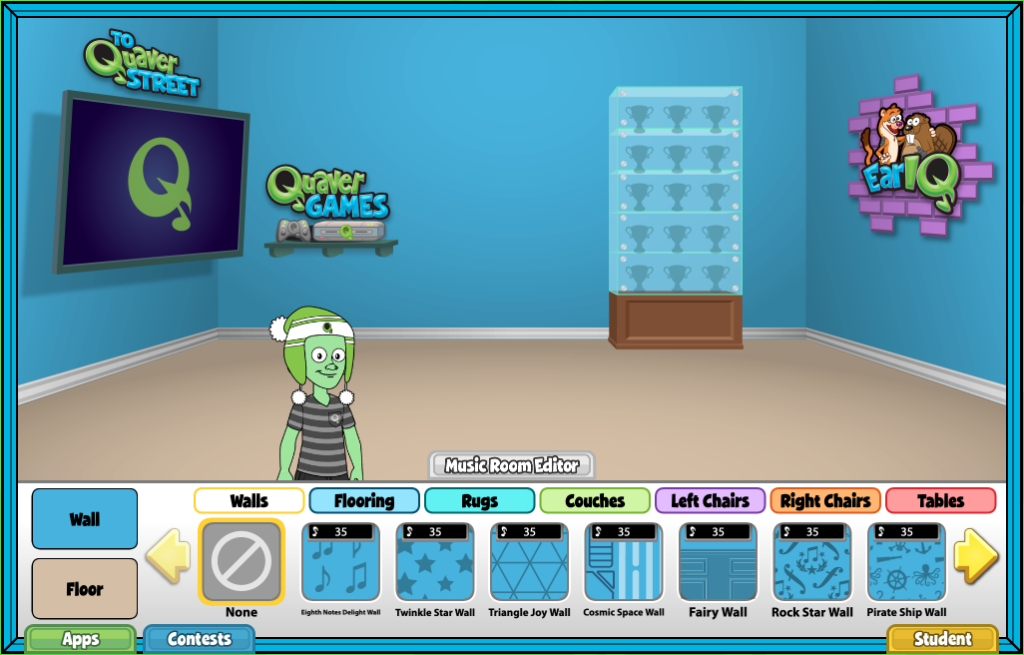
Here, you can browse the different categories of decorative items including:
- Wall patterns and colors
- Flooring patterns and colors
- Rugs
- Couches
- Left Chairs
- RIght Chairs
- Tables
Use the yellow arrows to scroll through all options for the different categories.
When you are ready, select an item to see it appear in your music room.
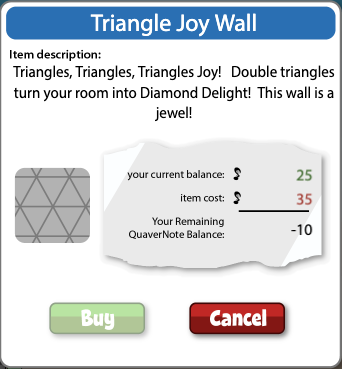
Some items cost QuaverNotes. Those will be marked with a small black price tag. Select an item to view the item description, your QuaverNote balance, and your remaining QuaverNote balance, if you choose to purchase your item.
Click Buy to activate an item in your Music Room. You will see a “Yippie!” message to confirm your purchase. Once an item is purchased, the small black price tag will no longer appear next to that item.
When you are finished decorating, click Music Room Editor to close that menu.
EarIQ #
Find EarIQ on the right wall of your Music Room.

Click Games to access the EarIQ games you can play! There are six different games to choose from.
Click High Score to see your class’s Weekly Top 3 rating. Click School Rating to the left to view your entire school’s Weekly Top 10.
Click My EarIQ to see your ratings for each of the EarIQ games!

Quaver Games #
Click QuaverGames on the back wall of your Music Room to access fun games.
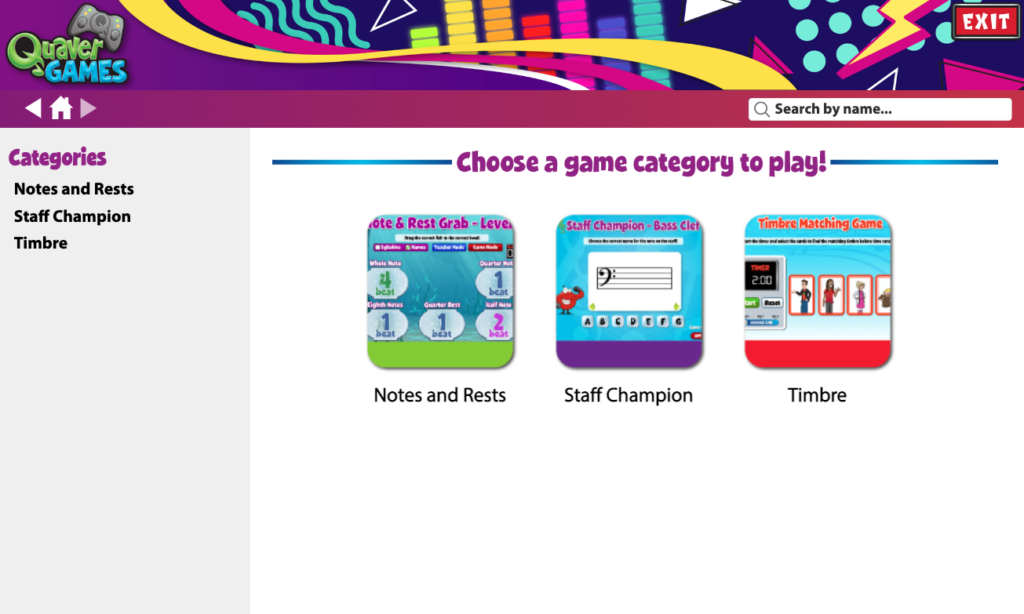
There are three categories of games to choose from:
- Notes and Rests
- Staff Champion
- Timbre
Click on any category to view all of the available games. Many of the games have multiple levels so you can choose your level of difficulty.
You can also search for specific games by typing in a title in the search bar.

How do you earn QuaverNotes?
Currently, there is no way for students to earn QuaverNotes directly through the QuaverEd platform. QuaverNotes are awarded or assigned to students by their teacher.
How do you get trophies in the trophy case?
Hi Katrina!
We hope to have the Trophy Case working again at some point in the near future, but we don’t have an eta at this time. We’ll be sure to pass your request along to our content team.
I am trying to enter my unpublished music in the contest again, so how do I find all of it back again?
Hi Ellis,
A song has to be published in order to enter it into a Quaver Contest! Once published, it should show up to enter in the contest. Here’s our help page on that subject!